Quick Answer
Pair the UGREEN FineTrack S with SmartThings through the SmartThings Find section, then use the app to locate items and enable notifications.
Why SmartThings Find matters for Samsung users
The UGREEN FineTrack S is designed specifically for Samsung devices, so it works with the SmartThings Find network rather than a generic tracker app. This means you can use the same app you already have for your Galaxy phone or tablet, and you can share your tracker location with family members who also use SmartThings.
Because the FineTrack S uses the SmartThings Find network, it can report its location even when it's out of Bluetooth range, as long as other Samsung devices are nearby. That's a big advantage over a simple Bluetooth tracker that only works when you're within a few dozen feet.
Before you start: check compatibility
This tracker is for Samsung only. It will not work with Apple's Find My network or with Android devices that don't support SmartThings Find. Make sure your phone is running a recent version of the SmartThings app and that you're signed in to your Samsung account.
If you're not sure whether your phone supports SmartThings Find, open the SmartThings app and look for the 'Find' tab. If you see it, you're good to go.
How to set up your UGREEN FineTrack S with SmartThings
- Install and open the SmartThings app: Make sure your Samsung phone or tablet has the latest SmartThings app from the Galaxy Store or Google Play. Open the app and sign in with your Samsung account. If you don't have a Samsung account, you'll need to create one before you can use SmartThings Find.
- Add the FineTrack S to SmartThings: In the SmartThings app, tap the 'Devices' tab, then tap the '+' icon and select 'Add device'. Choose 'Scan' or look for the FineTrack S in the list of compatible devices. Make sure your phone's Bluetooth is on and the tracker is nearby. If the tracker doesn't appear, bring it closer to your phone and make sure it's not in a metal container that could block the signal.
- Name your tracker and assign it to a room: After the tracker is detected, give it a clear name like 'Keys' or 'Backpack' and assign it to a room in your SmartThings home. This makes it easier to find later in the app. Use a name that matches the item you're tracking so you can quickly identify it in a list.
- Test the ring and locate feature: Tap on the tracker in the SmartThings app and tap 'Ring' to make it play a sound. Then walk away and use the 'Locate' feature to see its approximate position on a map. If the ring doesn't play, check that the tracker is within Bluetooth range and that your phone's volume is turned up.
- Set up separation alerts: In the tracker's settings within SmartThings, enable separation alerts. This will send you a notification if you leave the tracker behind. Adjust the alert sensitivity if you're getting too many false alarms when you're just moving around a room.
UGREEN FineTrack S at a glance
-
UGREEN FineTrack S with SmartThings (Samsung Only): The FineTrack S offers up to 550 days of battery life. You won't have to worry about charging or replacing the battery for over a year, making it a low-maintenance tracking solution.
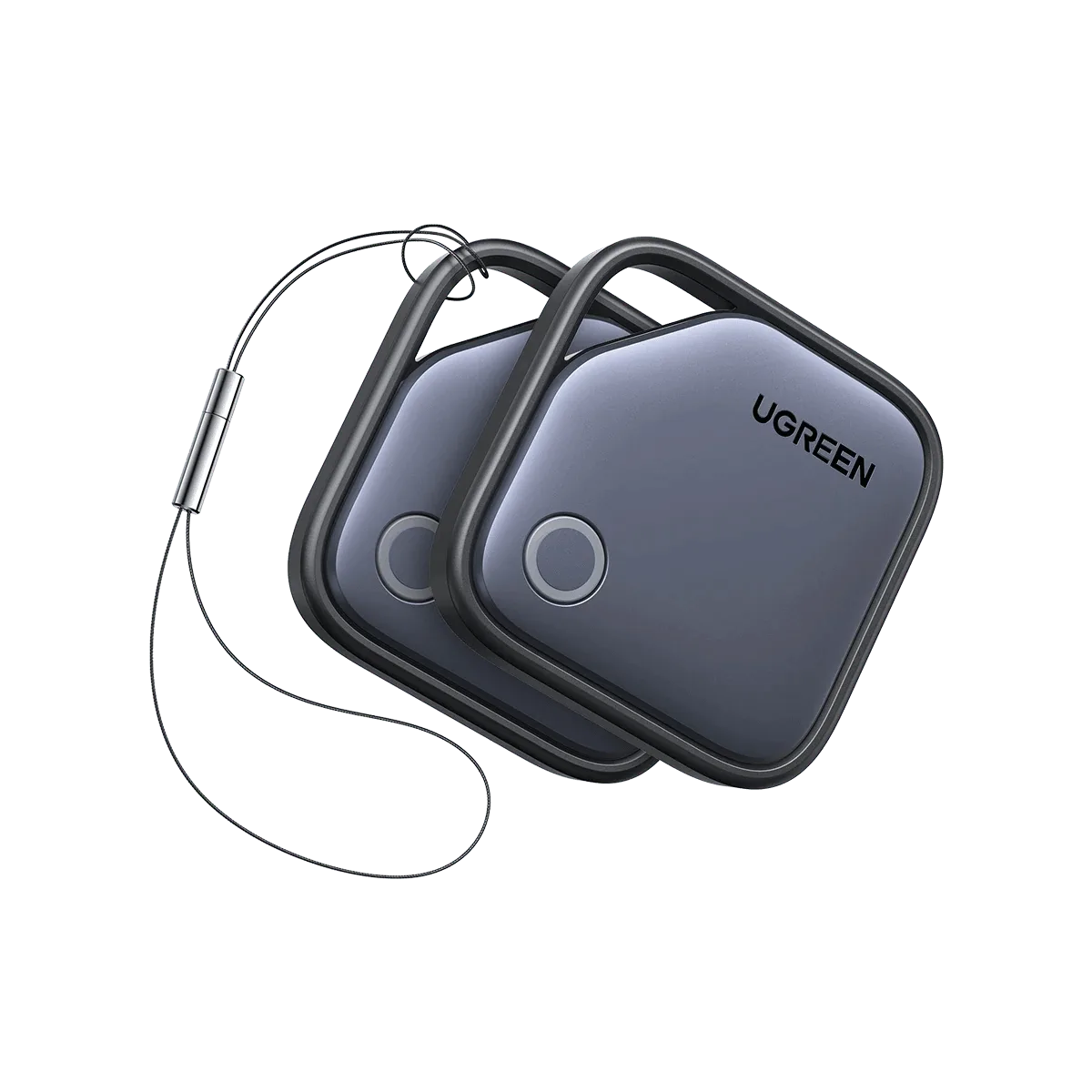
UGREEN FineTrack S with SmartThings (Samsung Only)
-
UGREEN FineTrack S with SmartThings (Samsung Only): It keeps a 7-day location history. You can review where your item was over the past week, which is useful for spotting patterns or retracing steps.
-
UGREEN FineTrack S with SmartThings (Samsung Only): The built-in speaker is loud up to 80dB. The loud ring makes it easy to find items even when they're buried under a couch cushion or in a noisy bag.