Quick answer
Buy the hub that matches your daily devices, not the one with the most ports. Count the cables you actually plug in, check your laptop's USB-C capabilities, then choose a hub with the right mix of HDMI, USB-A, card readers, and pass-through charging. If you need a full desktop setup with many peripherals and power delivery, a dock is usually the better fit; for travel and lighter setups, a compact multi-port hub adapter is enough.
Most people shopping for a USB-C hub start with the wrong question: how many ports can I get? The better question is which devices you plug in every day, and whether your laptop can actually support them. A hub with ten ports is useless if two of them are the wrong type, or if your laptop's single USB-C port can't deliver enough power and data at the same time.
This guide walks through the decisions in order: inventory your devices, check your laptop's port capabilities, pick the port types that matter, and then choose between a portable hub and a larger dock. Along the way, real Satechi products show what different port mixes look like in practice.
Start by counting the cables you plug in every day
Before comparing hubs, make a list of everything you connect to your laptop in a normal week. Most people find they use three to five items: a monitor, a charger, a mouse or keyboard, a USB drive, and occasionally a memory card or external SSD. Write them down with their connector types. That list, not a spec sheet, decides which hub you need.
Once you have the list, group items by connector: HDMI or DisplayPort for monitors, USB-A for older peripherals, USB-C for newer drives and phones, SD or microSD for cameras, and Ethernet if your Wi-Fi is unreliable. The hub you buy should cover the group you use most often, with one spare port for the future.
- Tip: If you use a wired mouse and keyboard plus an external monitor, prioritize USB-A ports and HDMI over extra card readers.
- Tip: If you edit photos or video, put SD and microSD readers near the top of your list.
Check what your laptop's USB-C port can actually do
Not all USB-C ports are equal. Some support video output, data, and charging; others only do data. Before buying any hub, confirm that your laptop's USB-C port supports DisplayPort Alt Mode if you want to connect a monitor, and check whether it supports USB Power Delivery if you want pass-through charging. The laptop manual or the manufacturer's spec page is the fastest source.
This matters because a hub can only pass through what your laptop provides. If your port doesn't support video, no hub will add it. If your laptop charges at a higher wattage than the hub's pass-through rating, you may charge more slowly or not at all while the hub is connected.
- Rule: Match the hub's pass-through charging rating to your laptop's charger wattage.
- Rule: Confirm video support on your specific laptop model before buying an HDMI hub.
Pick ports by job, not by count
A useful hub has the ports you will use weekly. HDMI is the standard choice for an external monitor, and 4K at 60Hz is smoother for reading and video than 30Hz. USB-A remains the most compatible port for older accessories, so two USB-A ports cover most mouse, keyboard, and drive setups. USB-C data ports handle newer SSDs and phones.
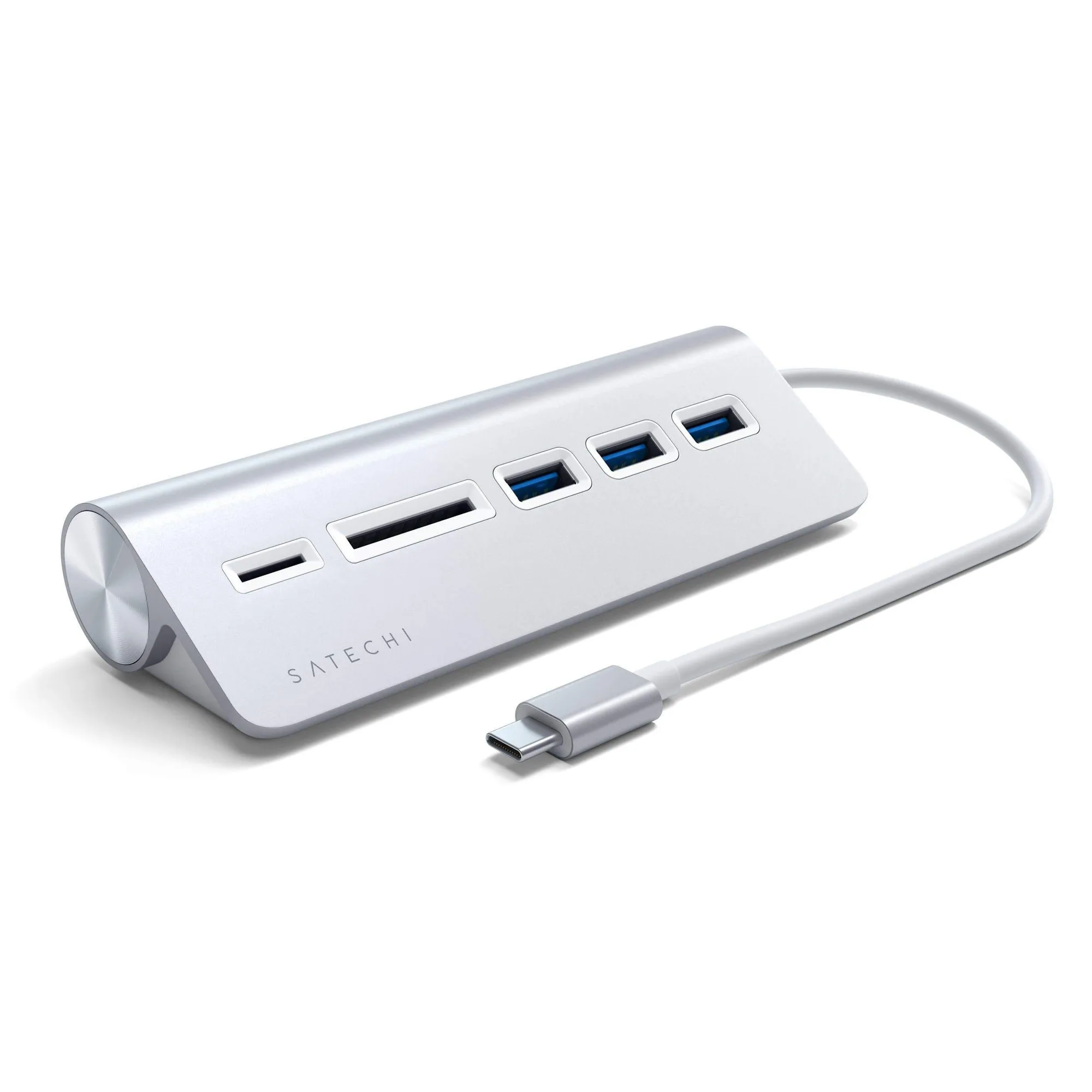
Card readers are worth having if you shoot photos or transfer from a camera, and they are easy to leave out if you never touch removable media. Ethernet is a specialist port: only prioritize it if you need a stable wired connection for calls, large uploads, or older office networks.
- For a single-monitor desk: HDMI plus two USB-A is the practical minimum.
- For photographers: SD and microSD readers plus USB-A for card readers and drives.
- For travelers: a slim hub with HDMI, USB-A, and pass-through charging is easier to pack than a dock.
Hub vs dock: choose by how often you unplug
The hub vs dock decision comes down to how you work. A hub is small, often bus-powered, and designed to travel with your laptop. A dock is larger, usually has its own power supply, and stays on the desk so you can connect everything with one cable when you sit down. If you carry your laptop between home and office, a hub is the simpler choice.
If your desk has a monitor, speakers, a webcam, an external SSD, and a wired network cable, a dock reduces cable juggling. If you mostly work from the laptop and only occasionally plug in a monitor or drive, a hub handles it at a lower cost and less desk space.
- Choose a hub if you unplug more than twice a day.
- Choose a dock if your desk setup stays put and you want one-cable reconnect.
Watch for bottlenecks and heat
Ports share bandwidth. When you copy files to an external SSD while also driving a 4K monitor and charging, the hub is working hard, and transfer speeds can drop. For large file transfers, connect the SSD directly to a laptop USB-C port when possible, or use a hub with a high-speed USB-C data port for that drive.
Heat is normal for compact metal hubs, but persistent hot operation can slow performance. Keep the hub in open air rather than under a laptop stand or behind a monitor, and avoid stacking it under papers. If a hub runs hot and drops connections, unplug unused devices and test again.
- Move large transfers to a direct laptop port when speed matters.
- Keep hubs ventilated; do not bury them under a laptop or monitor stand.
Decision rules for choosing your hub
- Rule 1: Match ports to your weekly devices: List the monitor, charger, drives, and peripherals you connect each week, then buy a hub that covers that list with one spare port. If the hub covers your weekly list, extra ports are optional, not required.
- Rule 2: Verify laptop support before buying: Confirm your USB-C port supports video output and charging if you plan to use HDMI and pass-through power. No hub can add features your laptop's port does not support.
- Rule 3: Choose hub or dock by unplug frequency: Frequent travel and light connections favor a hub; a fixed desk with many peripherals favors a dock. Pick the format that matches your routine, not the one with the longest spec sheet.
- Rule 4: Keep high-speed transfers direct: For large file copies, connect the SSD to a laptop port rather than sharing bandwidth through the hub. Use the hub for everyday connections and direct ports for heavy transfers.
How real hubs map to these decisions
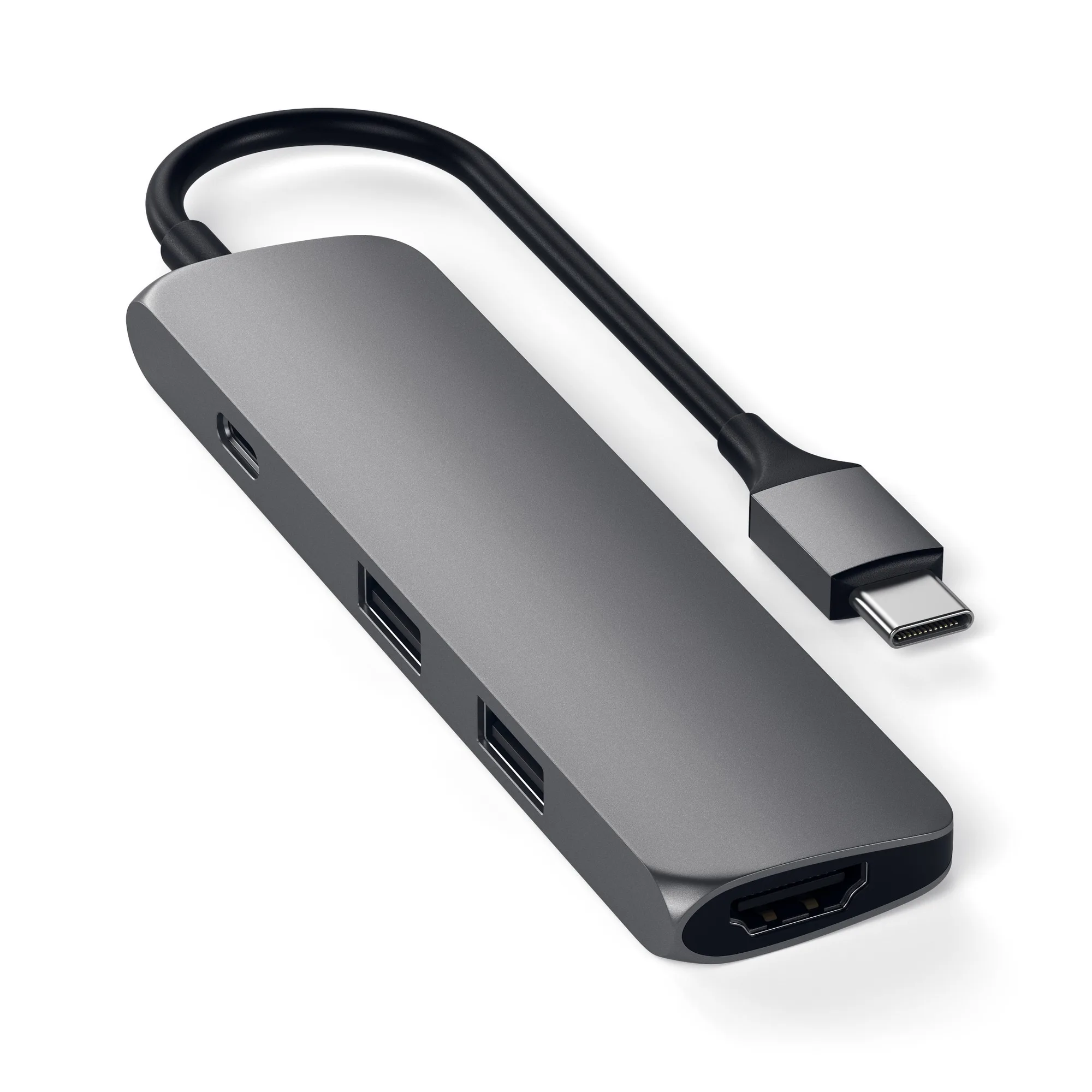
- Type-C Slim Multi-Port Adapter 4K: Adds 4K HDMI (up to 60Hz), pass-through charging, and two USB Type-A ports through one Type-C port. A straightforward fit for a laptop user who needs a monitor, a charger, and legacy USB-A accessories without carrying a larger dock.
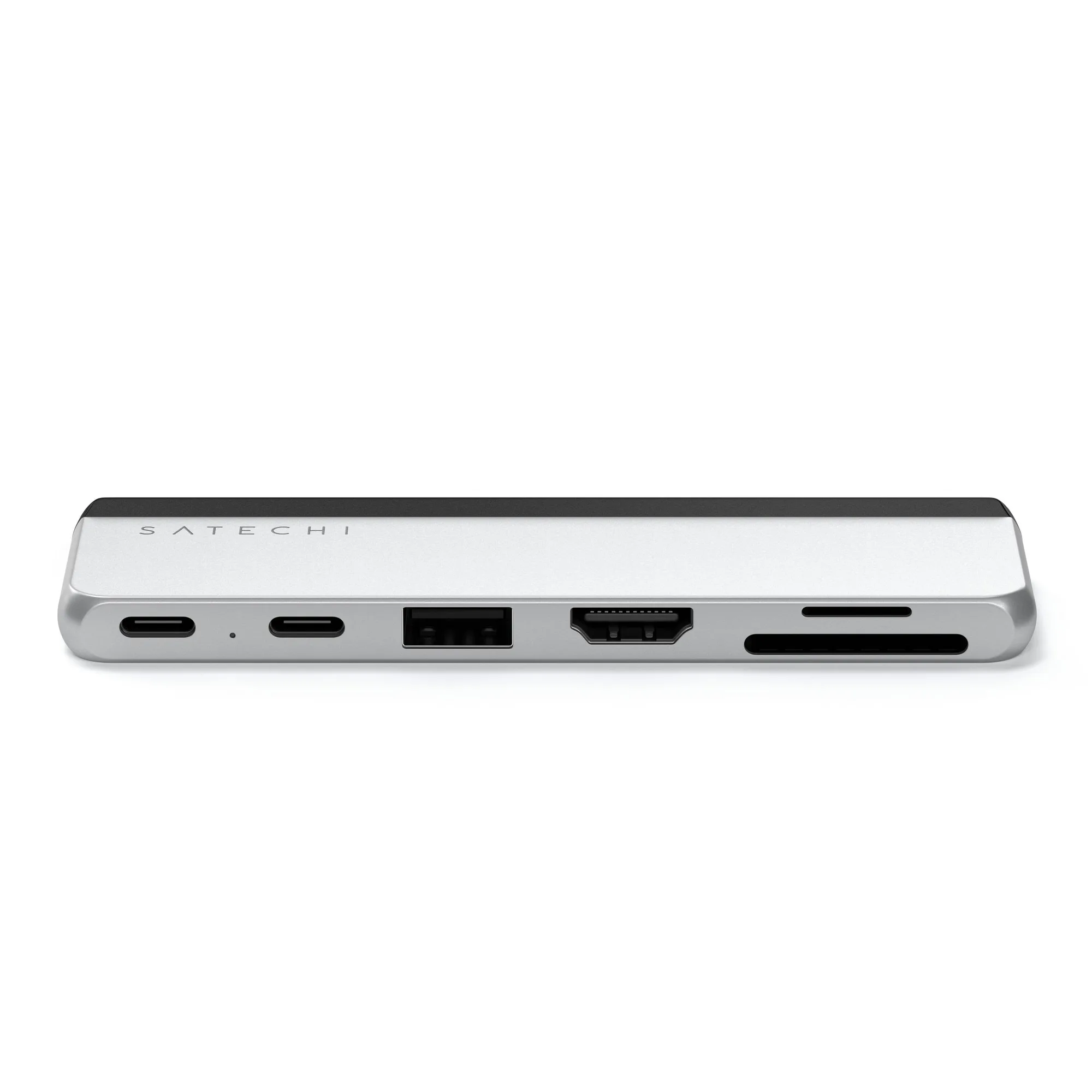
- Pro Hub Slim: Offers a full-function USB4 pass-through port, 4K HDMI, a USB-C data port, two USB-A data ports, and SD/microSD card readers. Covers monitor, storage, and camera media in one compact hub, which suits photographers and anyone who moves between desk and bag.
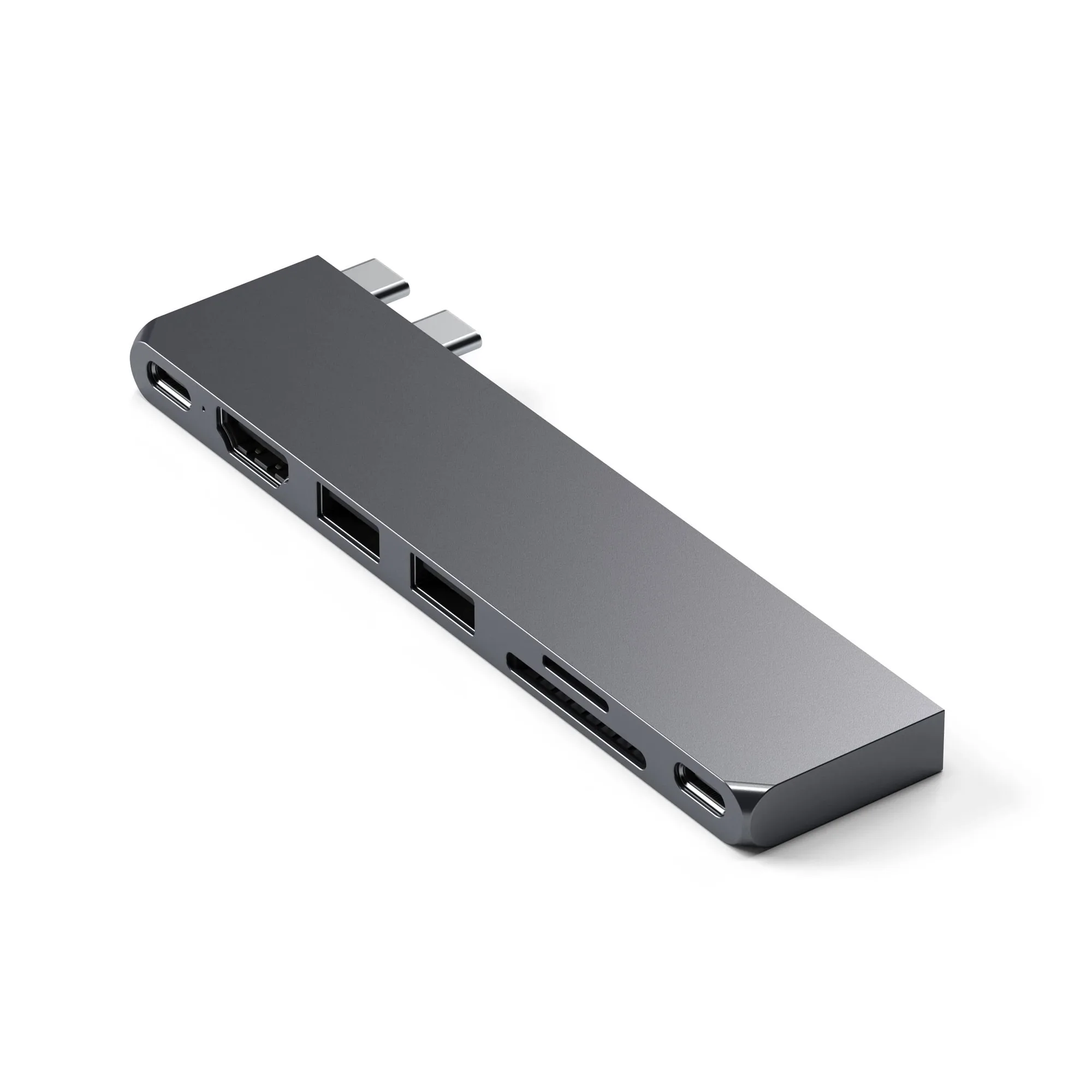
- Dual USB-C Hub For Surface Pro: Attaches to the Surface Pro and adds connectivity to turn the device into a fuller workstation. A form-factor-specific option: if you use a Surface Pro, a hub designed to attach to it avoids dongles hanging off the single port.
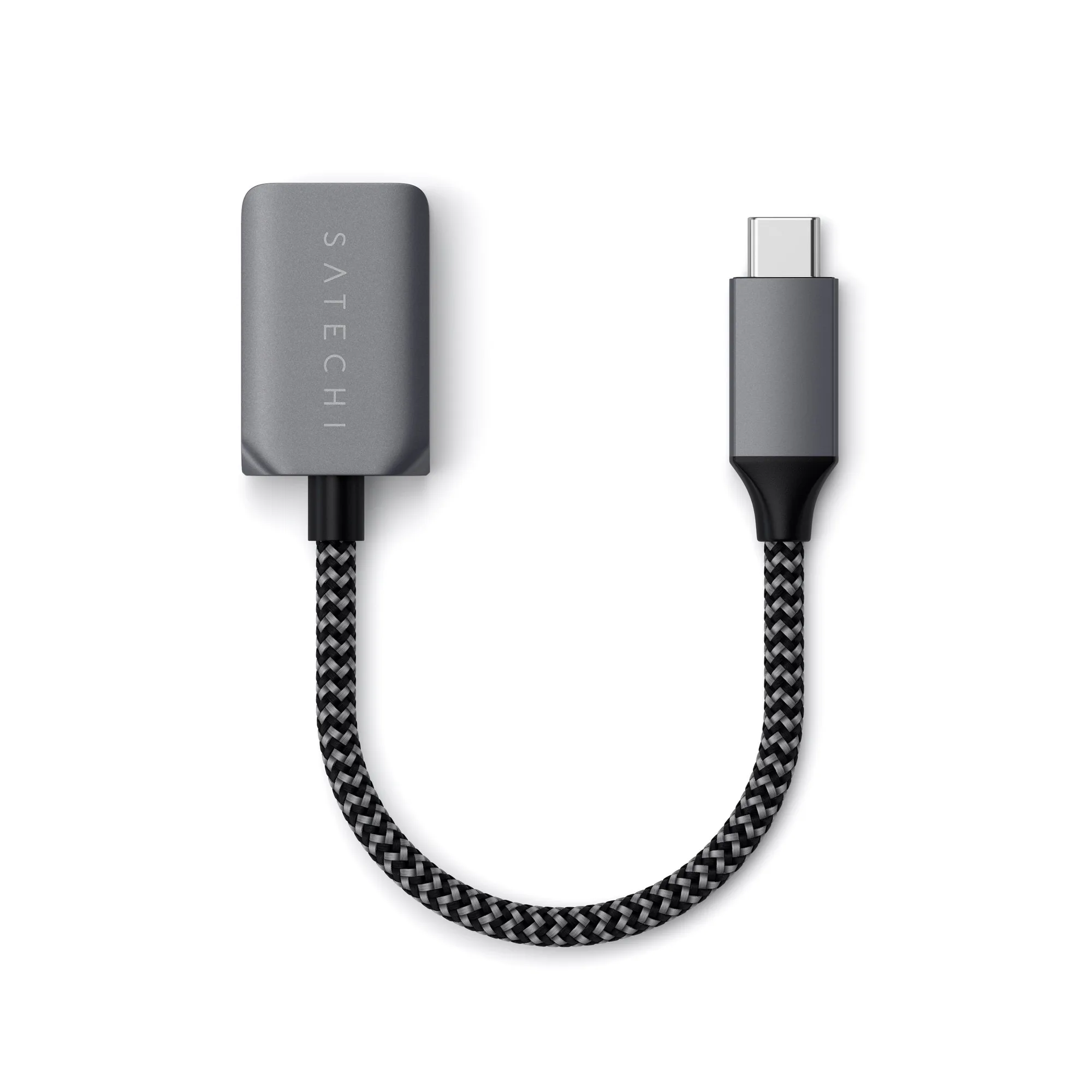
- USB-C to USB 3.0 Adapter Cable: Connects USB-A devices to a USB-C laptop or tablet with SuperSpeed USB data transfer up to 5Gbps and a braided design. A low-cost fix when you only need one USB-A device and do not want to carry a full hub.
Who should buy which setup
Best for
- Laptop users who need a monitor, charger, and a couple of USB-A accessories in one compact hub
- Photographers and travelers who want card readers and HDMI in a portable hub
- Surface Pro owners who want a hub that attaches to the device instead of dangling from the port
Not for
- Desk-bound users with many peripherals who would benefit from a full dock with its own power supply
- Anyone whose laptop USB-C port lacks video output and who expects a hub to add it
- Users who need the fastest possible SSD transfers and should connect drives directly
Choose your hub by matching ports to the devices you actually use, then confirm your laptop supports the features you need. A compact multi-port hub adapter covers most laptop setups; a dock makes more sense for a fixed desk with many peripherals. Buy for your weekly routine, keep one spare port, and you will avoid both overspending and the frustration of a hub that almost fits.