Quick answer
Set a custom white balance using a dedicated filter or a grayscale target. Both approaches give you neutral colour without relying on auto white balance.
Filter vs target: which one fits your workflow?
A white balance filter like the ExpoDisc is held in front of the lens and measures the light hitting the camera. It works for both stills and video in seconds. A grayscale target such as the ColorChecker 3-Step Grayscale is placed in the scene and used as a reference during editing. The filter is faster on set; the target gives you a visual check throughout post-production.
If you shoot video, a filter lets you set white balance in-camera before recording, saving time in the edit. For photo shoots where you want to match multiple cameras, a grayscale target provides a consistent reference point.
How to set white balance with a filter and a target
- 1. Set your camera to custom white balance mode: Open the white balance menu and select 'Custom' or 'PRE'. This tells the camera you will measure the light manually. Common mistake: forgetting to switch out of auto white balance, which overrides your custom setting.
- 2. Use the ExpoDisc to capture the light: Hold the ExpoDisc V3 over the lens so it covers the entire front element. Point the camera at the main light source and take a photo. The camera stores this as your white balance reference. Checkpoint: make sure the disc is flush against the lens to avoid stray light.
- 3. Confirm and lock the white balance: Select the captured image as your custom white balance. The camera will apply it until you change it again. Common mistake: forgetting to re-set when you move to a different lighting setup.
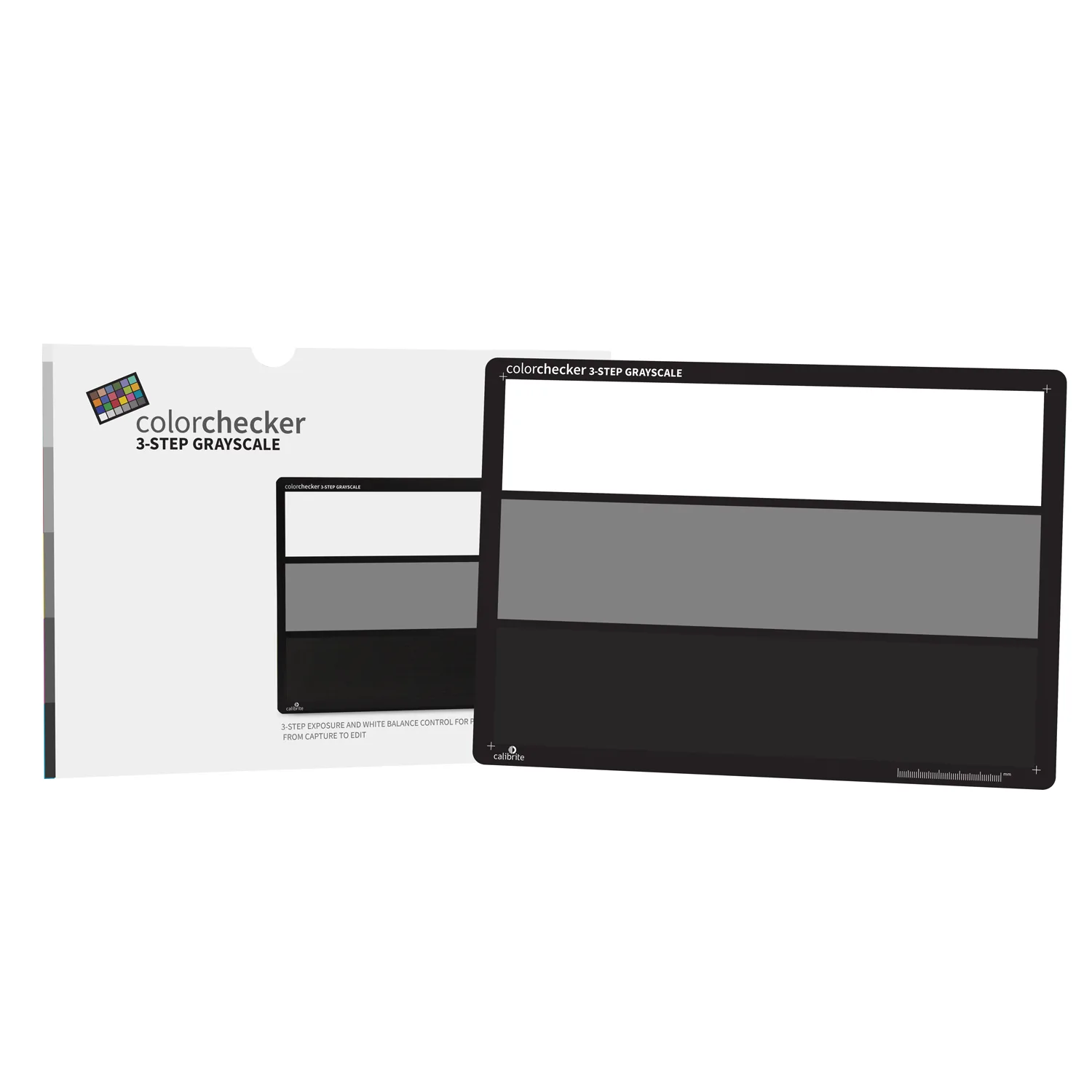
- 4. Use the ColorChecker as an alternative or backup: Place the 3-Step Grayscale in the scene so it catches the same light as your subject. Take one reference shot. In post, use the white balance eyedropper on the 18% gray patch to neutralise colour. Checkpoint: do not move the target between shots if the light changes.
- 5. Match multiple cameras with the same target: Include the ColorChecker in a common shot with all cameras. In post, apply the same gray-point adjustment to each clip or raw file. This aligns colour across cameras without guesswork. Common mistake: relying on one camera's auto white balance and trying to match the others manually.
Products that help
-
ExpoDisc V3 Professional White Balance Filter - 82mm: The ExpoDisc V3 uses improved diffusion materials that perform better across the visible spectrum (380–700 nm), especially in cool open shade or warm light. You get a consistent custom white balance in tricky mixed lighting without needing to adjust in post.
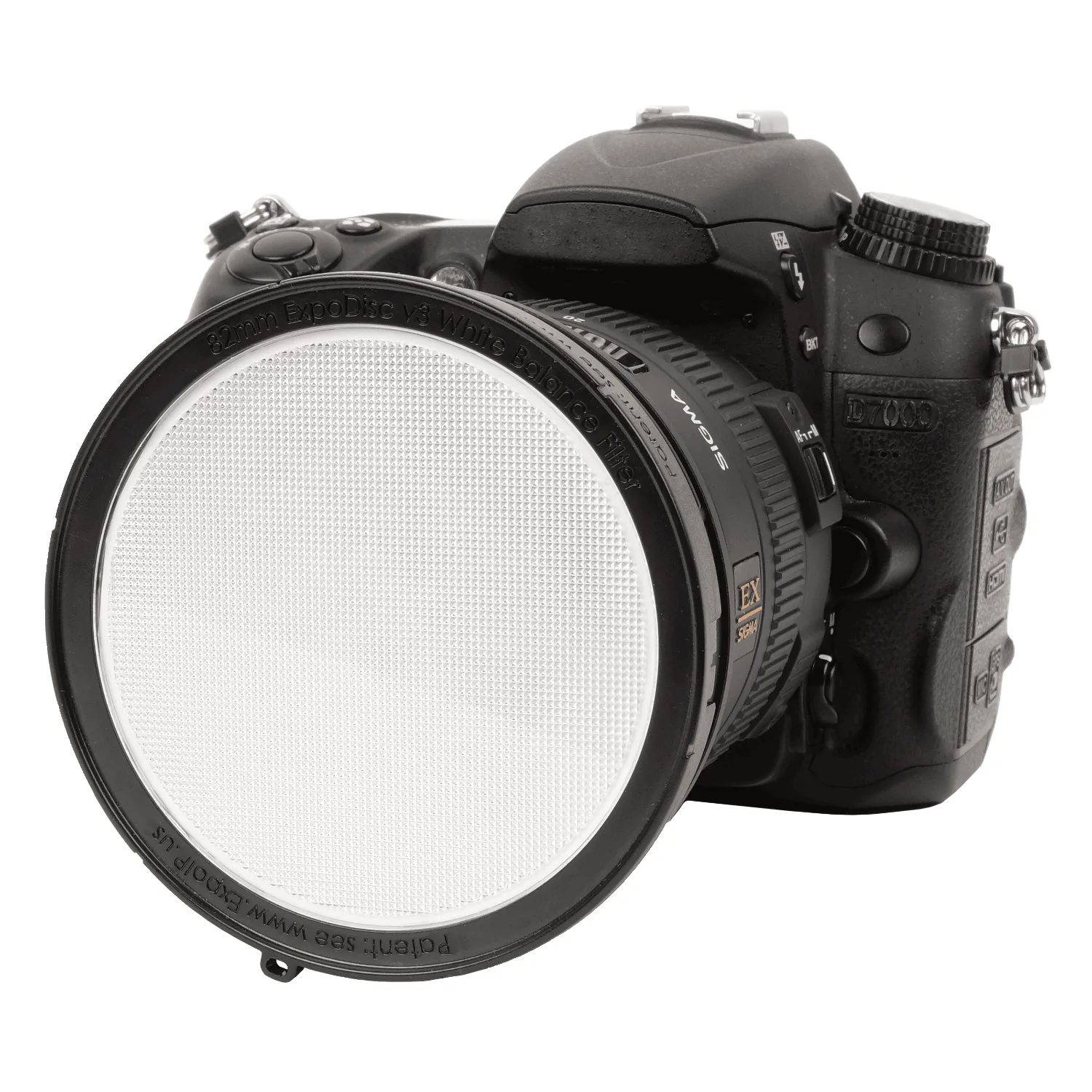
ExpoDisc V3 Professional White Balance Filter - 82mm
-
Calibrite ColorChecker 3-Step Grayscale: The Calibrite ColorChecker 3-Step Grayscale includes white, 18% gray, and black reference patches for quick colour adjustments and evaluating studio lighting. A single shot of this target gives you three tonal references, making it easy to set exposure and neutral grey in any editing software.
Calibrite ColorChecker 3-Step Grayscale