Quick answer
Most wireless cursor stutter is caused by 2.4GHz interference, a USB receiver plugged into the wrong port, a polling rate the connection cannot sustain, or aggressive power saving, not by a failing sensor. Switch the receiver to a front USB port on a short extension, test Bluetooth as a comparison, and lower the polling rate one step; if the stutter survives all three, the mouse or receiver is the problem and it is time to replace it.
Fix the receiver before you touch any software
A 2.4GHz receiver sitting in a rear I/O port is surrounded by the metal case, USB 3.0 controllers, and often a Wi-Fi card, all of which can interrupt the signal. Move the receiver to a front-panel port or use a short USB extension cable to bring it within 20-30 cm of the mouse pad, with clear line of sight. This single change resolves a large share of cursor freezing and jitter complaints because it removes both the shielding and the noisiest interference source.
If the stutter only appears when a USB 3.0 external drive or a phone charger is active nearby, you have confirmed 2.4GHz interference rather than a mouse fault. Unplug or relocate the offending device, or switch the mouse to Bluetooth, which hops frequencies and often behaves better in a crowded 2.4GHz room. Bluetooth adds latency, so it is a stability fix, not a performance upgrade.
Match polling rate to the connection you are actually using
High polling rates demand a clean, strong link. If you run 1000Hz or above on a receiver that is behind a desk, through a hub, or shared with other wireless devices, the mouse spends more time retransmitting and the cursor stutters in bursts. Drop to 500Hz or 125Hz and test for ten minutes; if the stutter disappears, the connection was the limit, not the sensor.
On Bluetooth, keep expectations realistic: many Bluetooth mice cap out well below 1000Hz, and forcing a high rate through software does not create bandwidth that is not there. Use 2.4GHz for gaming and Bluetooth for travel or a clean desk. This is also where a mouse with an adjustable DPI range helps, because you can compensate for a lower polling rate by raising sensitivity instead of fighting the connection.
Stop power saving from cutting the link mid-motion
Windows and macOS both throttle USB devices to save power, and a wireless mouse that sleeps after a few seconds of stillness can wake with a visible cursor jump or a short freeze. In Windows, open Device Manager, find the mouse and each USB Root Hub, and turn off 'Allow the computer to turn off this device to save power.' On macOS, disable Bluetooth power saving only if you are on Bluetooth, and keep the mouse on a powered port rather than an unpowered hub.
Low battery produces the same symptom as interference: the mouse reduces report rate or drops packets to stay alive. Charge fully and retest before you change any other setting. If stutter returns as the battery drains, the fix is a charging habit, not a new mouse.
Stutter diagnosis: symptom, cause, action, stop point
- Cursor freezes for a split second, then catches up: Almost always a 2.4GHz link interruption from a rear USB port, a nearby USB 3.0 device, or a Wi-Fi router on the same band. Move the receiver to a front port or extension cable. If the freeze stops, you are done; do not reinstall drivers.
- Cursor moves in visible steps or lags behind fast swipes: The polling rate is higher than the connection can carry, or Bluetooth is being pushed past its practical limit. Lower polling rate one step (1000 to 500, or 500 to 125) and retest. If it is smooth, keep that setting and stop here.
- Stutter appears only after the mouse has been idle: Power management is suspending the device or the battery is low enough that the mouse is throttling itself. Disable USB power saving and charge fully. If stutter returns at low battery only, treat it as a charging routine, not a hardware failure.
- Stutter continues on a different port, a different PC, and a fresh battery: At this point the receiver or the mouse itself is the common factor across every test. Stop troubleshooting and replace the mouse or receiver; further software changes will not fix a failing wireless module.
What a well-specified wireless mouse gives you
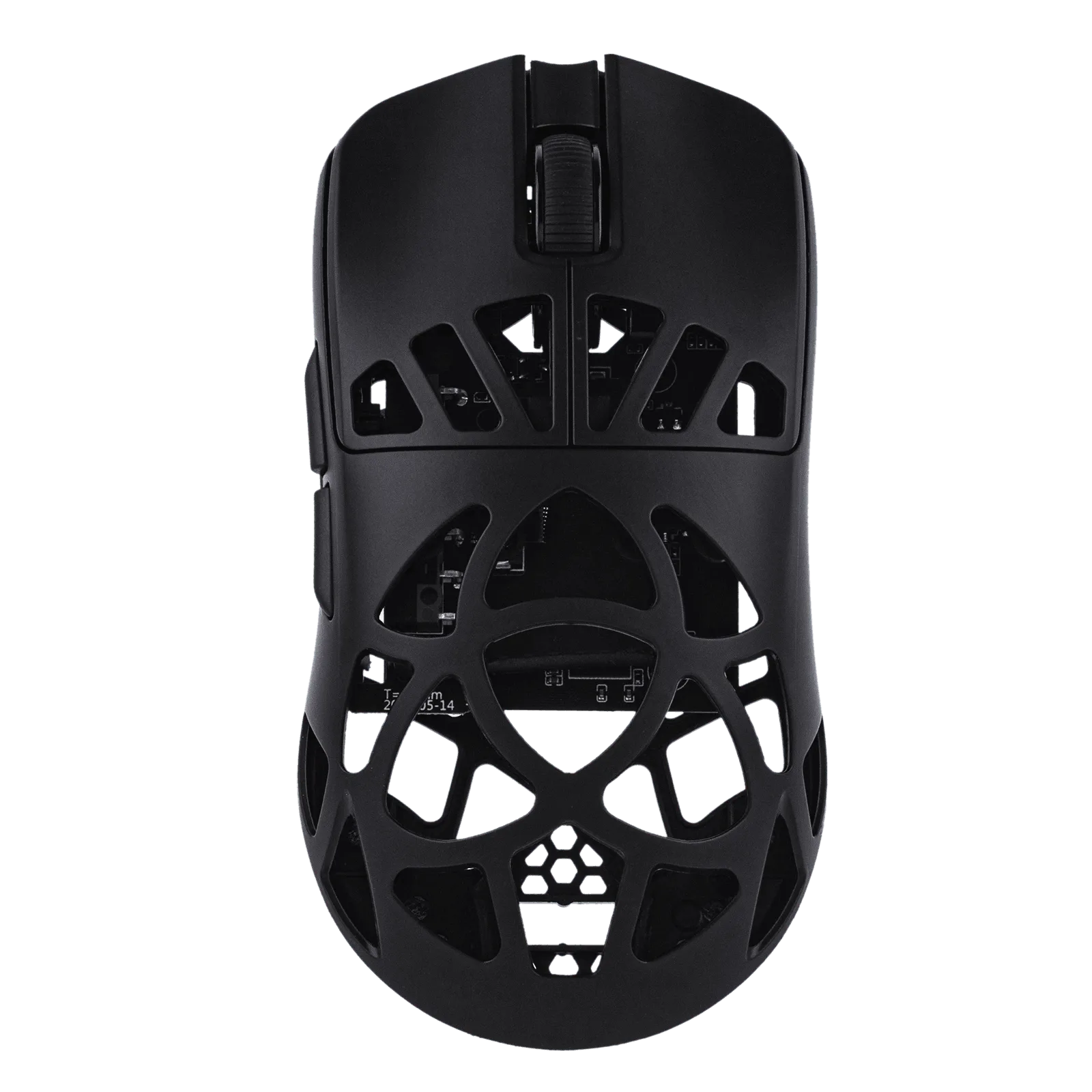
- EPOMAKER CarbonX Mouse: EPOMAKER CarbonX Mouse uses a PAW3950 sensor with adjustable DPI from 400 to 30,000 and a carbon fiber shell. A wide DPI range lets you lower polling rate for a stable link and raise sensitivity to keep the same cursor speed, so you can trade a little report rate for stutter-free tracking.