Quick answer
A blurry conference camera usually means the lens is dirty, autofocus is struggling, or the camera is too far from the action. Clean the lens, adjust the room setup, and check your software settings first.
Why your conference camera might look soft
Blurry video during a meeting isn't always a hardware defect. In many cases, the issue is something you can fix in under a minute. Common causes include a smudged lens, poor lighting, incorrect focus mode, or the camera being placed too far from participants.
For example, the Logitech Rally Bar Huddle is designed for small rooms up to about 6 people. If you place it in a larger space or too far from the table, the image may lose sharpness. The same applies to the Rally Bar Mini, which works best in small to medium rooms.
When to consider a different model
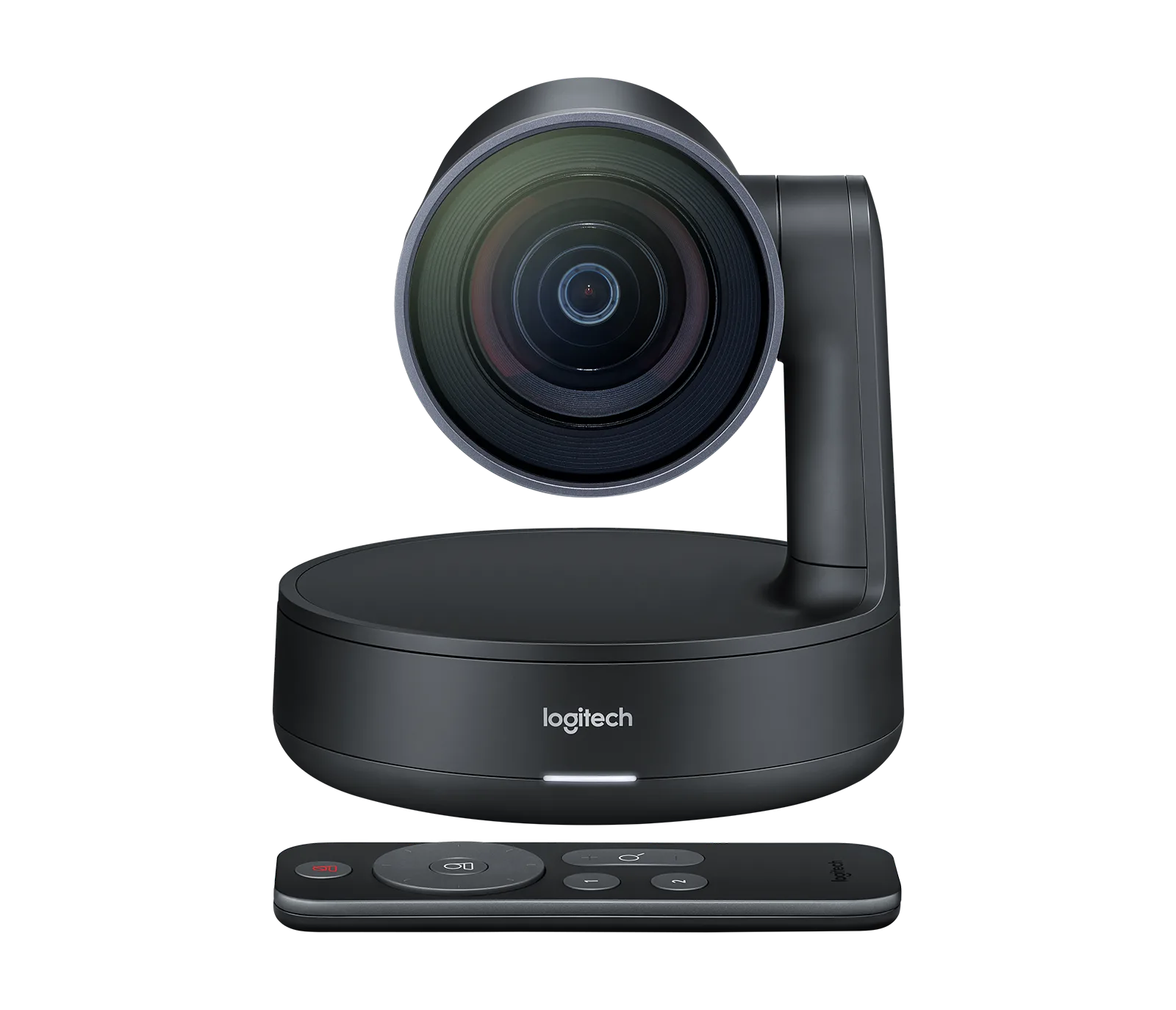
If you've cleaned the lens, adjusted lighting, and checked your software settings but the video is still blurry, the camera may not be the right fit for your room size or layout. The Logitech Rally Camera offers a separate, adjustable camera unit that can be positioned more flexibly, which may help in larger or oddly shaped rooms.
Keep in mind that the Rally Bar Huddle and Rally Bar Mini are all-in-one bars with fixed cameras. Their autofocus and field of view are optimized for specific room sizes. If your room is larger than recommended, a modular setup like the Rally Camera may produce clearer results.
Diagnosis: Find and fix the blur
- Symptom: Video is blurry or soft during calls: Check the camera lens for smudges or dust. Wipe it gently with a microfiber cloth. Also verify that the lens is not covered by a privacy shutter or sticker. If cleaning doesn't help, move to the next step.
- Likely cause: Autofocus can't lock on: Poor lighting or a lack of contrast in the scene can confuse autofocus. Turn on more room lights, avoid sitting in front of a bright window, and make sure faces are well-lit. In your video conferencing app, disable any digital zoom or background effects that may reduce sharpness. If the image is still blurry, check your camera's field of view.
- Corrective action: Adjust camera position or settings: Move the camera closer to the participants or adjust its angle so faces fill more of the frame. For Logitech Rally Bar devices, open the Logitech Sync app and verify that the camera firmware is up to date. You can also try resetting the camera settings to default. If none of these steps resolve the blur, your room may be too large for the camera model you are using.
- Stop or choose another option: If you've tried all the above and the video is still blurry, consider upgrading to a camera better suited to your room size. For larger rooms, a modular setup like the Logitech Rally Camera allows you to place the camera closer to the action while keeping the audio bar in a central location.
Product facts
-
Rally Bar Huddle - Graphite: The Logitech Rally Bar Huddle is optimized for small to medium-sized rooms, delivering clear video and audio for effective collaboration. If your room exceeds that size, the camera may struggle to maintain sharp focus on all participants.
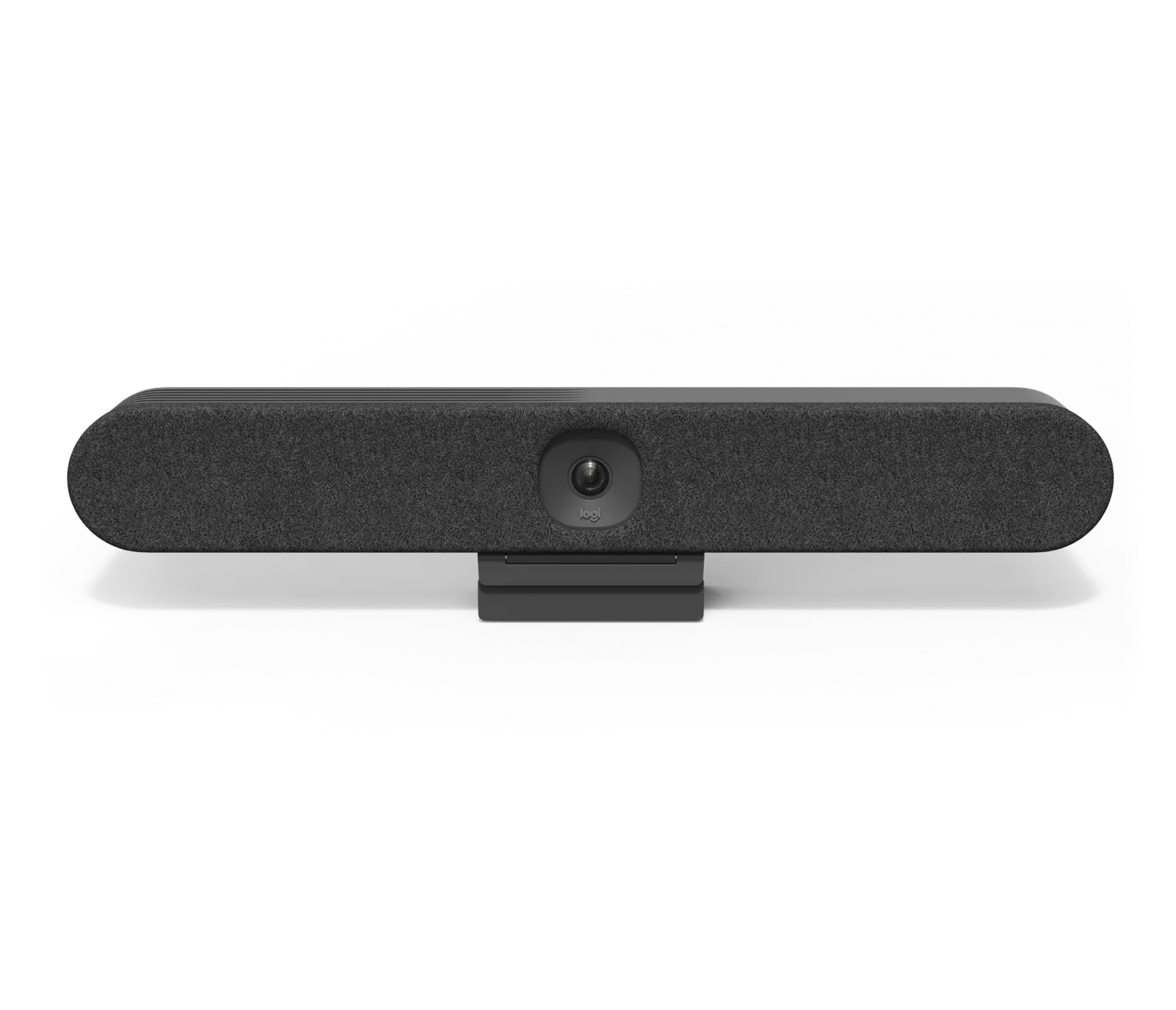
Rally Bar Huddle - Graphite
-
Rally Bar Mini - Graphite: The Rally Bar Mini features advanced camera and microphone technology for small to medium conference rooms. Its autofocus system works best when participants are within its designed range; sitting too far away can cause soft video.
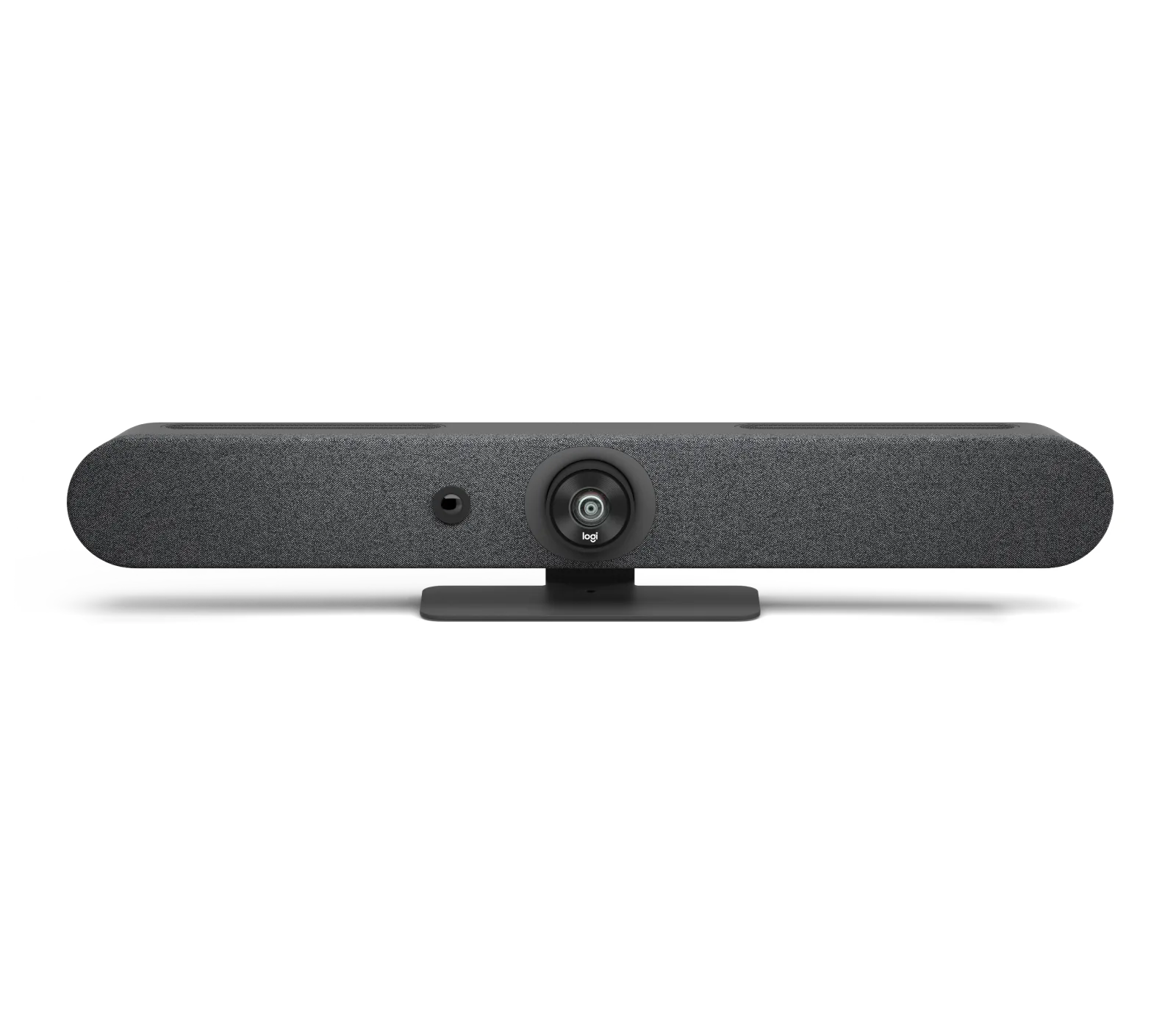
Rally Bar Mini - Graphite
-
Rally Camera - Dark Grey: The Rally Camera is part of a modular system that supports clear and consistent communication in professional conference rooms. Because the camera is separate from the soundbar, you can position it closer to participants for sharper video in larger spaces.