Quick Answer
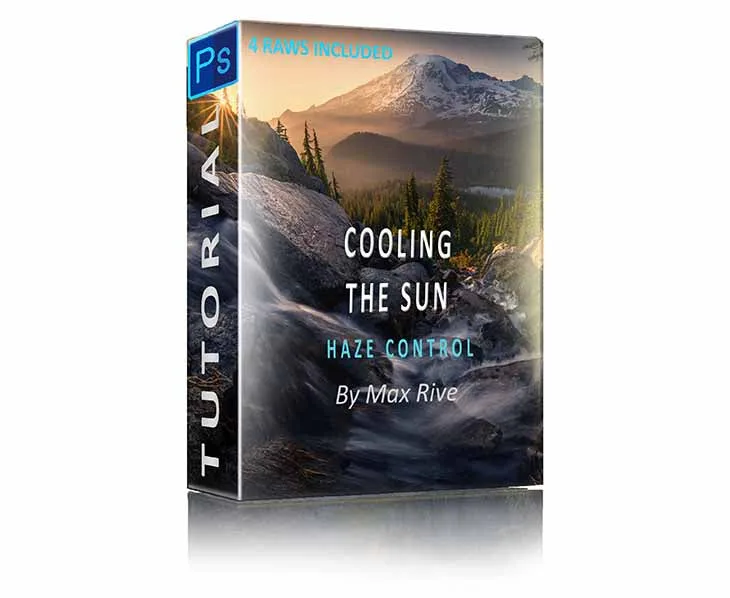
To fix haze in landscape photos, use the Photoshop Haze Control Tutorial by Max Rive Photography. This technique adds controlled haze to enhance depth and light, rather than removing it, which is often the wrong approach for mountain scenes.
Understanding Haze in Landscape Photography
Haze is often seen as a flaw, but in landscape photography it creates atmospheric depth. The key is learning to work with it, not against it. Many photographers try to remove haze entirely, which can flatten the image and kill the sense of scale. The better approach is to control and enhance it to emphasize layers and light.
Why Standard Dehaze Tools Fall Short
Most photo editors offer a global dehaze slider that reduces contrast in hazy areas. While this works for some scenes, it often removes the very element that gives a mountain landscape its depth. For scenes where haze is part of the composition—like misty valleys or distant peaks—a selective technique is needed. The Photoshop Haze Control Tutorial teaches you to add haze in specific areas to amplify light and depth, rather than stripping it away.
Diagnosis: Haze in Landscape Photos
- Symptom: Your landscape photo looks flat, with a uniform gray or white veil over distant areas. Details in the background are lost, and the image lacks depth. Check if the haze is uniform or layered. Uniform haze across the entire image may indicate a different issue.
- Likely Cause: Atmospheric haze from humidity, dust, or pollution scatters light, reducing contrast in distant parts of the scene. In mountain photography, this haze is natural and can be used to create depth. If the haze is natural and layered, do not remove it. Instead, enhance it for depth.
- Corrective Action: Use the Photoshop Haze Control Tutorial to add haze selectively to the background layers. This increases the sense of depth and makes the light appear more dramatic. Apply the technique to specific areas using masks, not globally. After applying, compare with the original. If the image now has more depth and the light feels stronger, you are done. If not, consider adjusting opacity or trying a different approach.
- When to Stop or Choose Another Option: If after applying the technique the image looks over-processed or if the haze was not the issue (e.g., the problem is lens flare or underexposure), stop and consider alternative corrections. The Haze Control technique is for enhancing natural haze, not for fixing other exposure or flare problems. For non-haze issues, use other Photoshop tools like curves or healing brush.
Recommended Tool
- Photoshop Haze Control Tutorial: Photoshop Haze Control editing and post processing Tutorial is essential for every landscape photographer. Here is why... haze is what creates depth in a mountain landscape. When we landscapers talk about great light - it often means there is a combination of light and (plenty of) haze. In Photoshop editing, you can GREATLY enhance the light by... adding haze. With Max's latest Haze Control Technique, you can add… This tutorial teaches you to add haze selectively, which is the opposite of the typical dehaze approach. It helps you enhance depth and light in your landscape photos, making them more dramatic and natural-looking.