Quick answer
To set up an HDMI video capture card for streaming, connect the HDMI output of your camera to the card's input, plug the card into your computer via USB, and configure your streaming software to recognize the card as a video source.
Why a dedicated capture card matters for streaming
A dedicated HDMI capture card handles the video encoding separately from your computer's processor, which reduces lag and keeps your stream smooth even during demanding gameplay or live events. Without one, your computer may struggle to both encode and display video, leading to dropped frames or stutter.
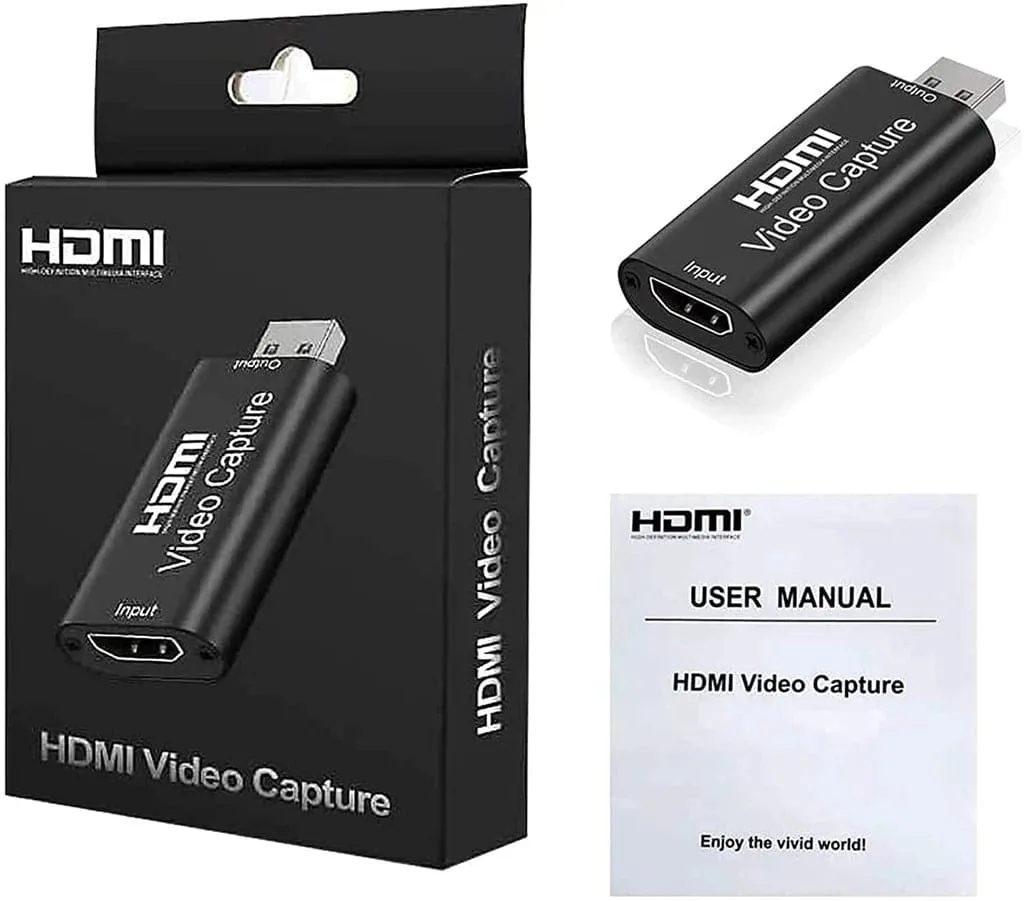
The HDMI Video Capture Card from Mthuli Cameras And Accessories supports high-definition input and plugs in via USB, making it a straightforward choice for streamers who want reliable performance without complex configuration.
Step-by-step setup guide
- Connect the HDMI cable from your camera to the capture card: Plug one end of an HDMI cable into your camera's HDMI output port and the other end into the capture card's HDMI input port. Make sure the cable is fully inserted to avoid signal loss. Common mistake: using a damaged or low-quality HDMI cable can cause intermittent disconnections. Always test with a known good cable.
- Plug the capture card into your computer via USB: Connect the USB end of the capture card to a USB 3.0 port on your computer for the best data transfer speed. USB 2.0 ports may work but can limit resolution or frame rate. Checkpoint: if your computer doesn't detect the card, try a different USB port or restart the computer before assuming the card is faulty.
- Set your camera to video mode and disable auto power-off: Switch your camera to movie or video mode so it outputs a clean HDMI signal. In the camera's menu, turn off auto power-off or set it to the longest available time to prevent the stream from cutting out mid-broadcast. Common mistake: forgetting to disable power-saving settings is the top reason streams drop unexpectedly. Double-check this before going live.
- Configure your streaming software to recognize the capture card: Open your streaming software (OBS Studio, Streamlabs, etc.), go to Sources, add a new Video Capture Device, and select the capture card from the device list. Set the resolution and frame rate to match your camera's output. Checkpoint: if the video appears black or flickering, try changing the resolution or frame rate in the device properties to a standard value like 1080p at 30 fps.
- Test audio and video sync before going live: Speak into your microphone and check that the audio matches the video on your preview screen. If there is a delay, adjust the audio offset in your streaming software by a few milliseconds. Common mistake: assuming audio from the camera's built-in mic is good enough. For professional-quality sound, use an external microphone connected to your computer.
Product spotlight
-
HDMI Video Capture Card For Sale: An HDMI video capture card allows you to capture and record video and audio from HDMI sources like cameras, gaming consoles, and computers. This means you can connect your DSLR or mirrorless camera directly to your streaming software without needing additional adapters or converters.
HDMI Video Capture Card For Sale