Quick answer
Set up your home recording studio by unboxing the Focusrite Scarlett 2i2 Studio 4th Gen bundle, connecting it to your computer via USB-C, installing drivers, and configuring your DAW to use the interface.
Why the Focusrite Scarlett 2i2 Studio bundle is a solid starting point
The Focusrite Scarlett 2i2 Studio 4th Gen bundle includes the audio interface, a condenser microphone, and closed-back headphones — everything you need for vocal recording, podcasting, or instrument tracking right out of the box. The interface itself offers two ultra-low-noise mic preamps and studio-grade converters with a 120dB dynamic range, which means your recordings will sound clean without needing extra outboard gear.
What the bundle does not include (and why it matters)
The bundle does not include a microphone stand, pop filter, or XLR cable for the mic, so you will need to purchase those separately to position the mic properly and reduce plosive sounds. Also, the included headphones are adequate for monitoring but not for critical mixing — consider upgrading to open-back headphones later if you plan to mix your own tracks.
Step-by-step setup guide
- Unbox and connect the interface: Connect the Scarlett 2i2 to your computer using the supplied USB-C cable. Plug the interface into a USB port on your computer (not a hub) to ensure stable power and data transfer. Common mistake: Using a USB hub can cause dropouts or insufficient power — always connect directly to the computer.
- Install drivers and software: Download and install the Focusrite Control driver and the Focusrite software bundle from the Focusrite website. Restart your computer after installation. Checkpoint: After restart, open Focusrite Control to confirm the interface is detected. If not, try a different USB cable or port.
- Set up your microphone and headphones: Connect the included condenser microphone to Input 1 using an XLR cable (not included). Plug the headphones into the headphone output on the front of the interface. Turn the input gain knob for Channel 1 to minimum initially. Common mistake: Forgetting to connect the XLR cable before turning on phantom power — always connect the cable first, then enable phantom power via the '48V' button.
- Configure your digital audio workstation (DAW): Open your DAW (e.g., Ableton Live Lite, which is included in the bundle). Go to the audio settings and select 'Focusrite USB ASIO' (Windows) or 'Focusrite USB' (Mac) as the audio device. Set the buffer size to 256 samples for a good balance of latency and stability. Checkpoint: If you hear crackling or pops, increase the buffer size to 512 or 1024 samples. For low-latency monitoring, use the direct monitoring button on the interface.
- Set input levels and start recording: Press the 'Auto Gain' button on the interface to automatically set the optimal input level for your microphone. Alternatively, adjust the gain knob manually so the green ring lights up consistently and the red 'Clip' light never illuminates. Arm a track in your DAW and record. Common mistake: Setting gain too high causes digital clipping (red light). Use Auto Gain for a foolproof starting point.
Product facts
-
Focusrite Scarlett 2i2 Studio 4th Gen Audio Interface Bundle with Mic, Headphones: Focusrite Scarlett 2i2 Studio 4th Gen bundle includes the audio interface, a condenser microphone, and closed-back headphones. You get a complete recording chain in one box, so you can start recording vocals or instruments immediately without buying additional gear.
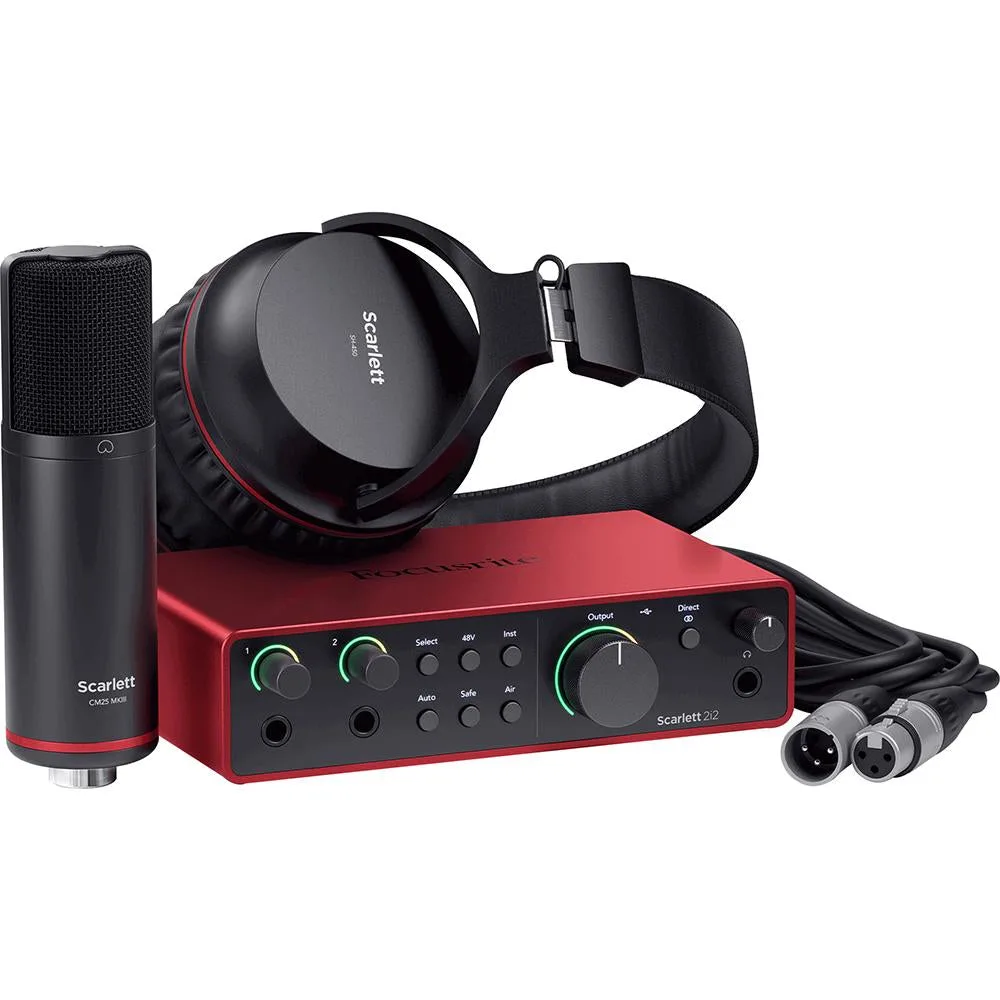
Focusrite Scarlett 2i2 Studio 4th Gen Audio Interface Bundle with Mic, Headphones
Once your interface is set up and your DAW is configured, you are ready to record. Experiment with microphone placement and gain staging to get the best sound from your Scarlett 2i2 Studio bundle.