Quick Answer
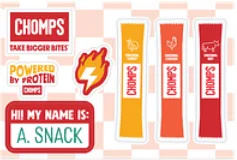
To apply Chomps Omnichannel Stickers or the STKR sheet to a laptop, clean the surface, peel slowly, stick from one edge, and press out air bubbles. Let the sticker set for 24 hours before heavy use.
What You Need Before You Start
A clean microfiber cloth, mild soap or isopropyl alcohol, and a flat workspace help you avoid dust and misalignment. The Chomps Omnichannel Stickers and STKR sheet are vinyl-based, so they stick best to smooth, dry surfaces like laptop lids or palm rests.
Choosing the Right Spot
Laptop lids, corners, and lower bezels get less hand contact, which reduces peeling over time. Avoid placing stickers on textured surfaces or near heat vents, where adhesive may weaken. The Omnichannel Stickers come in a Chili Lime design that stands out on darker laptops, while the STKR sheet's OG Sticks design works well on any color.
Step-by-Step Application Guide
- Clean the Laptop Surface: Wipe the area with a microfiber cloth and isopropyl alcohol to remove oils and dust. Let it dry completely for 30 seconds. Checkpoint: If the surface feels greasy or has lint, repeat cleaning. A dirty surface is the most common cause of peeling.
- Peel the Sticker from the Sheet: Gently lift one corner of the Chomps Omnichannel Sticker or STKR sticker using your fingernail or tweezers. Peel it back slowly at a 45-degree angle. Common mistake: Peeling too fast can curl the edges. If the sticker curls, press it flat on the sheet for 10 seconds before trying again.
- Position Before Sticking: Hold the sticker just above the laptop without touching the adhesive. Align it with your desired spot, then lower one edge onto the surface. Checkpoint: Once the adhesive touches the laptop, repositioning is difficult. Use a piece of tape to hinge the sticker if you need extra precision.
- Press Out Air Bubbles: Use a credit card or your thumb to smooth the sticker from the center outward. Work slowly to push air to the edges. Common mistake: Pressing too hard can stretch the vinyl. If a bubble remains, lift the nearest edge and re-smooth.
- Let It Set for 24 Hours: After application, avoid closing the laptop or rubbing the sticker for a full day. The adhesive needs time to bond fully. Checkpoint: If you need to use the laptop immediately, keep the lid open and handle the sticker area gently for the first few hours.
Stickers That Work Best on Laptops
- STKR - Sheet OG Sticks TBB: Sticker sheet featuring the OG Sticks design. Ideal for personalizing laptops, water bottles, notebooks, and more. The STKR sheet gives you multiple OG Sticks stickers in one sheet, so you can decorate several devices or share with friends.
- Omnichannel Stickers: Part of the Chomps merch collection. Chili Lime sheet style. Ideal for personalizing laptops, water bottles, and more. The Omnichannel Stickers add a pop of Chili Lime color to your laptop, making your gear easy to spot and showing your Chomps pride.