Quick answer
To pair a Bluetooth headset with a smart TV, first put the headset in pairing mode. Then, open the TV's Bluetooth settings, scan for devices, and select your headset. Confirm the connection and adjust the audio output to 'Bluetooth' or 'Headphones' in the TV's sound menu.
Before You Start: Check Your TV's Bluetooth Capability
Not all smart TVs support Bluetooth audio out. Check the specifications or manual for 'Bluetooth audio output' or 'Bluetooth headphones'. If your TV lacks built-in Bluetooth, you can add a Bluetooth transmitter via the optical or 3.5mm audio output.
Pairing in a Few Minutes
The process is similar across most brands, but the menu labels vary. The steps below cover the typical path. If your TV has a dedicated 'Sound' or 'Audio' settings section, start there.
Step-by-Step Pairing Guide
- Put your headset in pairing mode: Turn on the Bluetooth headset and press the pairing button (often marked with a Bluetooth symbol) until the indicator light flashes rapidly. If there is no button, check the manual for the combination of power and volume buttons. Common mistake: Forgetting to clear a previous pairing. Reset the headset if it does not enter pairing mode.
- Open your TV's Bluetooth settings: Using the TV remote, go to Settings > Sound > Bluetooth Audio (or Wireless Audio). The exact name varies: look for 'Bluetooth Device List', 'Speaker List', or 'Manage Paired Devices'. Checkpoint: If you cannot find Bluetooth settings, your TV may not support audio pairing. Consider a Bluetooth transmitter as a workaround.
- Scan and select your headset: Select 'Scan' or 'Add Device'. Your TV will search for nearby Bluetooth devices. When your headset appears in the list, select it and confirm the pairing. The headset's light should change to solid or slow blinking. Common mistake: The TV might find your neighbor's devices. Double-check the name matches your headset model before selecting.
- Set audio output to your headset: After pairing, go back to Sound settings and change 'Audio Output' from 'TV Speaker' to 'Bluetooth Headphones' or 'External Audio'. Some TVs require you to enable 'Bluetooth Audio Out' explicitly. Checkpoint: If you hear no sound, the TV may still be outputting through its speakers. Verify the output setting is changed.
- Test and adjust for sync: Play a video with clear dialogue. If the audio lags behind the picture (lip-sync issue), look for 'A/V Sync' or 'Audio Delay' in the sound settings and adjust it until the audio matches the video. Final verdict: A stable connection with minimal delay gives you a private, immersive listening experience without disturbing others.
Gear That Helps
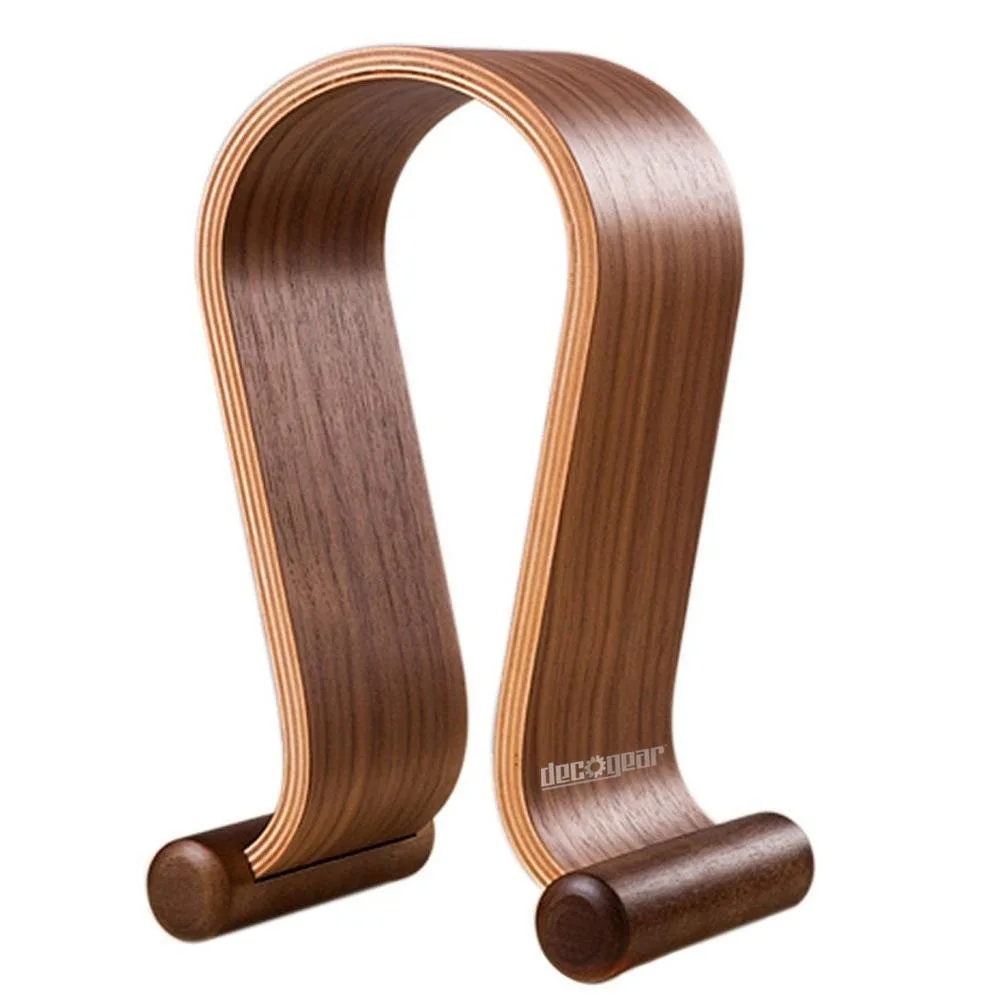
- Deco Gear Wood Headphone Display Stand Secure Tabletop Holder / Gaming Headset Hanger: Enjoy this quality, universally-sized stable wooden headphone stand, made for standard headphone sizes from brands like Beats Audio, Klipsch, Audio Technica, Logitech, Sennheiser and many more. Provide yourself peace of mind! This stand eliminates the risk of your headphones falling off your desk and breaking, as well as cord entanglement. When your headset is not in use, a dedicated stand keeps it accessible and tangle-free, so it's ready to pair again without fuss.