Quick answer
Pair your PLYR Wireless by charging it fully, then use the USB transmitter for low-latency PC or console audio, or switch to Bluetooth 5.2 for mobile and streaming.
Why two connection modes matter
The PLYR Wireless supports both a dedicated 2.4 GHz wireless connection via the included USB transmitter and Bluetooth 5.2. The USB transmitter gives you near-zero latency for competitive gaming, while Bluetooth lets you take calls or listen to music on your phone without unplugging. You can use both at the same time—game audio over USB and chat or stream audio over Bluetooth—which is useful for streamers who need to monitor their feed.
What to do if pairing fails
If the headset doesn’t connect, make sure it’s fully charged (the LED turns solid when ready). For USB pairing, try a different port or restart your PC/console. For Bluetooth, ensure the headset is in pairing mode (hold the power button until the LED flashes blue) and forget any previous pairings on your device. If issues persist, reset the headset by holding the power button for 10 seconds.
How to pair PLYR Wireless step by step
- Charge the headset fully: Use the included USB-C cable and connect it to a power source. Wait until the LED indicator turns solid white, which means the battery is full. A low battery can cause pairing failures. Always charge before first use to avoid connection dropouts.
- Pair via USB transmitter for gaming: Plug the USB transmitter into your PC, PlayStation, or Nintendo Switch. Turn on the headset by holding the power button for 3 seconds. The headset and transmitter will pair automatically within 10 seconds. If they don’t, press the pairing button on the transmitter and hold the power button on the headset for 5 seconds. The USB connection gives the lowest latency for competitive play.
- Connect via Bluetooth for mobile or streaming: With the headset off, press and hold the power button for 5 seconds until the LED flashes blue. Go to your phone or computer’s Bluetooth settings and select “PLYR Wireless.” Once paired, you can use Bluetooth simultaneously with the USB connection for game/chat mix. Bluetooth mode works best for calls, music, and monitoring your stream.
- Adjust audio settings in Skull-HQ App: Download the Skull-HQ App on your phone or PC. Open it and select your PLYR Wireless. From here you can enable Enhanced Sound Perception for footsteps, adjust the game/chat mix, set custom EQs, and turn on sidetone to hear your own voice. Customizing these settings can give you a competitive edge in shooters and RPGs.
Product facts
-
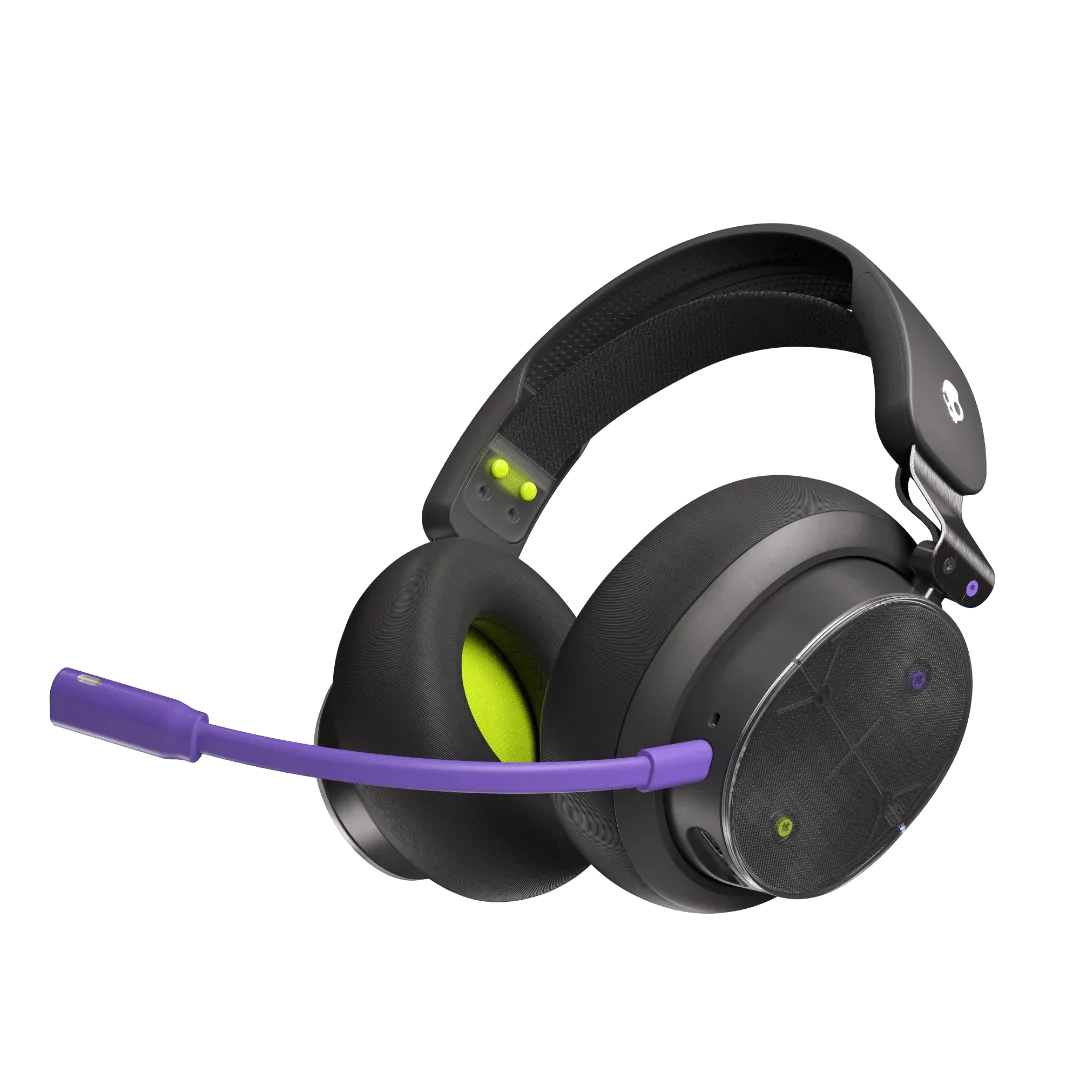
PLYR® Wireless: PLYR Wireless uses Bluetooth 5.2 and includes a cable for wired connection to PC or console. You get the flexibility of wireless freedom for gaming plus the option to plug in for zero-latency streaming or backup connectivity.
PLYR® Wireless