Quick answer
Put your Raycon earbuds or headphones into pairing mode, then select them from your device's Bluetooth menu. If they don't appear, reset the earbuds or headphones and try again. Most pairing failures come from the buds still being connected to a previous device or not being in pairing mode at all.
Before you start: two things that cause most failures
Raycon earbuds and headphones remember the last device they connected to. If that device is still nearby with Bluetooth on, the buds may reconnect to it instead of showing up as available on your new phone or laptop. Turn off Bluetooth on the old device or move it out of range before pairing.
Also make sure the buds or headphones have enough charge to power on and enter pairing mode. A case that hasn't been charged recently is a common reason the earbuds won't respond when you press and hold.
Pairing to a phone or tablet
Open Settings, go to Bluetooth, and leave the screen on. Put your Raycon earbuds or headphones into pairing mode, then wait for the name to appear in the list of available devices. Tap it once. If your phone asks for a code, try 0000 or 1234, though most modern phones pair without one.
On iPhones, the device appears under 'Other Devices' rather than 'My Devices' the first time. On Android, you may need to tap 'Pair new device' first. Either way, keep the case open or the headphones powered on until the connection is confirmed.
Pairing to a Windows or Mac laptop
On Windows, open Settings > Bluetooth & devices, turn Bluetooth on, and click 'Add device' > 'Bluetooth'. On a Mac, open System Settings > Bluetooth. Put the Raycon product into pairing mode, then select it when it appears.
Laptops sometimes hide Bluetooth devices that are already paired to a phone. If your Raycon earbuds don't show up, turn off Bluetooth on your phone first, then refresh the laptop's device list. This is the most common reason earbuds won't appear on a laptop.
Resetting Raycon earbuds or headphones to clear old pairings
If pairing fails after several tries, reset the earbuds or headphones to clear the memory of previously connected devices. The exact reset sequence varies by model, so check the manual or the product page for your specific Raycon product. After resetting, the buds will enter pairing mode automatically or with a simple press-and-hold.
A reset does not delete your device's Bluetooth history, so you may also need to 'Forget' or 'Remove' the Raycon entry on your phone or laptop before pairing again. Doing both gives you a clean start.
Raycon Bluetooth pairing steps
- 1. Charge the earbuds or headphones first: Place earbuds in the case and charge the case, or plug in the headphones, until you see a charge indicator. A low battery can prevent pairing mode from activating. Checkpoint: the indicator light responds when you open the case or press the power button.
- 2. Turn off Bluetooth on any device you previously paired with: On your old phone, tablet, or laptop, go to Bluetooth settings and toggle it off or turn the device off entirely. Checkpoint: the old device no longer shows as connected to your Raycon product.
- 3. Put the Raycon product into pairing mode: For most Raycon earbuds, open the case and press and hold the button until the light flashes. For headphones, press and hold the power button until you hear a tone or see alternating lights. The exact method depends on your model. Common mistake: letting go too early. Hold until the light changes, not just until the device turns on.
- 4. Open Bluetooth on your new device and select the Raycon product: Go to Settings > Bluetooth on your phone or laptop. Wait for the Raycon name to appear under available devices, then tap it. Checkpoint: the device shows 'Connected' or a checkmark next to the Raycon name.
- 5. If it doesn't appear, reset and try again: Reset the earbuds or headphones to clear old pairing memory, then 'Forget' the Raycon entry on your device and repeat from step 3. This two-sided reset fixes most persistent pairing failures. Next step: if pairing still fails after a reset, test with a different phone or laptop to isolate whether the issue is the device or the Raycon product.
Raycon products and pairing notes
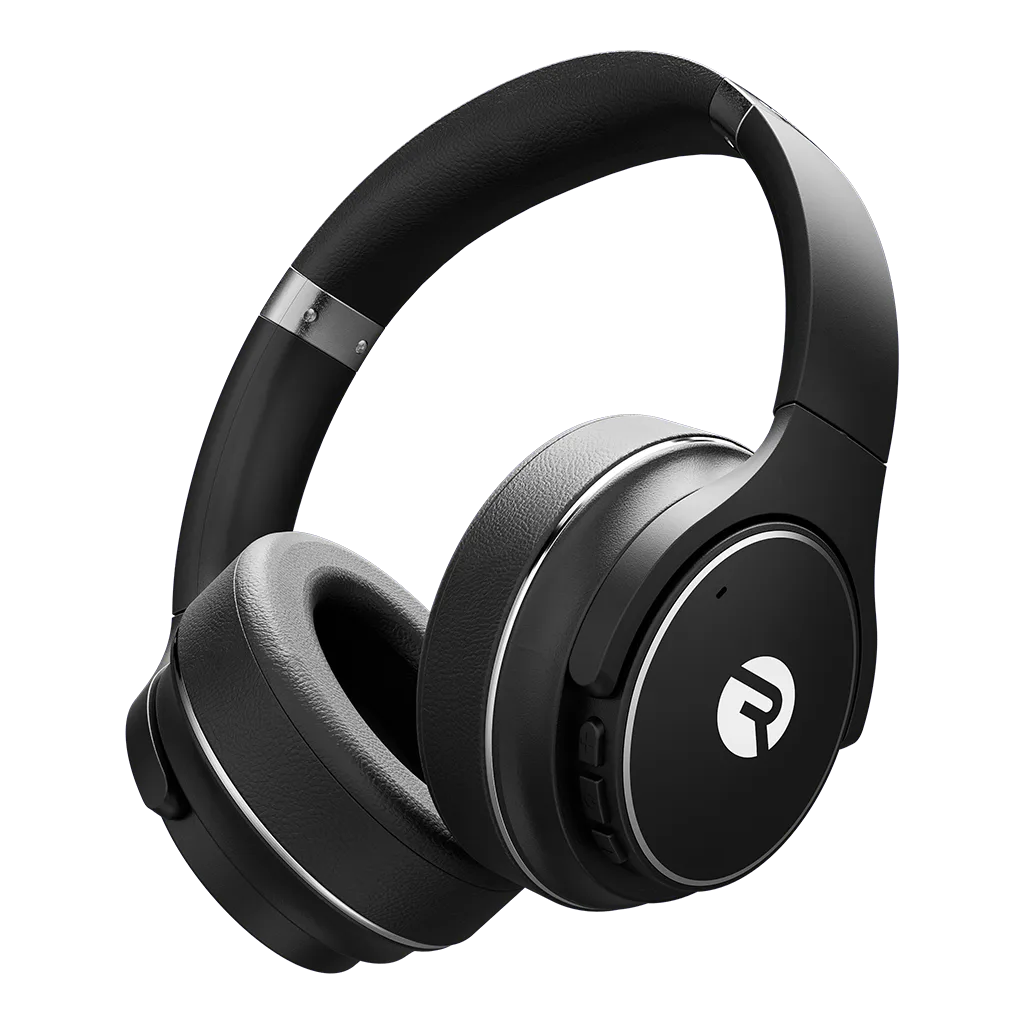
- Everyday Headphones: Everyday Headphones are designed for comfortable listening throughout the day and come in Carbon Black, Rose Gold, and Frost White. If you wear headphones for hours, a comfortable fit matters as much as pairing speed, and color options let you match your everyday style.
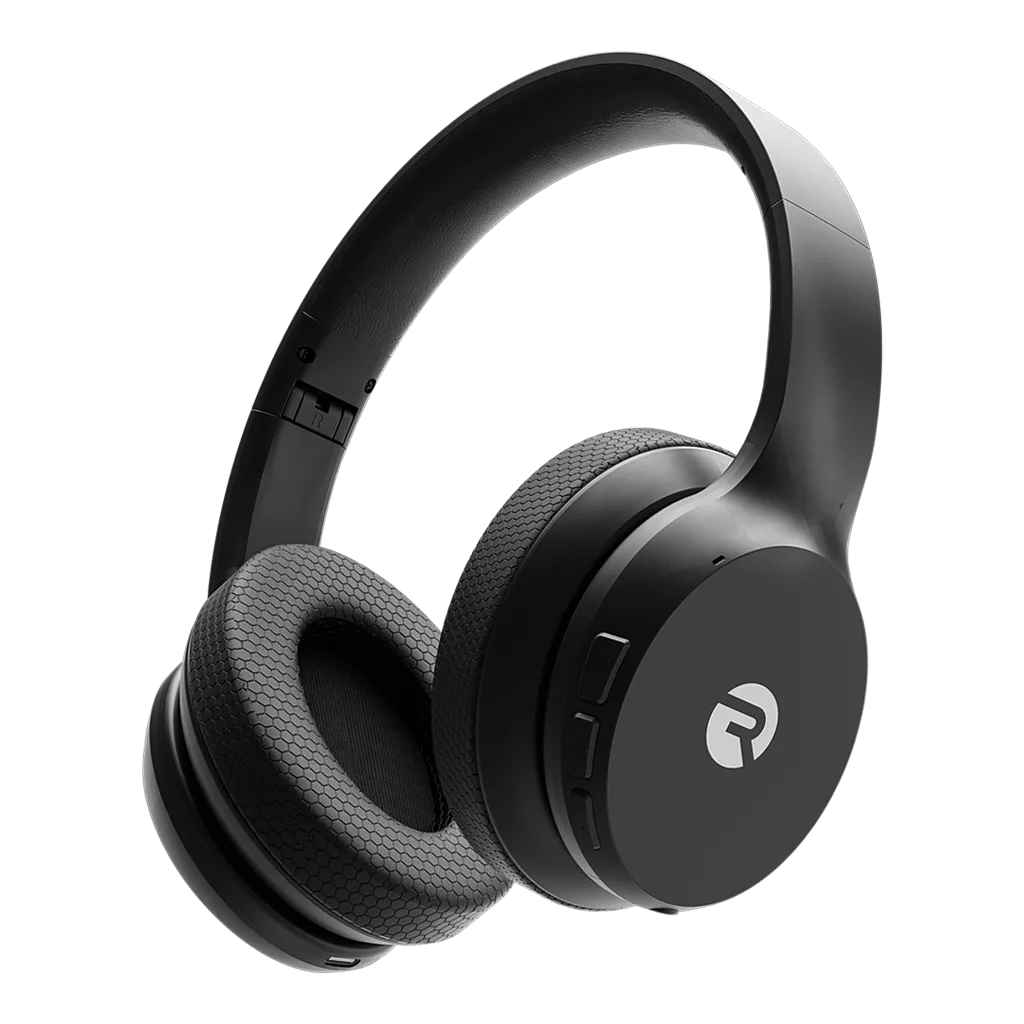
- Fitness Headphones: Fitness Headphones have sweatproof cushions that you can swap out and are available in Graphite Black and Frost White. Sweatproof cushions help keep the headphones fresh during workouts, and the swap-ready design means you can replace cushions as needed without replacing the whole product.
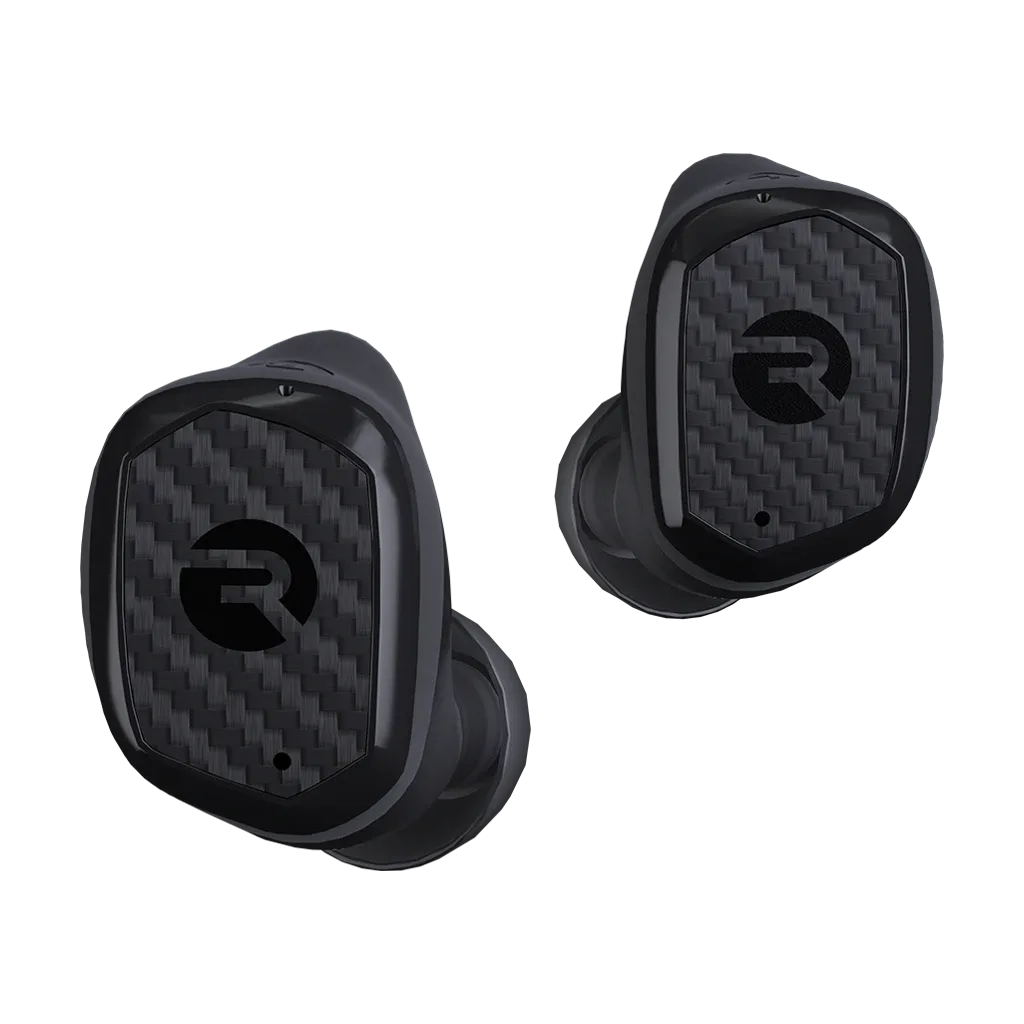
- Impact Earbuds: Impact Earbuds are ultra-durable earbuds built for any adventure and are available in Graphite Black. If you plan to pair earbuds for travel or outdoor use, a durable build reduces the chance of damage that could interrupt pairing or charging.