Quick Answer
To set up your 1080P 2-in-1 projector game console, place it on a stable surface, connect power and your game source, adjust focus and keystone, then calibrate brightness and color for your room.
Why Placement Matters
The projector's 1–4 meter throw distance and 300–50 inch projection size give you flexibility, but placement affects image size and clarity. Place it on a stable, level surface at the desired distance from your screen or wall, ensuring the lens is perpendicular to the projection surface to minimize distortion.
Connecting Your Game Source
The 2-in-1 design means the projector has a built-in game console, so you may not need an external source. However, if you want to play on a separate console or streaming device, use the appropriate HDMI or AV input. Check the ports on the back of the unit and connect your device securely.
Adjusting for Your Room
Ambient light affects image brightness. For best results, use the projector in a darker room. If you must play in daylight, close curtains or blinds. The native 1080P resolution ensures crisp detail, but proper focus and keystone correction are essential to avoid blurry or skewed images.
Setup Steps
- Unbox and Inspect: Carefully remove the projector and all accessories from the box. Check that the power adapter, remote control, and any included cables are present. Place the projector on a stable, flat surface. Verify all parts are included before proceeding.
- Connect Power and Source: Plug in the power adapter and connect your game source (e.g., a game console, streaming stick, or the built-in console) using the appropriate cable. Ensure all connections are secure. Use the correct input port to avoid signal issues.
- Power On and Initial Setup: Turn on the projector using the power button or remote. Follow any on-screen prompts to select the input source and language. If the built-in console is your source, you may need to pair a controller. If no image appears, double-check the input source selection.
- Adjust Focus and Keystone: Use the focus ring to sharpen the image. If the image is trapezoid-shaped, use the keystone correction function to make it rectangular. Adjust the projector's position if needed. A clear, rectangular image is essential before calibration.
- Calibrate Brightness and Color: Access the projector's settings menu and adjust brightness, contrast, and color saturation to suit your room's lighting and personal preference. Start with default settings and fine-tune as needed. For best results, calibrate in the actual lighting conditions you'll use for gaming.
- Connect Audio (Optional): If you want to use wireless speakers or headphones, enable Bluetooth on the projector and pair your device. This is great for private gaming sessions. Bluetooth audio may have slight latency; test for sync issues.
Product Facts
-
1080P 2-in-1 Projector Game Console: Supports 4K ultra-clear resolution with native 1080P (1920×1080), delivering crisp, bright, and detailed images. This ensures your games look sharp and detailed, even on large screens.
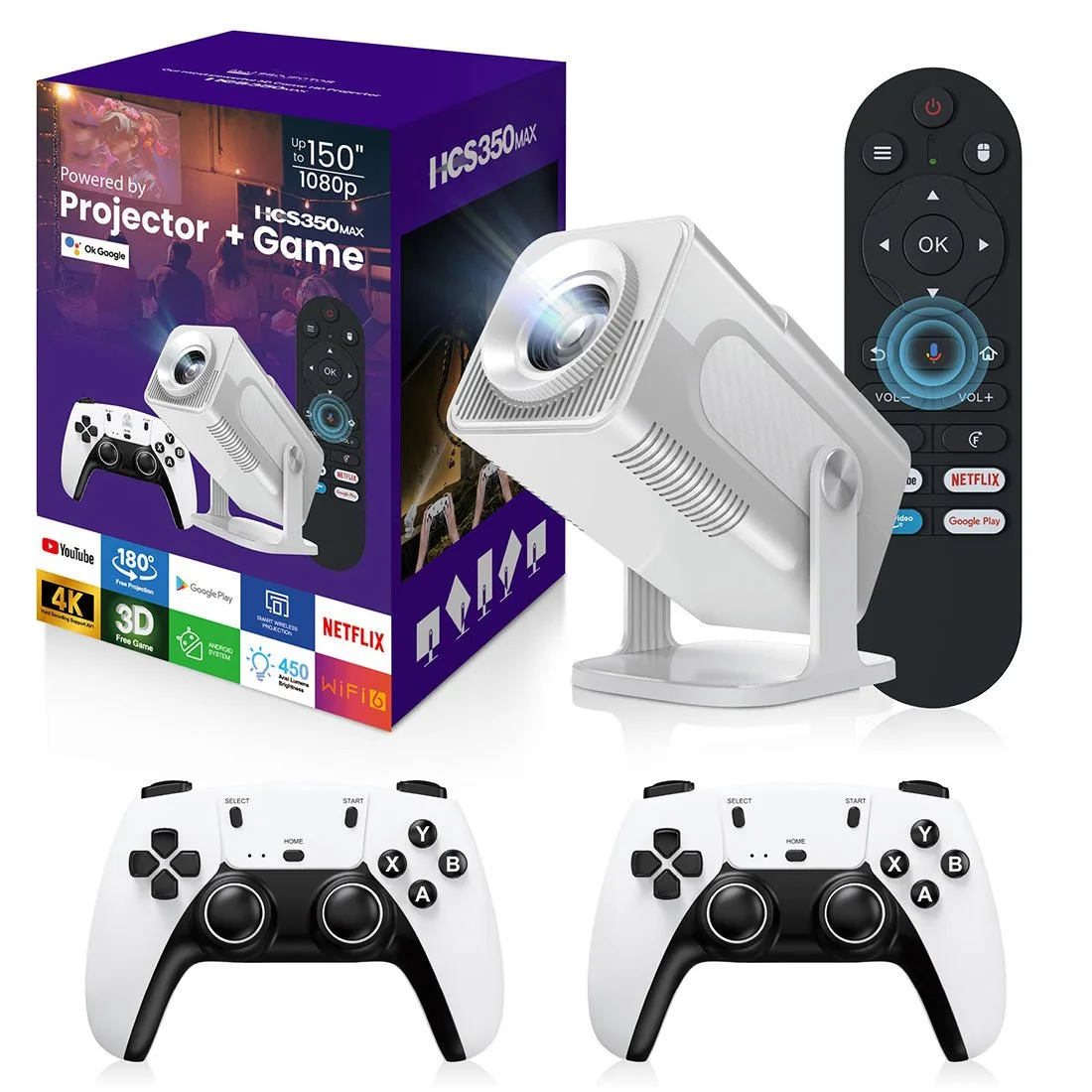
1080P 2-in-1 Projector Game Console
-
1080P 2-in-1 Projector Game Console: Enjoy a 300–50 inch projection size and 1–4 meter throw distance. You can easily adjust the screen size to fit your room and viewing preference.
-
1080P 2-in-1 Projector Game Console: Built-in Bluetooth connectivity lets you connect wireless speakers or headphones. Enhance your gaming audio with your favorite wireless devices for a more immersive experience.
Once calibrated, your 1080P 2-in-1 projector game console is ready for immersive gaming. Adjust settings as needed for different games or room conditions.