Quick answer
To set up Edge Paddles on your DualSense Edge, snap them into the rear slots, then assign each paddle to a face button or stick input using the controller's onboard profiles.
Why metal paddles matter for competitive play
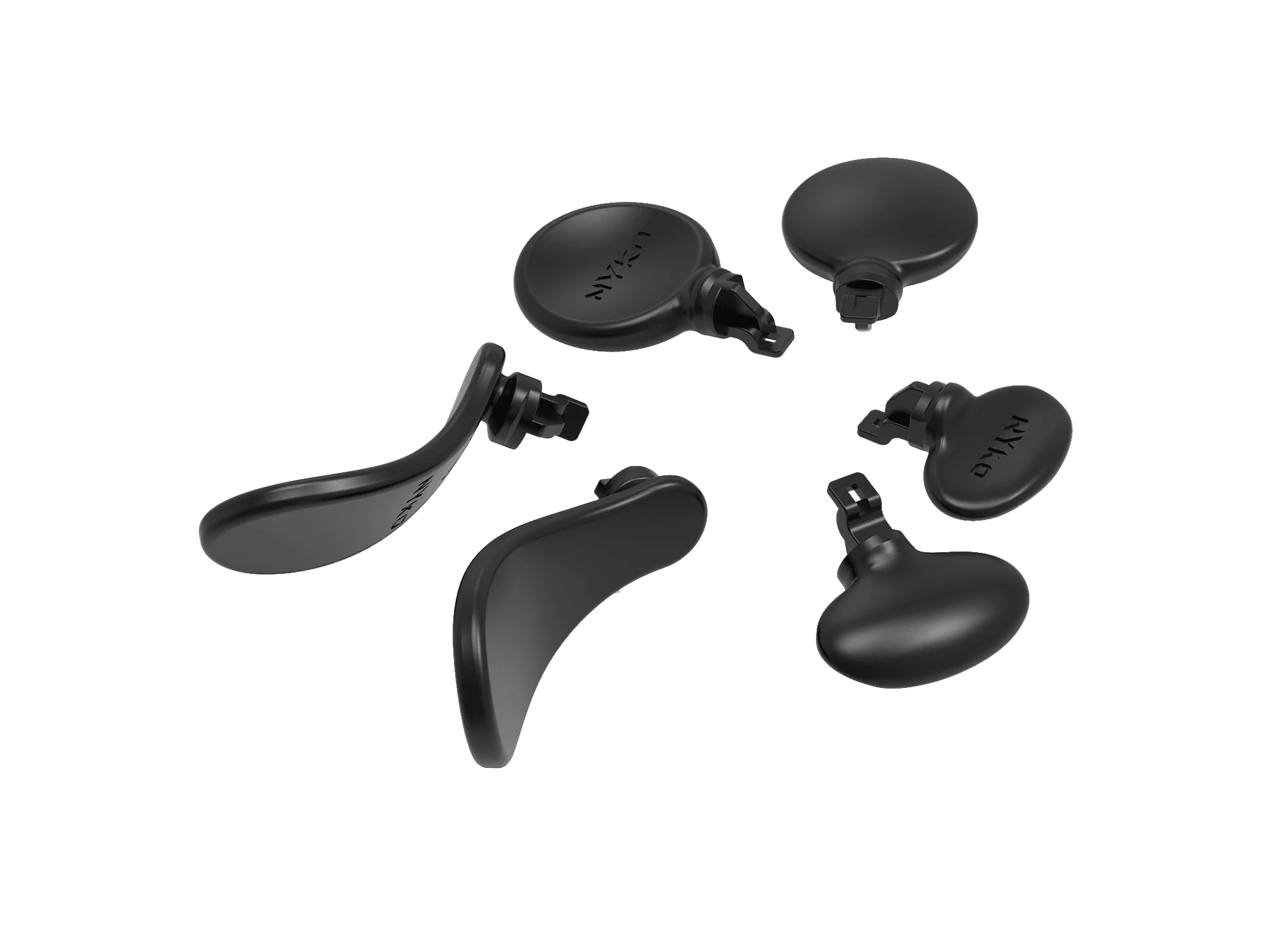
The Nyko Edge Paddles are built from military-grade solid steel, which gives them a distinct advantage over plastic alternatives. Steel won't flex or stall under repeated presses, so your inputs stay consistent even during long tournament sessions. The black finish also keeps the controller looking clean and factory-fresh, so you don't sacrifice aesthetics for performance.
What you need before you start
Make sure your DualSense Edge controller is fully charged or connected via USB. You'll also need a stable surface to work on and a small Phillips-head screwdriver if you plan to swap the standard rear buttons for the paddles. The Edge Paddles are designed exclusively for the DualSense Edge — they won't fit standard DualSense controllers.
Step-by-step installation and mapping guide
- Remove the stock rear buttons: Turn your DualSense Edge over and locate the two small release tabs near the rear button slots. Press each tab inward and gently pull the stock buttons out. Set them aside in a safe place. Common mistake: pulling too hard without releasing the tab can break the plastic clips. Use gentle, even pressure.
- Snap in the Edge Paddles: Align each Edge Paddle with its corresponding slot — the longer paddle goes on the left, the shorter on the right. Press firmly until you hear a click. The paddle should sit flush against the controller shell with no wobble. Checkpoint: if a paddle doesn't click into place, remove it and realign. Forcing it can damage the connector pins.
- Map the paddles to your preferred inputs: On your PS5, go to Settings > Accessories > Controller (General) > DualSense Edge Wireless Controller > Custom Profiles. Select a profile slot, then choose Assign Buttons. Press the paddle you want to map, then press the button you want it to mimic (e.g., X, O, L3, R3). Repeat for the second paddle. Common mistake: mapping both paddles to the same button. Double-check each assignment before saving the profile.
- Save and test your profile: After mapping, save the profile with a descriptive name (e.g., 'FPS Jump & Crouch'). Launch a game and test each paddle. Adjust the mapping if the inputs feel unnatural or if you accidentally press a paddle during normal play. Checkpoint: if a paddle feels too sensitive, reduce the trigger deadzone in the same profile settings for finer control.
Product spotlight
-
Edge Paddles™ (Black) for DualSense® Edge: The Edge Paddles feature military-grade solid steel construction designed to handle intense tournament play. Steel paddles won't flex or stall like plastic ones, giving you consistent, reliable inputs in fast-paced games.
Edge Paddles™ (Black) for DualSense® Edge