Quick answer
Get the camera on the network first, then turn on face detection, then tune it. Wire the camera to a PoE NVR or PoE switch with one Ethernet run, confirm it appears in the recorder's channel list, and only then open the AI or smart-detection menu to enable facial recognition. Most failed setups are network problems, not AI problems, so fix the connection before you touch detection settings.
Before you enable anything: confirm the camera is actually online
Facial recognition runs on top of the video stream, so if the stream is unstable the detection results will be too. Give the camera a dedicated PoE port rather than a shared adapter, and check that the NVR shows a live picture on that channel before you open any AI menu. If the channel is blank or drops in and out, the problem is cabling, port power, or IP addressing, not the detection engine.
One practical shortcut: test the camera indoors on a short patch cable at the same height and angle you plan to use outside. If face detection behaves there, any later failure is almost certainly mounting, lighting, or network related.
Set the camera height and angle for faces, not for coverage
Facial recognition needs a reasonably frontal, well-lit face at a usable pixel size. A camera aimed down from a high corner gives you great overview footage and poor face data. Aim for a position roughly at or slightly above head height, angled down only slightly, so people walk toward the lens rather than under it.
Avoid pointing the camera directly at a bright window, a bare wall, or a strong backlight. Backlighting is the single most common reason a face detection camera flags motion but never identifies a face. If you cannot avoid the backlight, use the camera's wide dynamic range setting if it has one, and accept that performance will still be weaker at that hour.
Enable facial recognition and build your face library
In the recorder or camera interface, open the smart or AI detection section and switch on face detection, then face recognition if it is listed separately. Enrolling people is a deliberate step: capture each face from the front, in even light, at the distance the camera will actually see them. Two or three captures per person from slightly different angles gives the system more to work with than one perfect portrait.
Treat the library as a living list. Add new household members or regular visitors when they arrive, and remove people who no longer need to be recognized. A short, accurate list produces far fewer false alerts than a long, stale one.
Tune sensitivity, schedules, and notifications last
Once recognition is working, narrow it down. Set the detection zone to the walkway or doorway where faces actually appear, not the whole frame, so passing traffic and swaying trees stop generating events. Then set a notification schedule so overnight alerts go to your phone but daytime foot traffic does not.
Check your storage math at the same time. Face events are small, but continuous 4K recording is not, and a system that overwrites footage too quickly makes recognition far less useful. If you are running a multi-camera setup, confirm the drive capacity matches your retention goal before you rely on it for review.
Facial recognition setup, step by step
- 1. Run one PoE cable and confirm the live feed: Connect the camera to a PoE NVR port or PoE switch with a single Ethernet run, then verify a stable live image on that channel. Checkpoint: if the channel is blank or flickering, stop here and fix the cable or port before touching any AI setting.
- 2. Mount for faces, not for maximum coverage: Position the camera near head height, angled slightly down, with the subject walking toward the lens and no strong backlight behind them. Common mistake: mounting high in a corner for a wide overview, which produces great footage and unusable face data.
- 3. Turn on face detection, then face recognition: Open the smart or AI detection menu and enable both options if they are listed separately, saving the change before you leave the page. Checkpoint: if only motion detection is available on that channel, the camera or firmware may not support face recognition.
- 4. Enroll each person with two or three captures: Capture faces from the front in even light at realistic distance, and delete enrollments for people who no longer need recognition. Common mistake: uploading one blurry or angled photo and expecting reliable matching.
- 5. Draw a tight detection zone: Limit detection to the walkway, porch, or gate where faces actually appear rather than the full frame. Checkpoint: after a day, review events and shrink the zone again if street traffic still triggers alerts.
- 6. Set notification schedules and verify retention: Route alerts to your phone for the hours that matter, and confirm the recorder's drive holds as many days of footage as you need. Next step: re-test recognition at night, since poor lighting is where most setups quietly stop working.
Hardware that supports this setup
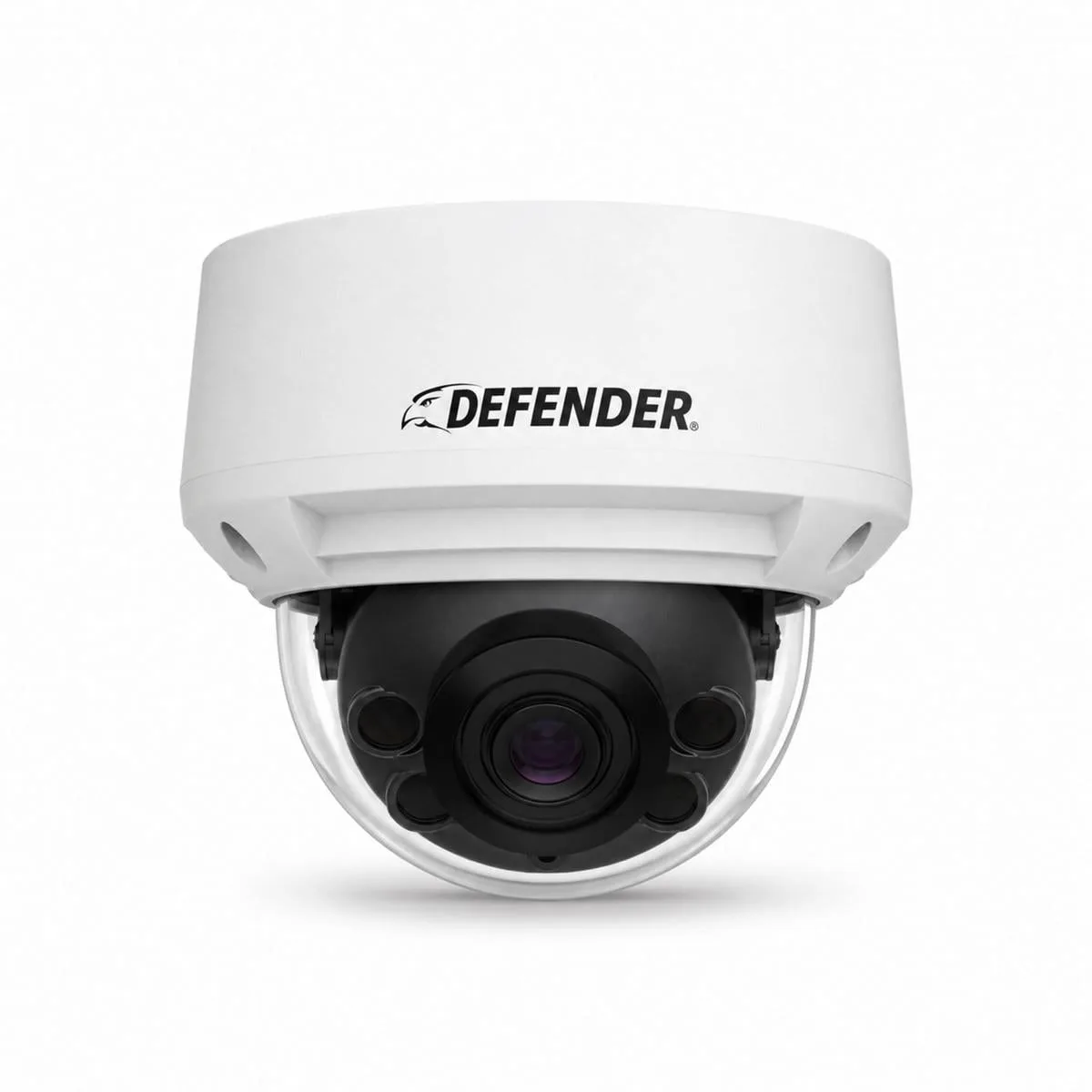
- Defender Pro 5MP AI POWERED 5X Optical Zoom PoE IPK10 Facial Recognition Dome Camera: 5MP resolution with AI-powered technology and facial recognition functionality, 5X optical zoom, and PoE over a single cable in a durable dome housing. The optical zoom lets you tighten the framing on a doorway or gate without losing clarity, which is exactly what face recognition needs, and PoE means one cable run instead of separate power.
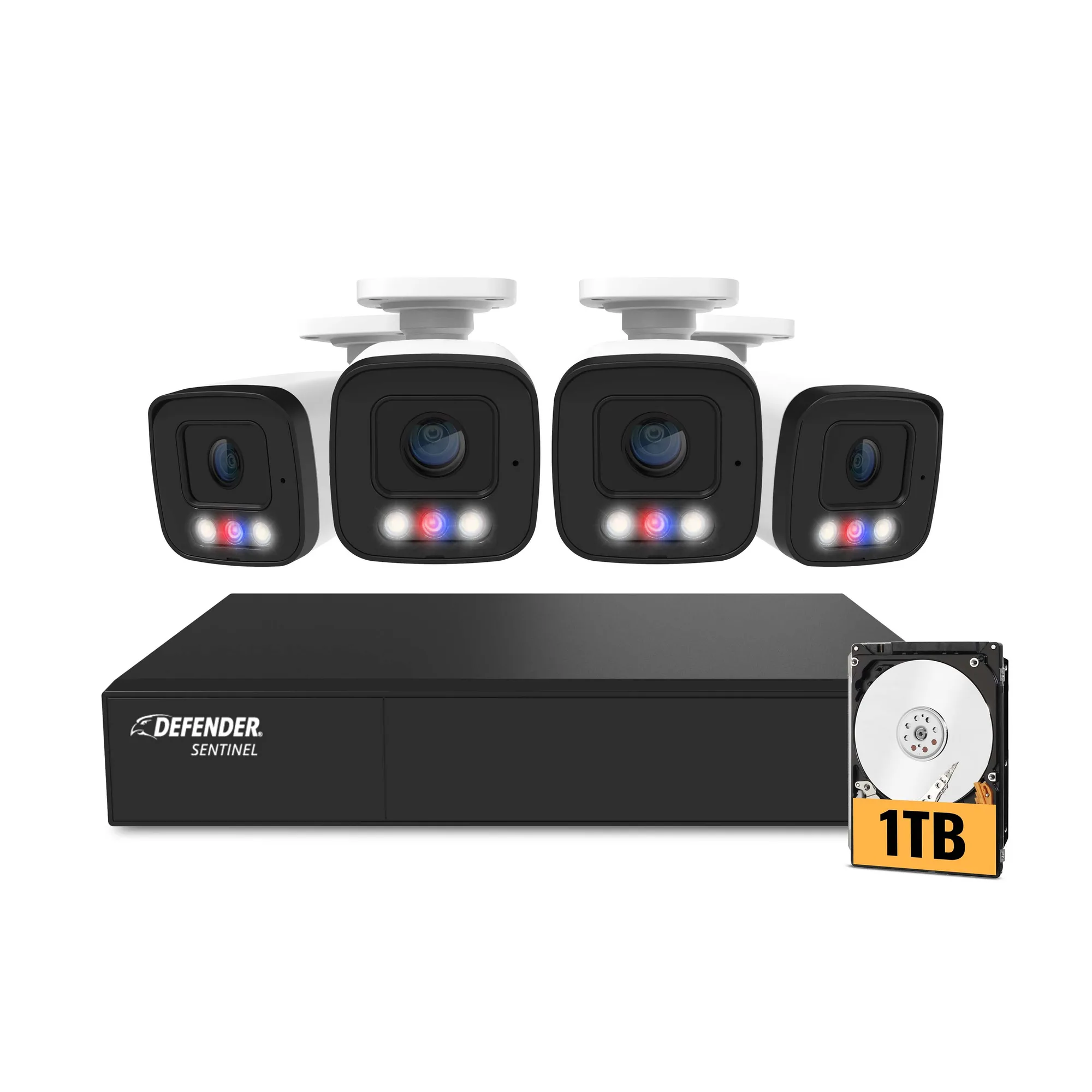
- AI POWERED Sentinel 4K Ultra HD Wired 8 Channel PoE NVR Security System, 4 Metal Cameras & 1TB HDD: AI-powered 8-channel PoE NVR system with 4K Ultra HD resolution, four metal cameras, and a 1TB hard drive. A ready-to-use recorder means the AI detection menus live in one place, and the 1TB drive gives you a defined starting point for retention across four channels.
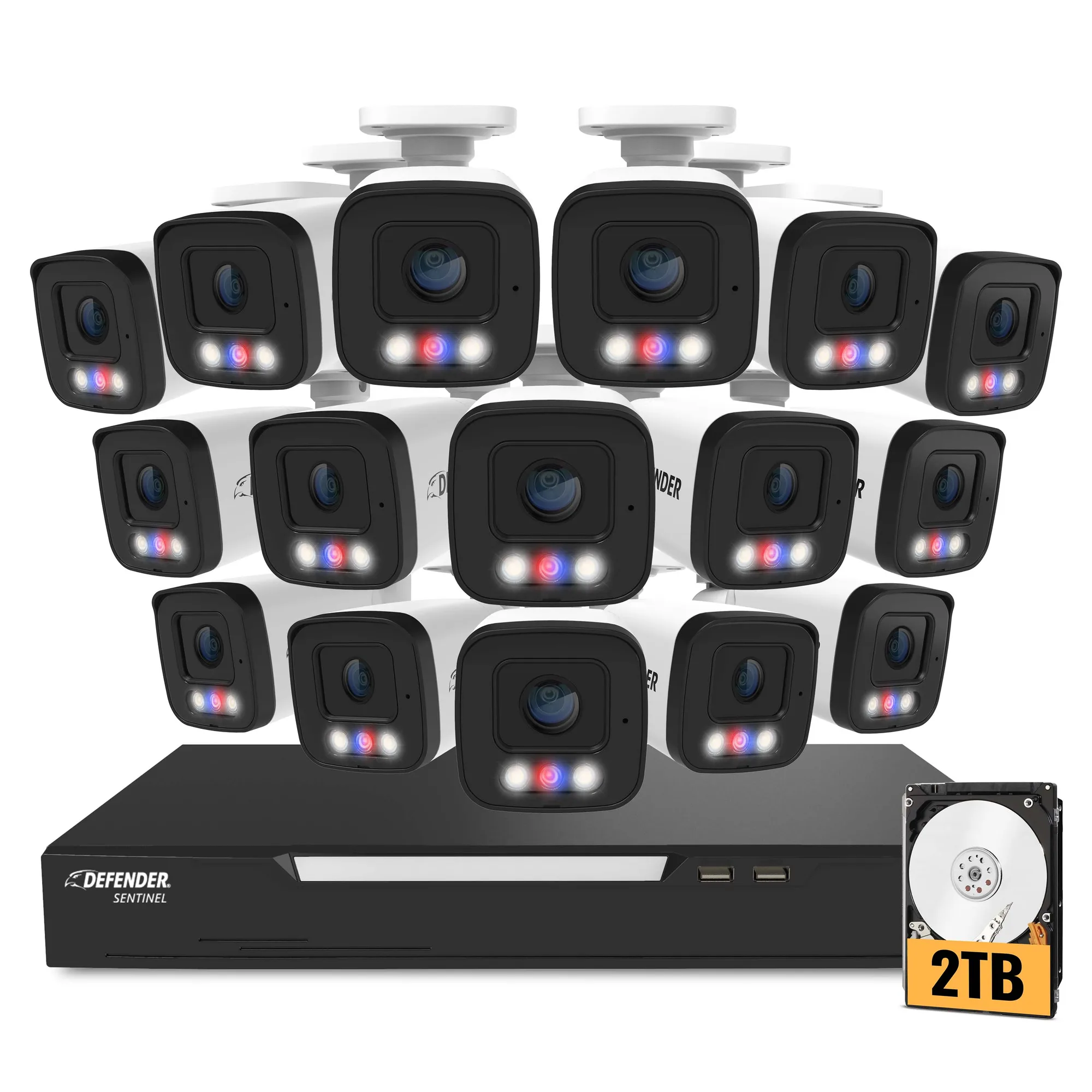
- AI POWERED Sentinel 4K Ultra HD Wired 16 Channel PoE NVR Security System, 16 Metal Cameras, 2TB HDD: AI-powered 16-channel PoE NVR with 16 metal cameras, 4K Ultra HD resolution, and a 2TB hard drive. If you plan to enroll faces across entrances, a garage, and a perimeter, the extra channels and larger drive matter more than the camera count alone.