Quick answer
To use the UGREEN Revodok Max 2131 Thunderbolt 5 dock, connect it to your computer using the included Thunderbolt 5 cable, then attach your peripherals. No driver installation is needed on modern systems.
Before you start: what you need
The Revodok Max 2131 is a 13-in-1 Thunderbolt 5 docking station. It works with any computer that has a Thunderbolt 4 or Thunderbolt 5 port. Make sure your system supports Thunderbolt — USB-C alone may not provide full functionality.
You do not need to install drivers for most operating systems. Windows 11, macOS Ventura and later, and most Linux distributions recognize the dock automatically.
Common setup mistakes to avoid
Using a non-Thunderbolt cable: The dock ships with a Thunderbolt 5 cable. Using a standard USB-C cable will limit data and video performance.
Plugging into the wrong port: Connect the dock to your computer's Thunderbolt port, not a regular USB-A or USB-C port. The port is usually marked with a lightning bolt icon.
Overloading the dock: While the 13-in-1 design handles many devices, connecting multiple high-power peripherals (like external hard drives) may require an external power source. Always use the included power adapter.
Step-by-step setup guide
- Connect the power adapter: Plug the included power adapter into the dock and then into a wall outlet. The dock's LED should light up to indicate power. Without power, the dock will not charge connected devices or support high-power peripherals.
- Connect the Thunderbolt cable: Use the included Thunderbolt 5 cable to connect the dock to your computer's Thunderbolt port. Do not use a regular USB-C cable. A non-Thunderbolt cable will limit data transfer to USB 3.0 speeds and may not support video output.
- Attach your peripherals: Connect monitors, external drives, keyboards, mice, and other devices to the dock's ports. The dock supports multiple displays via Thunderbolt 5. For best performance, connect high-bandwidth devices (like monitors) directly to the Thunderbolt ports on the dock.
- Verify connection: Check that your computer recognizes the dock. On Windows, open Device Manager and look for the dock under 'Universal Serial Bus controllers'. On macOS, check System Information under Thunderbolt. If the dock is not recognized, try a different Thunderbolt port on your computer or restart your system.
- Configure display settings (optional): If you connected external monitors, adjust display settings in your operating system. On Windows, press Win+P to choose extend, duplicate, or second screen only. On macOS, go to System Settings > Displays. Some monitors may require a specific cable (HDMI or DisplayPort) for optimal resolution. Check your monitor's manual.
Product facts
-
UGREEN Revodok Max 2131 Thunderbolt 5 Station daccueil 13-en-1: The UGREEN Revodok Max 2131 is a 13-in-1 Thunderbolt 5 docking station designed to expand your workspace connectivity. This means you can connect up to 13 different devices through a single Thunderbolt 5 port, reducing cable clutter on your desk.
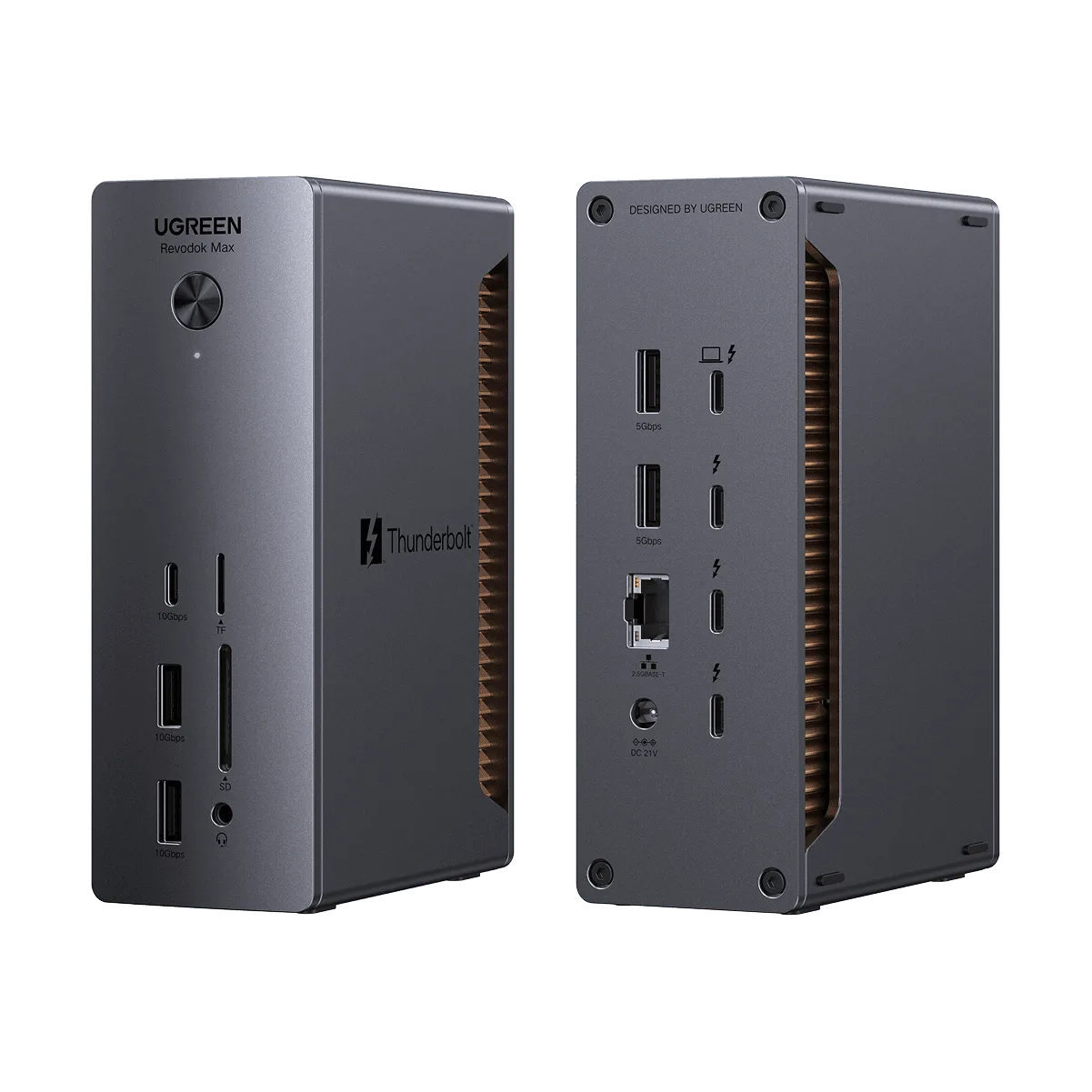
UGREEN Revodok Max 2131 Thunderbolt 5 Station daccueil 13-en-1