Quick answer
Set up your Q500 Mini Retro Handheld in minutes by charging the battery, inserting a microSD card with games, and powering on. Use the included USB cable and a standard 5V 2A charger for best results.
Why the right charger matters
The Q500 Mini Handheld uses a USB-C port for charging. While any USB-C cable will fit, using a high-amperage charger (like a 5V 2A adapter) ensures faster and safer charging. A low-power computer USB port may charge slowly or cause erratic behavior.
Game file compatibility
The Q500 supports a wide range of retro console ROMs, including NES, SNES, Game Boy, PlayStation, and arcade titles. Files should be in .zip or .7z format for best compatibility. Avoid using .iso files for PlayStation games unless you know the emulator supports them.
Setup and game loading steps
- Charge the battery fully: Connect the Q500 to a 5V 2A charger using the included USB-C cable. Charge for 2-3 hours until the LED turns green. Do not use a fast charger above 5V 2A, as it may damage the battery. A full charge prevents shutdowns during first-time setup.
- Insert a microSD card with games: Power off the console. Insert a microSD card (up to 128GB, formatted as FAT32) containing your game ROMs in folders organized by console (e.g., NES, SNES, PS1). The Q500 will automatically detect the card on next boot. Use FAT32 format; exFAT or NTFS may not be recognized.
- Power on and select a game: Press and hold the power button for 2 seconds. Use the D-pad to navigate to the game folder, select a title, and press A to launch. If a game doesn't load, check the file format (use .zip or .7z) and verify the ROM is for the correct console. If a game fails, try a different ROM dump from a trusted source.
- Adjust display and controls: Press the Select button to open the in-game menu. Adjust screen brightness, aspect ratio, or button mapping to your preference. The 5.1-inch display with 50% higher color saturation makes retro games look vibrant. Save your control profile to avoid reconfiguring each time.
- Save and load game states: During gameplay, press Start + Select to open the quick menu. Choose Save State to save your progress, and Load State to resume later. The Q500 stores multiple save slots per game. Use save states for games without built-in saving, but also use in-game saves when available.
Product fact
-
Q500 Mini Retro Handheld Game Console: Features a high-performance A7 1.3GHz quad-core CPU for smooth 64-bit and arcade classic gaming. This processor handles most retro game emulators without lag, even for demanding arcade and 64-bit titles.
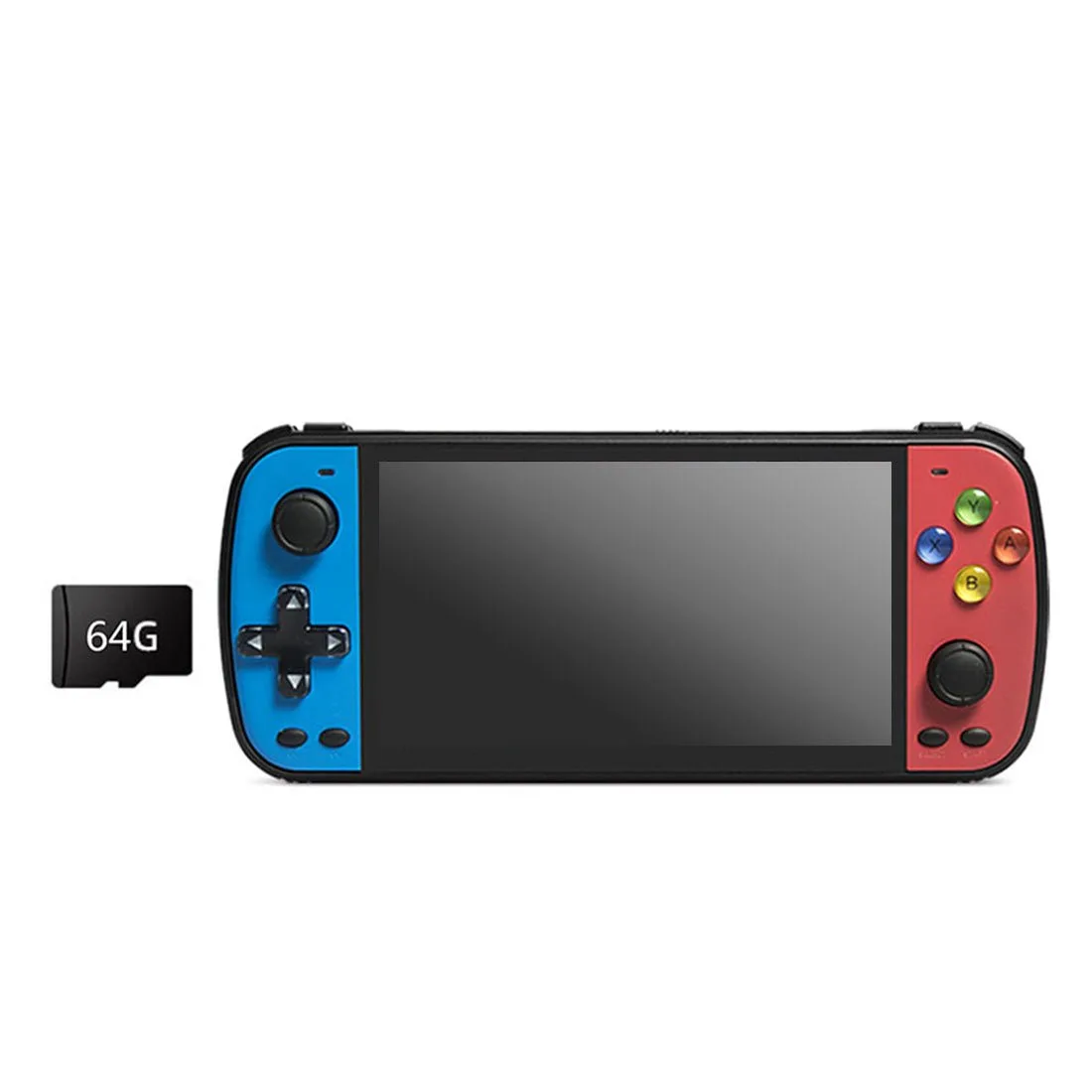
Q500 Mini Retro Handheld Game Console