Quick answer
Start with the cable and the port, not the dock. Reseat the USB-C cable at both ends, confirm your laptop port supports video output, and test one monitor directly before adding the dock. If the display appears but stays black, switch the monitor input source and lower the refresh rate. Most no-signal cases resolve at the cable or port stage, before any software change.
Check the laptop port before blaming the dock
Not every USB-C port carries video. Some ports on the same laptop handle data and charging only, while a separate port handles DisplayPort Alt Mode. Move the dock cable to a different USB-C port and watch whether the monitor wakes. If one port works and another does not, the dock is fine and you have found a port limitation.
Also confirm the laptop is not in a closed-lid state that disables external output, and that it is plugged into power. A dock drawing power from a nearly empty battery can drop the display link during startup.
Cable length and quality decide whether the signal survives
A USB-C cable rated only for charging often carries no video lanes at all. Swap in the cable that came with the dock, or another cable rated for video and high-speed data, then retest. Keep the run short: long passive extensions between the dock and the monitor are a common cause of intermittent detection.
If your dock has a fixed cable, inspect the connector for lint or bent pins. A connector that seats loosely will negotiate power but fail to establish a display link.
Match the monitor input and the dock output mode
Monitors do not always auto-switch. Open the monitor menu and set the input manually to the port you used. Then check the resolution and refresh rate in your display settings. A dock rated for 4K at 60Hz still needs the monitor to accept that timing; dropping to 30Hz or a lower resolution often restores the picture immediately.
When two monitors are connected, some laptops split available bandwidth across them. Disconnect the second monitor, get one working, then add the second back and lower its refresh rate if it does not appear.
Power, drivers, and the order you plug things in
Connect the dock to the laptop first, wait for it to enumerate, then connect monitors. Plugging everything in at once can leave the display link unnegotiated. If your dock supports power delivery, connect its power adapter before the monitors so the dock is not competing for current.
On Windows, check Display settings for a detected-but-disabled monitor and choose Extend. On macOS, open Displays and look for an Arrangement tab; a monitor that appears there but shows nothing usually needs a different cable or a lower refresh rate.
Symptom-to-fix diagnosis
- Monitor never appears in display settings: The dock is not passing a display signal at all. Reseat the USB-C cable at both ends, try a different USB-C port on the laptop, and test the monitor directly with another source. If the monitor works directly but not through the dock, the problem is the dock link or the cable.
- Monitor is listed but shows a black screen: The link negotiated but the timing is wrong. Set the monitor input manually, then lower the refresh rate or resolution in display settings. If lowering to 30Hz fixes it, your cable or monitor is the limit, not the dock.
- Only one of two monitors is detected: Bandwidth is being split. Disconnect the second monitor, confirm the first works, then reconnect and reduce the second monitor's resolution or refresh rate. If neither monitor appears with both connected, test each one alone to rule out a dead port.
- Display drops when the laptop is unplugged from power: The dock is losing power delivery. Connect the dock's power adapter and the laptop charger, then retest. If the display returns under power, keep the dock powered during use.
Dock specs worth checking against your symptoms
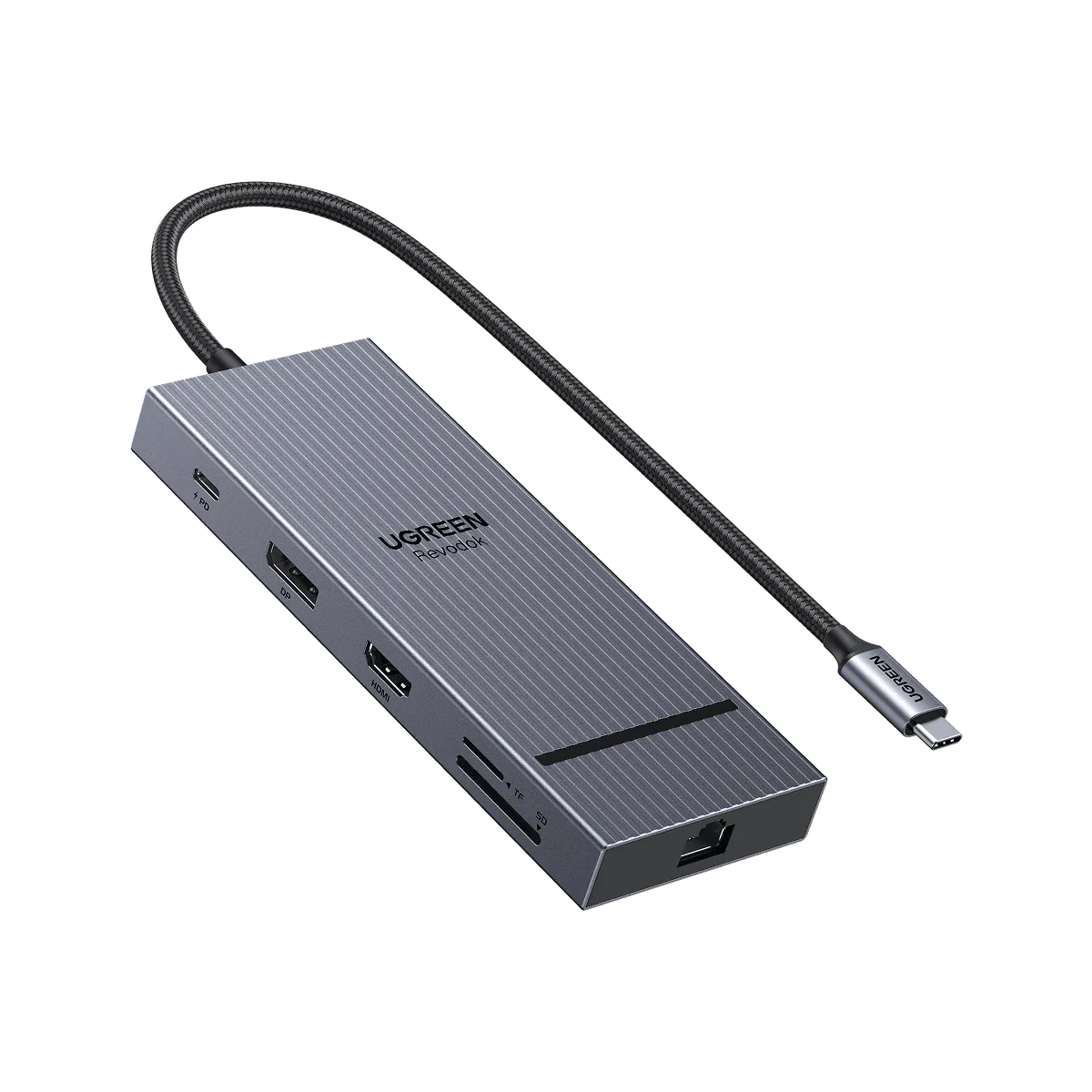
- UGREEN Revodok Pro 2111 11 in 1 USB C Docking Station: Revodok Pro 2111 is an 11-in-1 USB-C docking station with dual 4K display support, 10Gbps data transfer, 100W PD charging, 1000Mbps Ethernet, SD and microSD card readers, 3.5mm AUX audio, and a 40cm cable. The 100W PD rating means the dock can pass power to your laptop while driving displays, so a weak charger is less likely to be your no-signal cause. The 40cm cable also limits how far you can place the dock from the laptop, which matters if you were adding an extension cable.
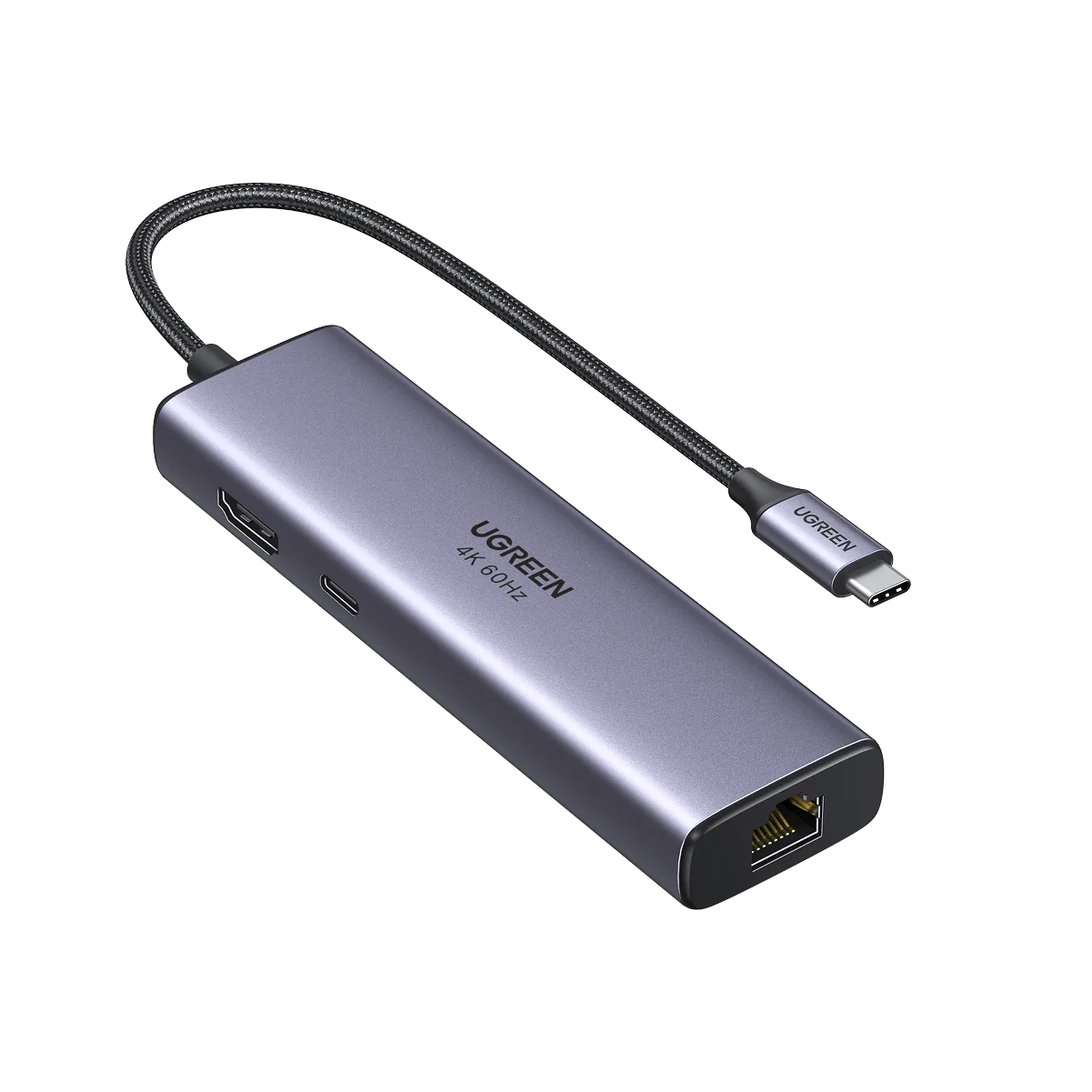
- UGREEN USB C 7 in 1 Hub with 4K 60Hz HDMI: UGREEN USB C 7 in 1 Hub includes an HDMI output supporting 4K at 60Hz and a USB-C connection for modern laptops. If you only need one external monitor, a 7-in-1 hub with a single 4K 60Hz HDMI output removes the dual-display negotiation step entirely, which simplifies troubleshooting when a dock will not detect a screen.