Quick answer
To record cleaner audio to your smartphone or GoPro, use a Saramonic output cable that matches your transmitter's output and your device's input. The key is selecting the correct cable orientation and securing all connections.
Why cable choice matters for mobile recording
Smartphones and GoPros lack the standard XLR or larger 1/4-inch inputs found on professional recorders. Saramonic output cables bridge that gap by converting the 1/8-inch (3.5 mm) output from wireless systems, on-camera mixers, or powered microphones into a signal your mobile device can accept. Using the wrong cable—or no cable at all—often results in no audio, distorted levels, or noise from a loose connection.
How to set up Saramonic output cables for mobile recording
- Identify your source and destination connectors: Check your Saramonic transmitter or mixer for its output type (usually a 3.5 mm TRS or TRRS jack). Then confirm your smartphone or GoPro has a 3.5 mm headphone input or a USB-C/lightning adapter. Choose the Saramonic cable variant (e.g., SRPMC1 for a standard 3.5 mm to 3.5 mm) that matches both ends. Using a TRRS cable with a TRS-only device can cause missing audio channels. Match the tip configuration.
- Plug the cable into the transmitter first: Insert the Saramonic cable firmly into the output jack of your wireless receiver, on-camera mixer, or powered microphone. Twist slightly to ensure a snug fit—loose connections introduce crackling or intermittent audio. A loose plug is the most common cause of intermittent signal. Always push until you feel it click or seat fully.
- Connect the other end to your recording device: Insert the opposite end of the cable into your smartphone's headphone jack or your GoPro's 3.5 mm adapter. If your device uses a USB-C or Lightning port, attach the appropriate adapter first, then plug in the cable. Do not force the cable. If it doesn't slide in easily, check the plug orientation and adapter compatibility.
- Set audio levels on both devices: Turn on your Saramonic transmitter and set its output volume to about 75%. On your smartphone or GoPro, open the recording app and adjust the input gain so the meter peaks around -12 dB to -6 dB without clipping. Start with lower gain and increase gradually. Clipping is easier to prevent than to fix in post.
- Test the connection before recording: Speak into the microphone at your normal recording distance while monitoring the audio level on your device. Listen for static, hum, or dropouts. If you hear issues, reseat both cable ends and check the cable for damage. A quick 10-second test can save you from discovering unusable audio after a full shoot.
Product facts
-
Saramonic Output Cables: Saramonic output cables (SRPMC1, SRPMC2, SRGMC1, SRGMC2) let you record audio directly to smartphones and GoPros from Saramonic wireless systems, on-camera mixers, or powered microphones. They eliminate the need for an external audio recorder when you want a lightweight, one-cable setup for mobile video.
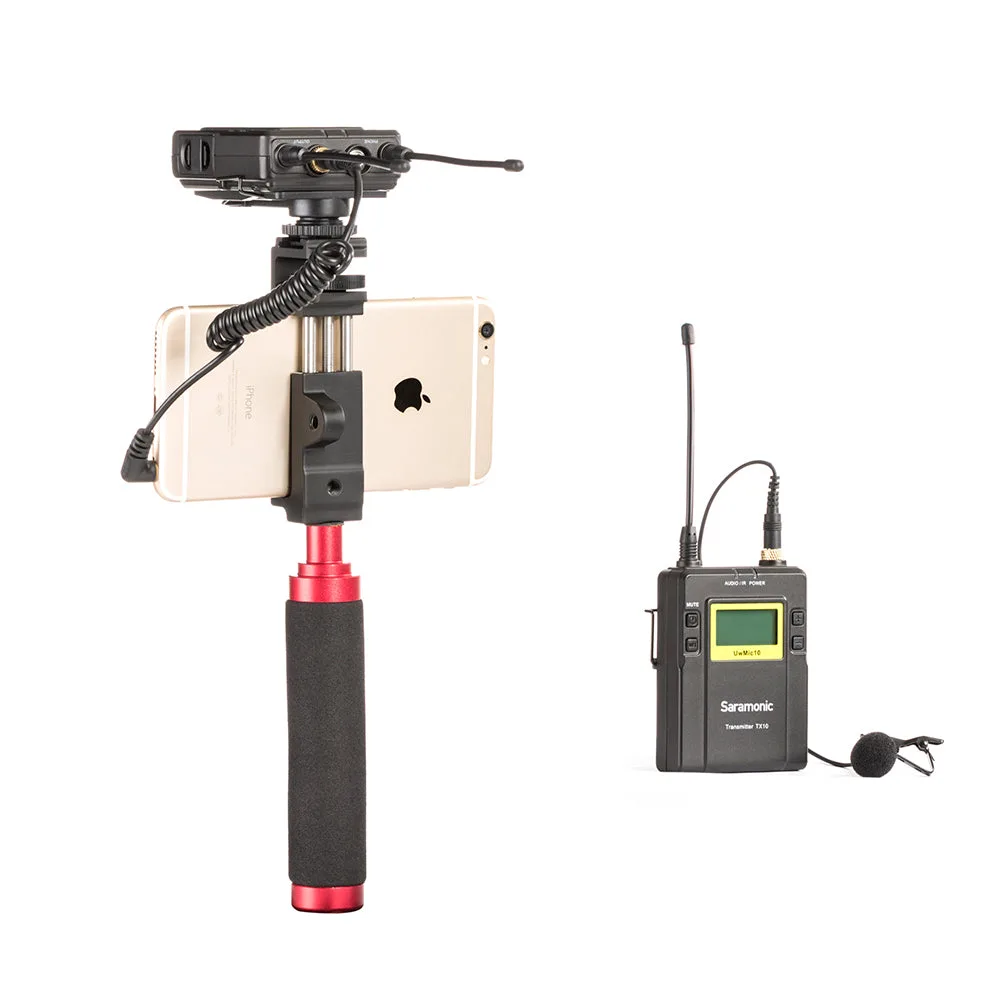
Saramonic Output Cables