Quick answer
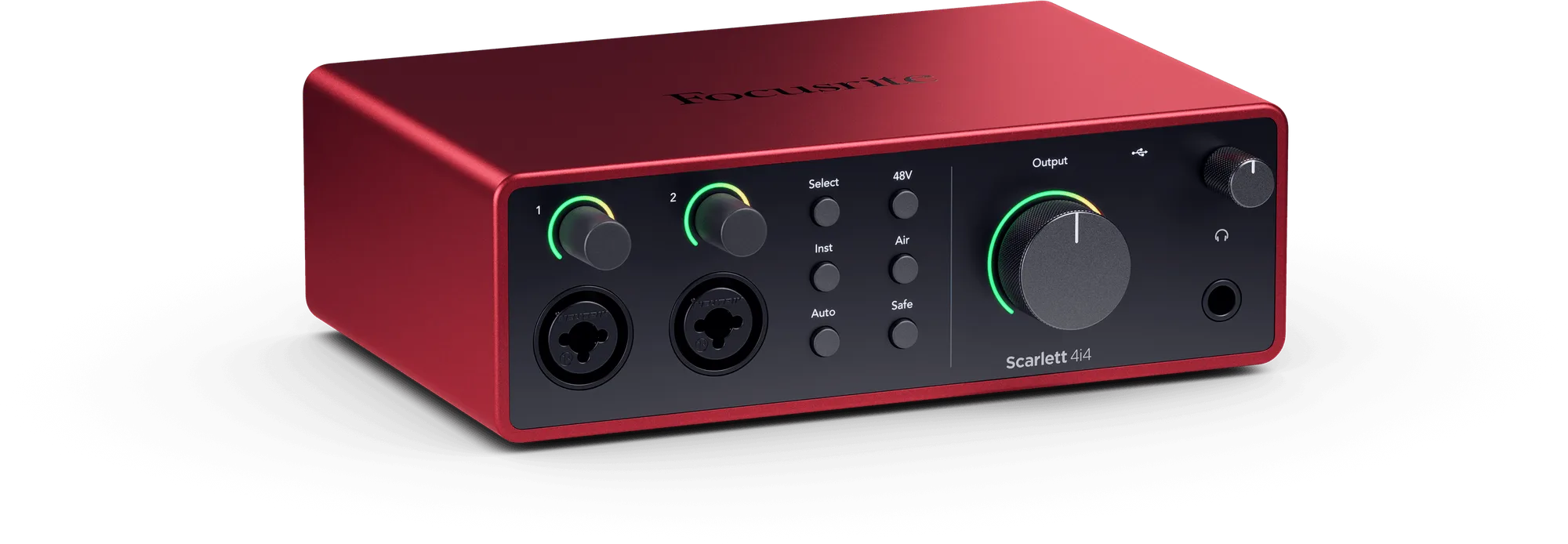
If your microphone sounds bad, check gain first, then placement, then background noise. Set gain so normal speech peaks around -12 dB to -6 dB, keep the mic 4 to 6 inches from your mouth and slightly off-axis, and treat the room before buying anything new. If the sound is still muffled, quiet, or noisy after those three fixes, the problem is usually the interface, cable, or mic itself. A clean interface like the Focusrite Scarlett 4i4 4th Gen can rule out the input stage as the culprit.
Start by matching the symptom to the cause
Bad microphone sound is not one problem. It is four common problems that happen to sound similar: too little gain, too much room, wrong mic position, or a noisy signal chain. Before you change any settings, record 20 seconds of normal speech and listen back with headphones. Write down exactly what you hear: quiet, muffled, hissing, popping, or roomy. That single word points to the cause and saves you from adjusting settings that are already correct.
- Quiet and thin: gain is too low, or the mic is too far away.
- Muffled and dull: the mic is off-axis, blocked, or pointed at the wrong part of your mouth.
- Hissing or humming: gain is too high, or a cable or USB port is introducing noise.
- Popping on plosives: you need a pop filter or a slight angle change, not more gain.
- Roomy and echoey: the room is the problem, not the microphone.
Set gain correctly instead of guessing
Most quiet-mic complaints are gain problems. Speak at your normal volume and watch the meter in your recording software. Peaks should land between -12 dB and -6 dB. If peaks stay below -18 dB, raise gain. If they hit 0 dB, lower it. Do not fix a quiet recording by normalizing in editing; that raises the noise floor along with your voice. If your interface has Auto Gain, as the Scarlett 4i4 4th Gen does, use it to set a starting level, then fine-tune by hand.
- Set gain with the mic in its final position, not in your hand.
- Leave 6 to 12 dB of headroom for sudden laughs or loud words.
- If gain is already maxed and the signal is still weak, the mic or interface is the limit, not the setting.
Fix muffled sound with placement, not EQ
A muffled microphone usually means the capsule is off-axis or partially covered. Point the front of the mic at your mouth, not the ceiling, and keep 4 to 6 inches of distance. For a cardioid mic, speaking slightly across the grille rather than straight into it reduces plosives without losing clarity. If your mic has a low-cut or high-pass filter, engage it for speech; it removes rumble that makes voices sound muddy. Do not boost treble to fix muffling until you have confirmed the mic is aimed correctly.
- Check that you are not speaking into the side or back of a side-address mic.
- Remove windscreens or foam covers that are dirty or too thick.
- If the mic sits on the same desk as your keyboard, isolate it; vibrations read as mud.
Reduce background noise at the source
Hissing, humming, and fan noise are usually gain and environment problems, not microphone defects. Lower gain and move the mic closer to your mouth; this improves the signal-to-noise ratio. Point the mic away from your computer, air vent, or window. Plug USB mics directly into the computer rather than a hub, and keep audio cables away from power supplies. If you still hear a steady hiss with gain at a normal level, test a different cable and a different USB port before replacing the mic.
- Turn off fans, air conditioning, and noisy appliances during recording.
- Use a shock mount or a folded towel under a desktop mic stand.
- If noise disappears when you unplug the mic, the mic or cable is the source.
Know when to stop adjusting and change the setup
There is a point where more tweaking makes things worse. If you have set gain correctly, placed the mic properly, and quieted the room, and the recording still sounds thin, noisy, or distorted, the problem is hardware. A USB microphone with a fixed internal gain stage may simply not have enough clean output for your voice. In that case, move to an audio interface and an XLR microphone, or replace the cable and interface first if the mic is already good. Do not keep raising gain to compensate for a weak signal; that only amplifies noise.
- Stop adjusting if every change makes the sound worse, not better.
- Test the microphone on a second computer to rule out software settings.
- If the mic is more than a few years old and was inexpensive, replacement is often cheaper than repair.
Symptom-to-fix diagnosis
- Quiet recording, peaks below -18 dB: Raise gain until normal speech peaks between -12 dB and -6 dB. Move the mic 4 to 6 inches from your mouth. If gain is already maxed, the mic or interface lacks clean output. If peaks stay low after both fixes, replace the mic or add an interface with more gain.
- Muffled, dull, or distant voice: Check that you are speaking into the correct side of the mic and that no foam or filter blocks the capsule. Aim slightly off-axis to reduce plosives without losing clarity. Engage a low-cut filter if available. If the mic is aimed correctly and still muffled, the capsule or cable may be failing.
- Hissing, humming, or fan noise: Lower gain and move closer to the mic. Point the mic away from computer fans and vents. Plug USB directly into the computer, not a hub, and separate audio cables from power cables. If hiss remains with gain at a normal level, test a different cable and USB port before replacing the mic.
- Popping on p and b sounds: Add a pop filter or angle the mic slightly across your mouth instead of straight on. Do not lower gain to fix popping; that only makes the recording quieter. If popping persists, increase distance to 6 to 8 inches and speak slightly past the mic.
Gear that helps rule out the input stage
- Scarlett 4i4 4th Gen: Scarlett 4i4 4th Gen has two ultra-low-noise preamps, four line inputs, and studio-grade converters with 120 dB dynamic range. If your current interface adds hiss or cannot supply enough clean gain, this gives you a quiet, high-headroom input stage for mics, keys, guitars, and MIDI devices.
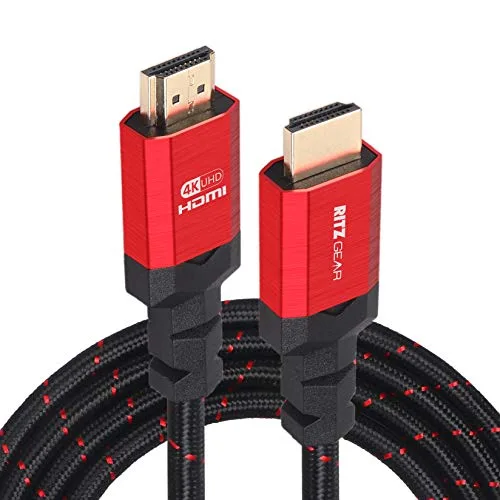
- RitzGear 4K HDMI Cables | 10-Pack of 10 Ft. High-Speed 18Gbps HDMI 2.0 Connectors | Durable Braided Nylon, Gold Plating, 4K @ 60Hz Ultra HD, 3D, 2160p, 1080p & Ethernet Support for TV, Laptop & Gaming: RitzGear 4K HDMI Cables are a 10-pack of 10 ft. high-speed 18Gbps HDMI 2.0 cables with braided nylon and gold plating. Not a microphone fix, but useful if your recording desk also routes video to a monitor or capture device and you want one less cable variable to troubleshoot.
- KODAK Mini Photo Album Small Heart: KODAK Mini Photo Album Small Heart holds 16-20 photos and includes software and a die-cut sheet of photo paper. A practical way to store printed reference cards or setup notes for your recording space, though it does not affect microphone sound.