Quick Answer
Use the AI Camera 2.0 vision module to run ready-to-use AI functions or train custom models in classroom projects. This guide walks through setup, project integration, and common pitfalls.
Why Use a Vision Module in STEAM Lessons
A vision module like the AI Camera 2.0 lets students interact with real-world AI without coding from scratch. It plugs into mBot2 and CyberPi, so you can focus on teaching AI concepts rather than troubleshooting hardware.
The module comes with nine preloaded AI functions, including face detection, color recognition, and object tracking. This variety supports different lesson goals, from data collection to robotics challenges.
Trade-Off: Ready-Made vs. Custom AI
The out-of-the-box functions are great for quick demos and introductory lessons. However, if you want students to train their own AI models, you need to allocate extra class time for the training process and ensure your computers meet the software requirements.
For most classroom projects, starting with the built-in functions works well. Move to custom training only when students have a solid grasp of how AI models learn from data.
Step-by-Step: Using the AI Camera 2.0 in Class
- 1. Connect the Module: Plug the AI Camera 2.0 into the mBot2 or CyberPi using the provided cable. Ensure the connection is secure and the module's LED lights up. Common mistake: Forgetting to power the main board first. Always turn on the mBot2 or CyberPi before connecting the camera.
- 2. Select an AI Function: Use the mBlock software (or CyberPi's on-screen menu) to choose one of the nine preloaded functions, such as face recognition or color tracking. Follow the on-screen prompts to calibrate if needed. Check that the classroom lighting is even. Strong shadows or glare can reduce recognition accuracy.
- 3. Run a Demo Project: Open one of the nine included project-based lessons. For example, use the color tracking function to make a robot follow a colored object. Let students observe how the camera processes visual data in real time. Start with a simple demo before assigning independent work. This helps students understand the module's capabilities and limits.
- 4. Train a Custom Model (Optional): If students want to recognize unique objects, use the mBlock AI training tool. Collect at least 20 images per class, label them, and run the training. Deploy the model to the camera module. Training takes 5-10 minutes depending on image count. Plan this step for a separate session to avoid rushing.
- 5. Integrate into a Larger Project: Combine the camera with other mBuild sensors (e.g., ultrasonic, light) to create a multi-sensor robot. For instance, use object tracking to follow a person while avoiding obstacles. Test each sensor individually first. Debugging a combined system is easier when you know each component works alone.
Product Facts
-
AI Camera 2.0:All-In-One AI Vision Module for Education: Explore 9 ready-to-use AI functions right out of the box Teachers can start a lesson on AI recognition immediately without spending time programming or training models.
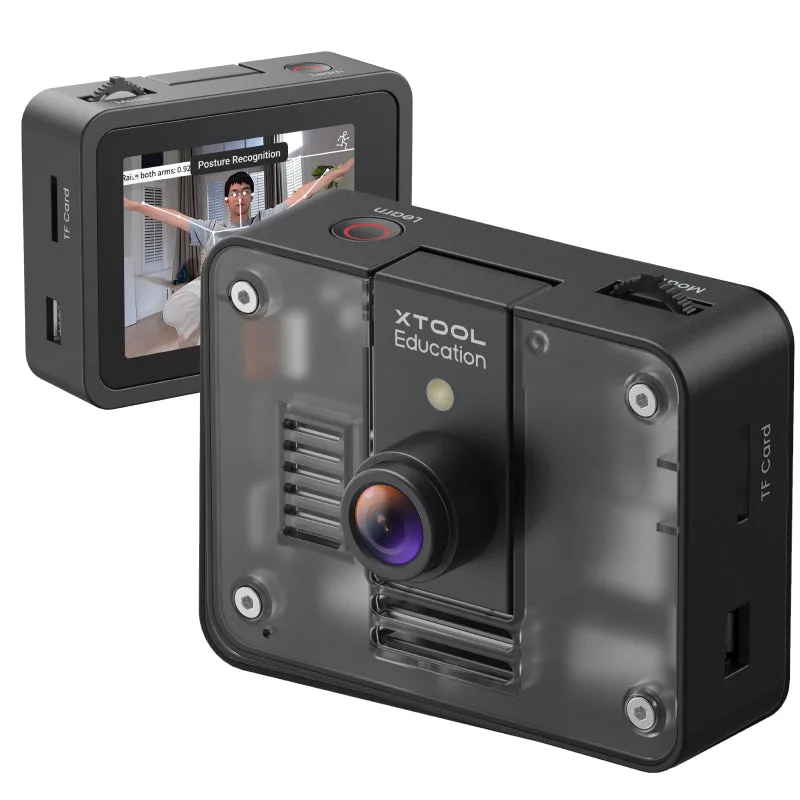
AI Camera 2.0:All-In-One AI Vision Module for Education
-
AI Camera 2.0:All-In-One AI Vision Module for Education: Go beyond demos: train and deploy your own custom AI models Advanced students can create unique projects, such as recognizing classroom objects or sorting items by color, reinforcing machine learning concepts.
-
AI Camera 2.0:All-In-One AI Vision Module for Education: Seamlessly integrates with the mBot2 & mBuild ecosystem The module connects to existing classroom robots and sensors, so you can build multi-step projects without extra adapters or wiring.