Quick answer
Most all-in-one touch screen problems come from a dirty screen, a disabled driver, or a Windows calibration setting that drifted. Work through the diagnosis steps in order before you replace hardware or reinstall Windows.
Why touch issues on an all-in-one PC are usually software, not hardware
Touch failures on an all-in-one PC often look like hardware damage but start as software problems. A driver that did not load after a Windows update, a calibration offset, or a dirty screen can produce the same symptoms as a broken digitizer. Because the touch layer sits in front of the LCD, a cleaning product or a hard object can also cause dead zones that no software fix will repair.
The 1786AIO 17.3
All in One PC uses a capacitive touch screen. Capacitive panels respond to the electrical properties of your finger, not pressure. That is why a stylus made for other screens, a gloved hand, or a screen protector with an air gap can make the display seem unresponsive even though the panel is fine.
Diagnosis: symptom, cause, action, and when to stop
- Symptom: Touch is completely unresponsive: Check the USB or display cable that carries touch data, then restart Windows. If the touch still does not respond, open Device Manager, expand Human Interface Devices, and look for a HID-compliant touch screen entry. If it is missing or has a yellow warning icon, uninstall the driver and let Windows reinstall it on reboot. If the touch screen still does not respond after a driver reinstall and a fresh restart, stop and test with a USB mouse before deciding the panel itself failed.
- Symptom: Touch works but cursor jumps or drifts: Calibrate the touch screen in Windows: open Settings > Devices > Pen & Windows Ink, then run the calibration tool. On Windows 10 Pro, search for Recalibrate only after cleaning the screen; dirt can shift the touch mapping.
- Symptom: Touch works in some apps but not others: Check the app or window for a touch/pen mode toggle, then test in a second app. If the touch works in one app and fails in another, the issue is software-specific, not the panel. Reinstall the app or update Windows 10 Pro before replacing hardware.
- Symptom: touch stops after Windows updates: Open Device Manager, expand Human Interface Devices, and check for a yellow warning on the touch screen entry. Right-click and update the driver, then restart. If the touch entry is missing, run Windows Update and reinstall the touch driver from the manufacturer support page. If the device still does not appear after a driver reinstall, the touch controller may need service.
- Symptom: touch works but cursor jumps: Calibrate the touch screen through Windows settings (Control Panel > Tablet PC Settings > Calibrate). Do a clean wipe of the screen first with a soft dry cloth, because moisture or residue can create false touches. Recalibrate after any OS update or display resolution change.
- Symptom: touch works in Windows but not in apps: Check the app or program for touch support and update it. Some older desktop apps do not accept touch input even when the OS does.
- Symptom: touch unresponsive after a Windows update: Open Device Manager, expand Human Interface Devices, and reinstall the HID-compliant touch screen driver. If the driver is missing, run Windows Update and check optional driver updates before replacing hardware. Restart once after the driver reinstall; most touch panels initialize correctly after a reboot.
Products that help you test the fix
-
1786AIO 17.3" All in One PC Windows 10 Pro, 1920 x 1080 IPS Touch Screen, Intel Celeron, 4 GB/64 GB (Expandable Storage), Wireless keyboard and mouse: This 17.3” all-in-one has a capacitive touch screen at 1920 x 1080 IPS resolution and runs Windows 10 Pro. The IPS panel and Windows 10 Pro give you a familiar calibration path, so touch issues are usually a software or driver setting rather than a hardware fault.
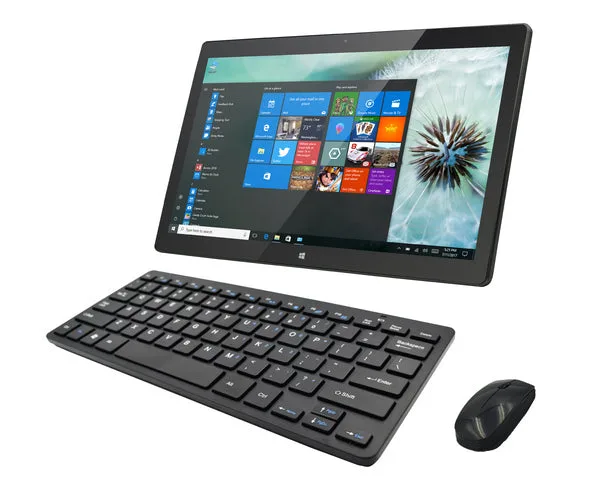
1786AIO 17.3" All in One PC Windows 10 Pro, 1920 x 1080 IPS Touch Screen, Intel Celeron, 4 GB/64 GB (Expandable Storage), Wireless keyboard and mouse