Quick answer
Turn on the keyboard and mouse, put each into pairing mode, then select them from your device's Bluetooth menu. The TECKNET Foldable Bluetooth Keyboard and Mouse Combo pairs like any standard Bluetooth peripheral, but its folding design requires a few extra steps to ensure a stable connection.
Before you start: charge or check batteries
A low battery is the most common reason pairing fails. Make sure both the keyboard and mouse have enough charge before you begin. The TECKNET Foldable Keyboard uses a built-in rechargeable battery; a full charge takes about 2 hours and gives you weeks of typical use.
Which devices work?
This combo works with any device that supports Bluetooth HID profiles: Windows PCs, Macs, Chromebooks, iPads, iPhones, Android phones and tablets, and even smart TVs. If your device has Bluetooth, it will recognize the keyboard and mouse as standard input devices.
Step-by-step pairing guide
- Power on the keyboard and enter pairing mode: Slide the power switch on the keyboard to ON. Press and hold the Bluetooth button (usually marked with a Bluetooth icon) for 3 seconds until the LED indicator starts flashing rapidly. This means the keyboard is discoverable. Common mistake: pressing the button too briefly. Hold until the LED flashes, not just blinks once.
- Power on the mouse and enter pairing mode: Slide the mouse power switch to ON. Press and hold the pairing button (often on the bottom) for 3 seconds until the LED flashes. Some models have a dedicated Bluetooth button; check your manual if unsure. Checkpoint: The mouse may pair automatically after the keyboard on some devices, but it's safer to pair each one separately.
- Open Bluetooth settings on your device: On Windows: Settings > Bluetooth & devices > Add Bluetooth device. On Mac: System Settings > Bluetooth. On iPad/iPhone: Settings > Bluetooth. On Android: Settings > Connected devices > Pair new device. Make sure Bluetooth is turned on. Common mistake: leaving Bluetooth off or having too many paired devices. Remove old devices if the list is full.
- Select the keyboard from the device list: Look for an entry named "TECKNET Keyboard" or similar. Tap or click it. If a PIN appears on screen, type it on the keyboard and press Enter. The LED on the keyboard will stop flashing and stay solid when paired. Checkpoint: If the keyboard doesn't appear, turn it off and on again, then repeat step 1. Move closer to the device (within 3 feet).
- Pair the mouse the same way: After the keyboard is connected, repeat the process for the mouse. Select "TECKNET Mouse" from the Bluetooth device list. Confirm any pairing request. The mouse LED will become solid once connected. Common mistake: assuming the mouse paired automatically. Always check the Bluetooth list to confirm both devices are listed as connected.
- Test both devices: Open a text editor or note app and type a few sentences. Move the mouse and click around. If either device is unresponsive, turn it off and on again. If the issue persists, remove the device from Bluetooth settings and repeat the pairing steps. Checkpoint: If only one device works, the other may still be in pairing mode or have a low battery. Charge if needed.
About this product
-
TECKNET Foldable Bluetooth Keyboard and Mouse Combo: The keyboard folds on both sides into a compact size secured with magnetic clasps, and the aluminum hinges withstand over 10,000 folds. This means you can safely carry it in a bag or pocket without worrying about the keyboard opening or the hinges wearing out.
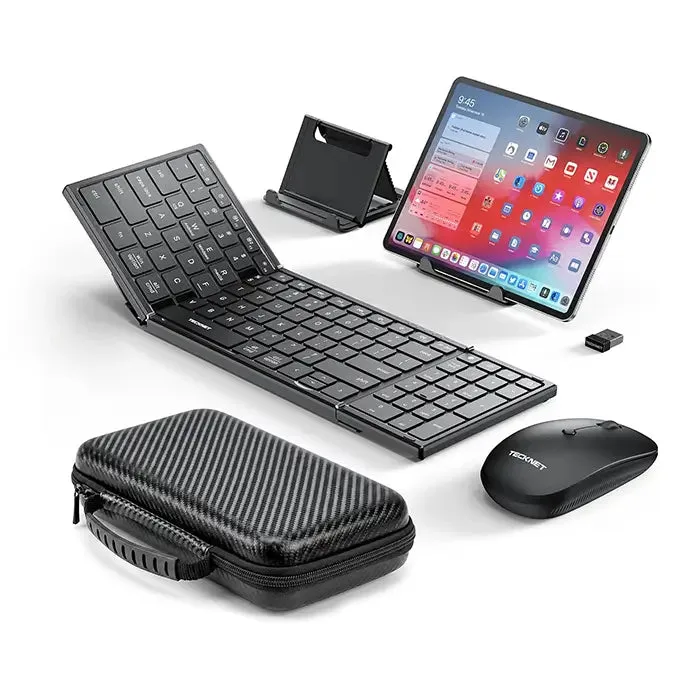
TECKNET Foldable Bluetooth Keyboard and Mouse Combo