Quick answer
Set up the Lume Cube Broadcast Lighting Kit by placing the LED panel slightly above your webcam and about arm's length away, then adjusting brightness and color temperature until your face is evenly lit without glare. The kit includes a stand and mount, so you can position the light at eye level or higher in minutes. The biggest difference between a polished video call and a washed-out one is light placement, not camera quality.
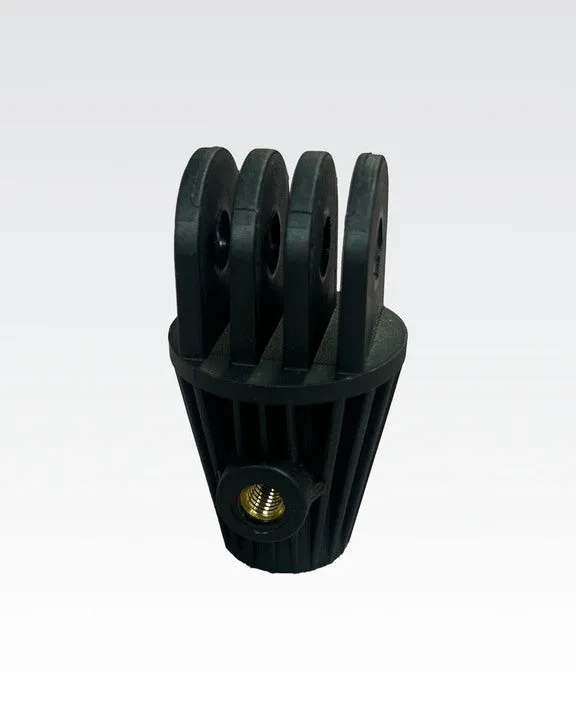
What the Broadcast Lighting Kit includes and where it works best
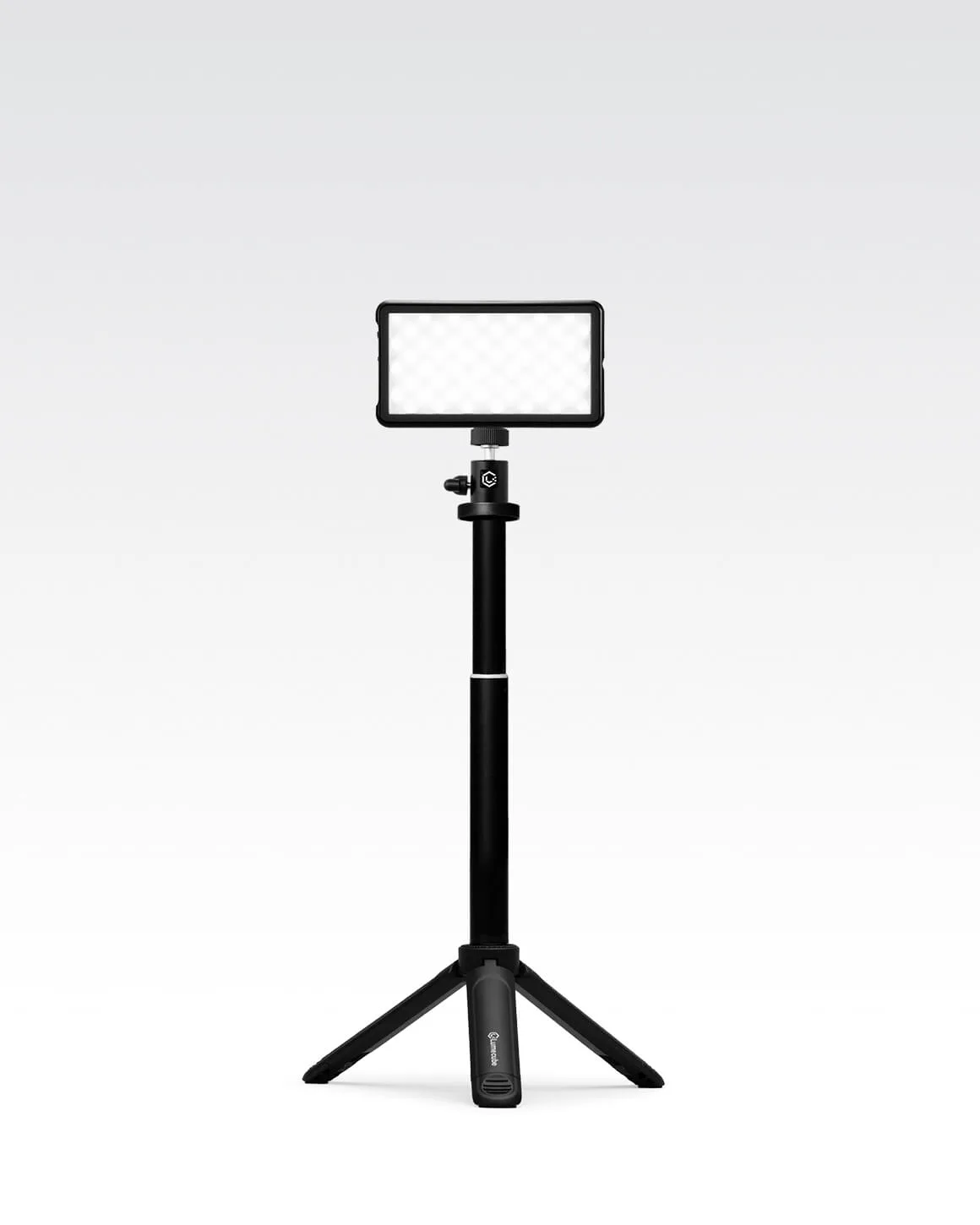
The Lume Cube Broadcast Lighting Kit is a single-LED-panel setup designed for video calls, streaming, and remote meetings. It ships with a stand and mount, which means you do not need to buy a separate tripod or clamp to get started. The panel is small enough to sit beside a laptop or monitor and bright enough to serve as your main light source in a dim home office.
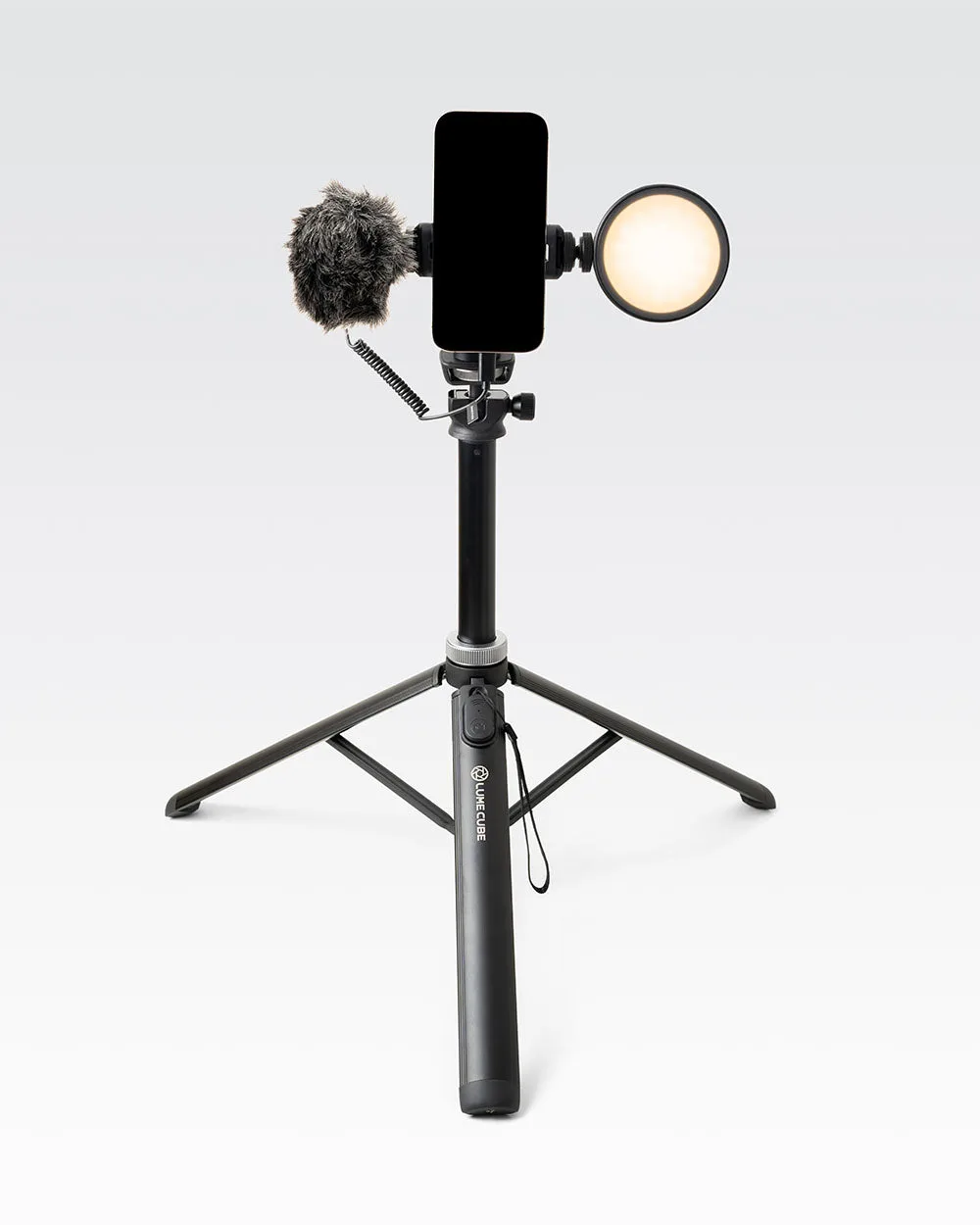
This kit is not a multi-light studio system. If you already own a ring light or a larger LED panel, the Broadcast Kit works best as a dedicated video call light that stays in one place, rather than a portable kit you move between rooms. For creators who film on a phone and need lighting, audio, and a grip in one bag, the Creator Essentials Kit is the more practical choice.
Choose a spot with controllable ambient light
Before you unpack the kit, pick a spot where you can reduce or block overhead lights and windows behind you. A window behind your chair will silhouette your face no matter how bright the LED panel is. If you cannot move your desk, close the blinds or shift your chair so the window is to your side, not directly behind you.
A common mistake is setting up in front of a bright wall or window and then maxing out the light to compensate. That flattens your face and creates a blown-out background. Instead, aim for a background that is one or two stops darker than your face.
Position the LED panel and mount it at the right height
Attach the LED panel to the included stand and mount, then place it slightly above your webcam and about arm's length away from your face. This angle throws light down onto your face and avoids the raccoon-eye shadows you get from a light sitting below eye level. If the stand is too tall for your desk, angle the panel down rather than raising your chair.
Checkpoint: look at your webcam preview, not the light itself. Your eyes should have a small catchlight and your nose should not cast a hard shadow across your cheek. If the shadow is sharp, move the light a few inches to the side or farther away.
Set brightness and color temperature for your room
Start with the panel at a moderate brightness and adjust in small increments. The goal is a face that looks natural, not a face that looks like it is under a spotlight. If your webcam preview shows shiny skin or a washed-out forehead, lower the brightness before you change anything else.
Match the light's color temperature to the room. If your overhead lights are warm, a daylight-balanced panel will look blue against them. If you have no other lights on, a slightly warm setting often looks more flattering on video calls. There is no single correct setting, so preview and adjust until your skin tone looks like it does in a mirror.
Frame your shot and test with a real call
Once the light is set, frame yourself so your eyes sit about one-third from the top of the frame. Keep the LED panel out of the shot or just at the edge. Then join a test meeting with a colleague or use your platform's preview mode to check how the light reads on a compressed video feed, which often looks different from a local camera preview.
A common mistake is testing only in a still photo. Video compression softens highlights and can make a slightly bright setup look fine, while a slightly dim setup looks muddy. Test with motion and speech, and ask the other person whether your face looks clear or washed out.
Keep the setup consistent between calls
Mark the stand position with a small piece of tape on your desk, and note your brightness and color settings. Consistency matters more than perfection: a setup you can recreate in thirty seconds beats one you have to rebuild every morning. If you share the desk with someone else, keep the kit on a shelf and set it up the same way each time.
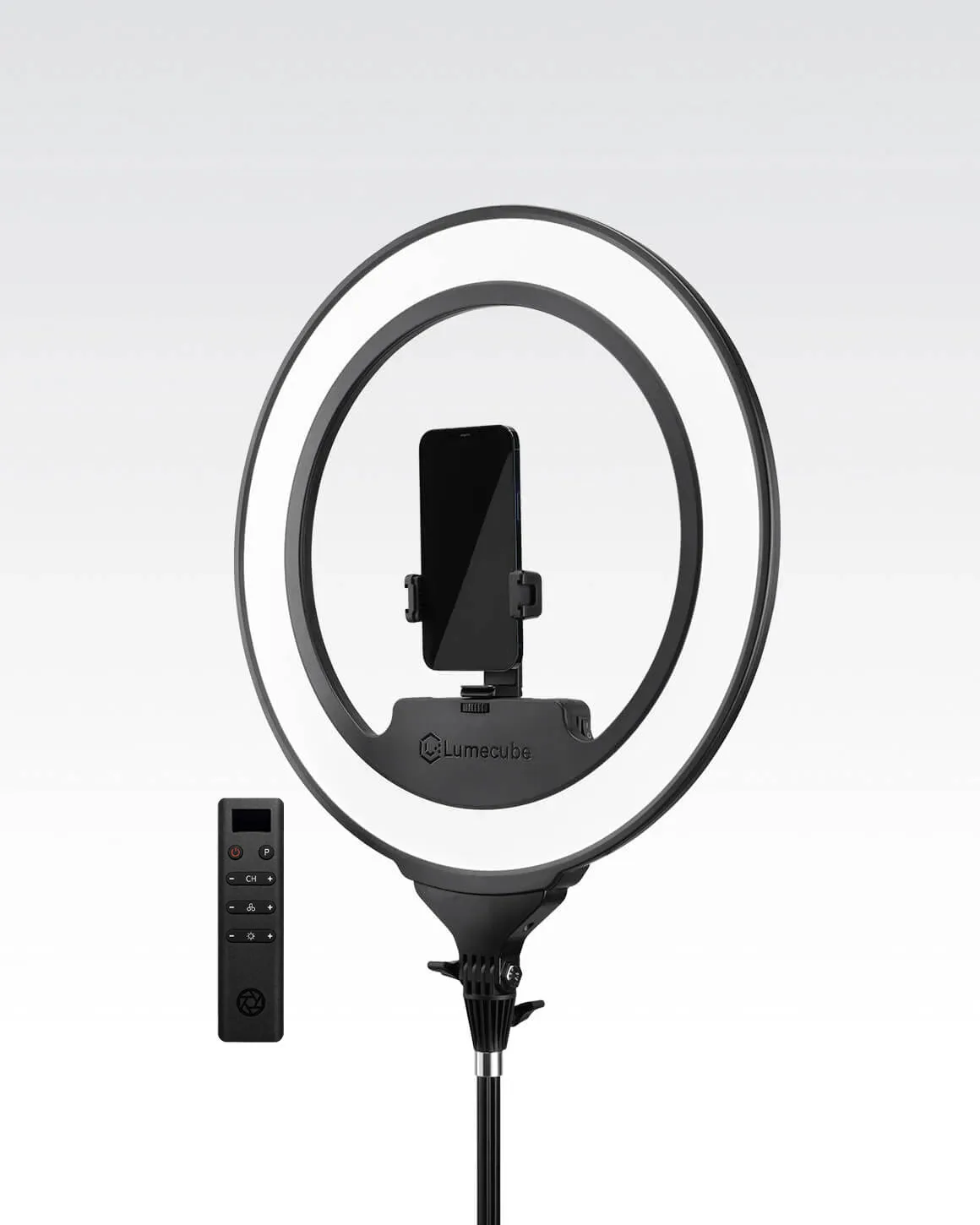
For a larger, softer light source for portraits or product shots, the Cordless Ring Light Pro is an 18-inch edge-lit ring light with a built-in rechargeable battery. It is a different tool from the Broadcast Kit, and it is worth considering only if you also shoot beauty, product, or streaming content where a ring-shaped catchlight is desirable.
Video call lighting setup steps
- Step 1: Clear the background light: Turn off overhead lights directly above you and close blinds or curtains behind your chair. Check your webcam preview for a bright window or lamp behind your head. Checkpoint: if your face looks dark and your background looks bright, fix the background before touching the LED panel.
- Step 2: Assemble the stand and mount: Attach the LED panel to the included stand and mount, then place it on your desk beside or behind your laptop. Keep the panel out of the camera frame. Common mistake: mounting the panel too low, which creates shadows under the eyes and nose.
- Step 3: Aim the light from above eye level: Raise the panel so it sits slightly above your webcam and angle it down toward your face. Move it about arm's length away and slightly to one side for gentle shaping. Checkpoint: you should see a small catchlight in your eyes and no hard shadow across your cheek.
- Step 4: Dial in brightness and color temperature: Start at moderate brightness and adjust in small steps. Match the color temperature to your room lights so your skin tone looks natural, not blue or orange. Common mistake: maxing out brightness to fight a bright background instead of fixing the background first.
- Step 5: Frame and test on a live call: Position your eyes about one-third from the top of the frame, then join a test meeting to see how the light reads through video compression. Checkpoint: ask the other person whether your face looks clear or washed out, and adjust one setting at a time.
- Step 6: Lock in the position: Mark the stand position with tape and note your brightness and color settings so you can recreate the setup in seconds before each call. Next step: if you need a larger, softer light for portraits or streaming, consider the Cordless Ring Light Pro as a separate tool.
Product facts
- Lume Cube Broadcast Lighting Kit Video Conference LED Light with Stand & Mount: Professional-quality broadcast kit with stand and mount, designed to boost your appearance on video calls. You get the light, stand, and mount in one purchase, so there is no extra tripod or clamp to source before your next meeting.
- Lume Cube Creator Essentials Kit Vlogging LED Light, Mic, Grip & Tripod: All-in-one mobile creator kit combining LED lighting, professional audio, and a stable shooting platform for smartphone filming. If you film on a phone and need light plus sound plus a grip, this kit replaces three separate purchases, while the Broadcast Kit stays focused on video calls.
- Lume Cube Cordless Ring Light Pro Black 18-inch Edge-Lit LED Ring Light: 18-inch edge-lit LED ring light with a built-in rechargeable battery for wireless use. A larger, softer light source with no cable, useful when you want a ring-shaped catchlight for portraits, product shots, or streaming rather than a single-panel desk setup.