Quick Answer
To set up the Mini Education 16-Pack, start by charging all 16 robots, then pair them with your tablets or computers using the Sphero Edu app, and organize activities that rotate students through stations.
Why the 16-Pack Works for Whole-Class Engagement
The Mini Education 16-Pack is designed for early learning and elementary students, making it a practical choice for classrooms that want hands-on coding and creativity without a hefty price tag. With 16 robots, you can support up to 16 students at once or split the class into smaller groups for collaborative projects.
Because the pack is priced at USD 982.17 (compared to a catalog price of USD 1559.00), it offers a cost-effective way to bring robotics into your STEM curriculum. However, keep in mind that the pack does not include charging hubs or storage cases, so you'll need to plan for those separately.
Planning Your First Week with the Robots
Before you introduce the robots to students, decide how you'll manage the devices. A simple station rotation works well: set up four stations with four robots each, and have groups rotate every 15–20 minutes. This keeps engagement high and gives every student a chance to code.
Also, consider pairing students—one robot per pair is ideal for early learners who are just getting comfortable with programming. You can always move to one-to-one later as skills improve.
Classroom Setup Steps
- Charge all 16 robots: Before your first lesson, plug in each robot using the included micro-USB cables. A full charge takes about 1 hour and gives roughly 45 minutes of playtime. Checkpoint: Make sure every robot shows a solid green light; if any don't charge, swap cables to rule out a faulty cable. Create a charging station with labeled cables so you can spot low batteries at a glance.
- Download and set up the Sphero Edu app: Install the Sphero Edu app on your classroom tablets or computers. Create a class account and add your students so they can save their programs. Checkpoint: Test the app on one device before class to ensure Bluetooth permissions are enabled. Set up a device cart with the app pre-installed to save time on the first day.
- Pair the robots with your devices: Turn on a robot by holding the power button until the LED blinks. In the app, select 'Connect Robot' and choose the robot's name from the list. Pair one robot per device or per pair of students. Checkpoint: If a robot won't pair, move it closer to the device and make sure it's not already connected to another device. Label each robot with a number to help students identify their assigned robot.
- Run a practice activity: Start with a simple drive activity using the app's joystick mode. Have students move the robot in a square or follow a line on the floor. This builds confidence before you introduce block-based coding. Checkpoint: If students struggle with control, switch to the 'aim' feature to align the robot's direction. Use masking tape to create a grid on the floor for easier navigation practice.
- Introduce block-based coding: Once students are comfortable with driving, guide them through a simple block program, like making the robot spin or change color. Use the app's 'Programs' tab to create and save their first code. Checkpoint: Encourage students to test their program and debug by adjusting the order of blocks. Have students share their programs with a partner to promote peer learning.
- Set up storage and charging routines: Designate a storage bin or tray for the robots and cables. After each session, collect the robots, turn them off, and plug them in for the next day. Checkpoint: Create a student helper job to manage the charging station and ensure all robots are off before storage. Use a labeled bin with compartments to keep robots and cables organized.
Product Facts
-
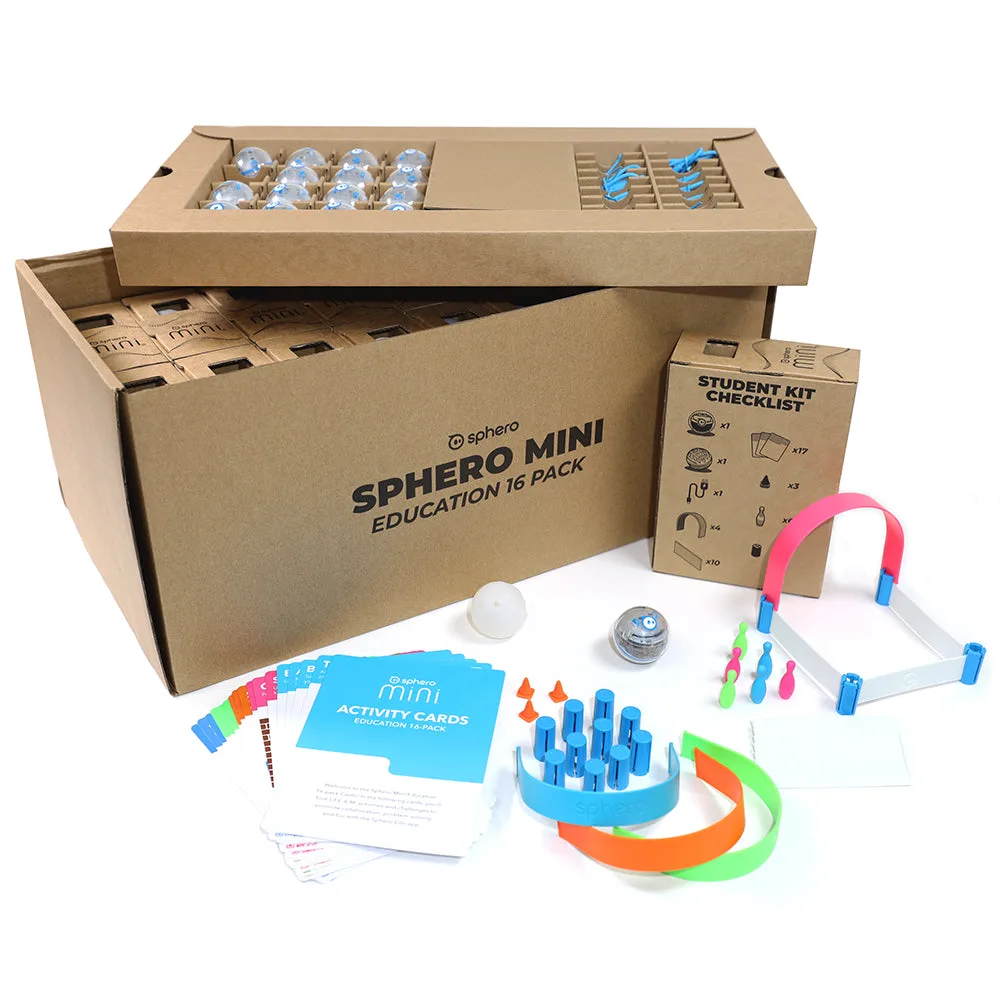
Mini Education 16-Pack: The Mini Education 16-Pack includes 16 Sphero Mini robots for up to 16 students or multiple small groups. This means you can run whole-class activities or split into small teams without needing additional robots.
Mini Education 16-Pack