Quick Answer
Start by unboxing your UGREEN NASync DH4300 Plus, installing compatible drives, connecting it to your network and power, then use the UGREEN NAS app to initialize and configure your storage.
Why Proper Initial Setup Matters
Taking the time to set up your NAS correctly from the start avoids common issues like lost data, inaccessible files, or slow performance. A few extra minutes during initial configuration can save hours of troubleshooting later.
The UGREEN NASync DH4300 Plus is designed for centralized storage and access on your network. Understanding the basics of drive installation and network configuration ensures you get the most out of your device.
Step-by-Step Setup Guide
- Unbox and Inspect: Carefully remove the UGREEN NASync DH4300 Plus from its packaging. Check that all included accessories (power adapter, Ethernet cable, drive trays, screws) are present. Place the unit on a stable, well-ventilated surface near your router. Keep the original box and packaging in case you need to return or move the device.
- Install Hard Drives: Open the drive bays and insert your compatible 3.5-inch or 2.5-inch SATA drives into the trays. Secure them with the provided screws, then slide the trays back into the NAS until they click into place. Make sure each drive is fully seated and locked. Check that the drive trays are properly locked to avoid connection issues.
- Connect Power and Network: Connect the included power adapter to the NAS and a power outlet. Use an Ethernet cable to connect the NAS to your router or switch. Press the power button to turn on the device. Wait for the status LED to indicate it is ready (typically solid or blinking green). Use a wired connection for the initial setup to ensure a stable network connection.
- Download and Install the UGREEN NAS App: On your computer or smartphone, download the UGREEN NAS app from the official UGREEN website or your device's app store. Install the app and ensure your device is connected to the same network as the NAS. Make sure your computer or phone is on the same LAN as the NAS, otherwise the app won't find it.
- Initialize and Configure Your NAS: Open the UGREEN NAS app and follow the on-screen wizard to detect your NAS. The wizard will guide you through creating an admin account, setting up storage pools/volumes, and choosing a RAID configuration. Select a RAID level that matches your capacity and redundancy needs (e.g., RAID 1 for mirroring, RAID 5 for a balance of capacity and protection). Choose a RAID level that provides redundancy for your data – don't skip this if you care about data safety.
- Set Up Initial Backup and Access: After the NAS is initialized, create shared folders and set up user permissions. Enable scheduled backups to an external drive or cloud service to protect your data. Test access by transferring a few files from your computer to the NAS and back. Verify that your backup job runs successfully at least once to confirm it is working.
Product Facts
-
UGREEN NASync DH4300 Plus: The UGREEN NASync DH4300 Plus is a network-attached storage device designed for centralized storage and access on your network. This means all your files can be stored in one place and accessed from any device connected to your network, making it easier to manage and back up your data.
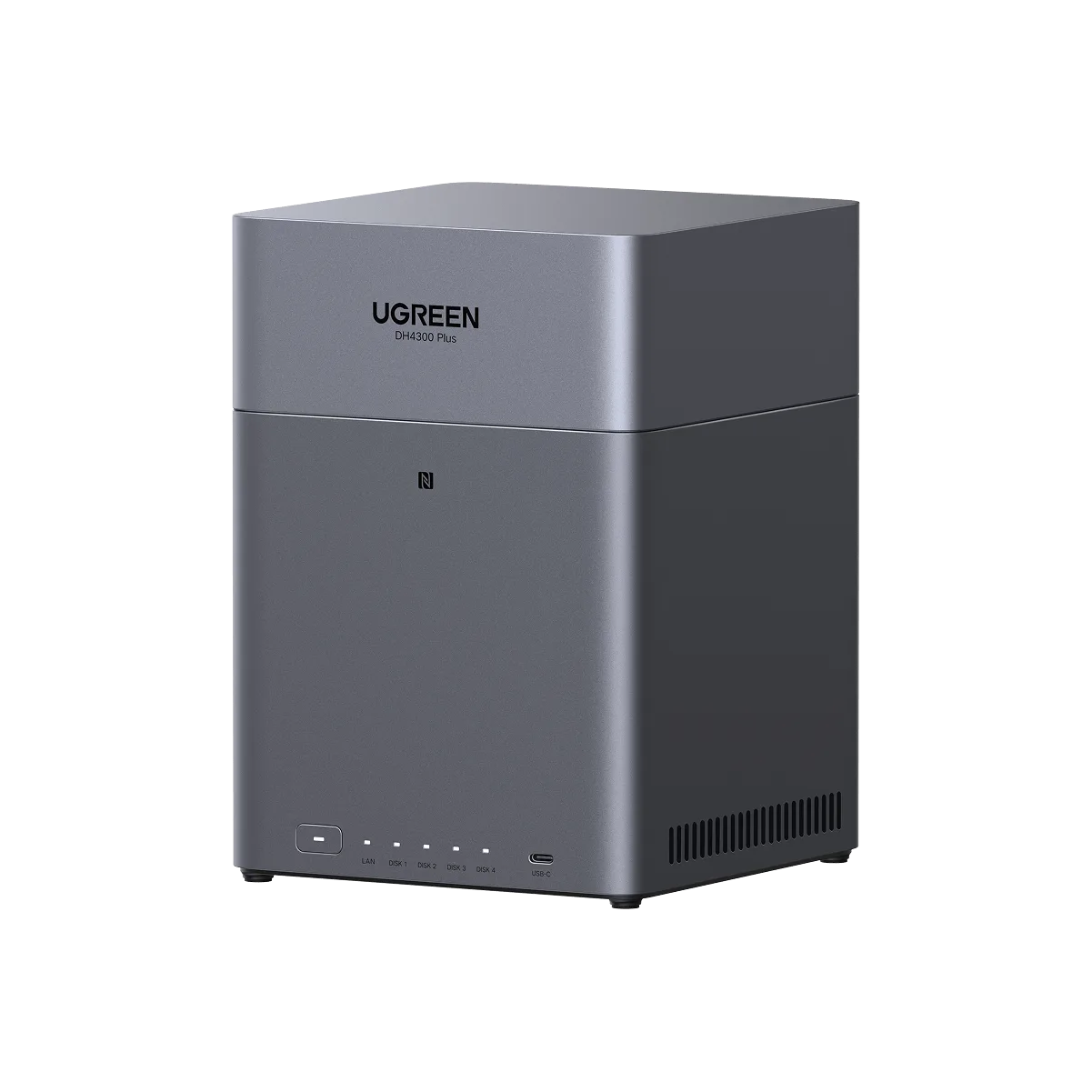
UGREEN NASync DH4300 Plus