Quick answer
Charge the ULT PRO Smoke Black Edition fully, pick the correct Switch or PC layout for your platform, pair it over Bluetooth, then map buttons before your first serious session. The biggest setup mistake is skipping the layout choice and assuming default mapping fits your game. Take 20 minutes to test each input in a practice mode so you know exactly what your controller does.
Before you start: what to have ready
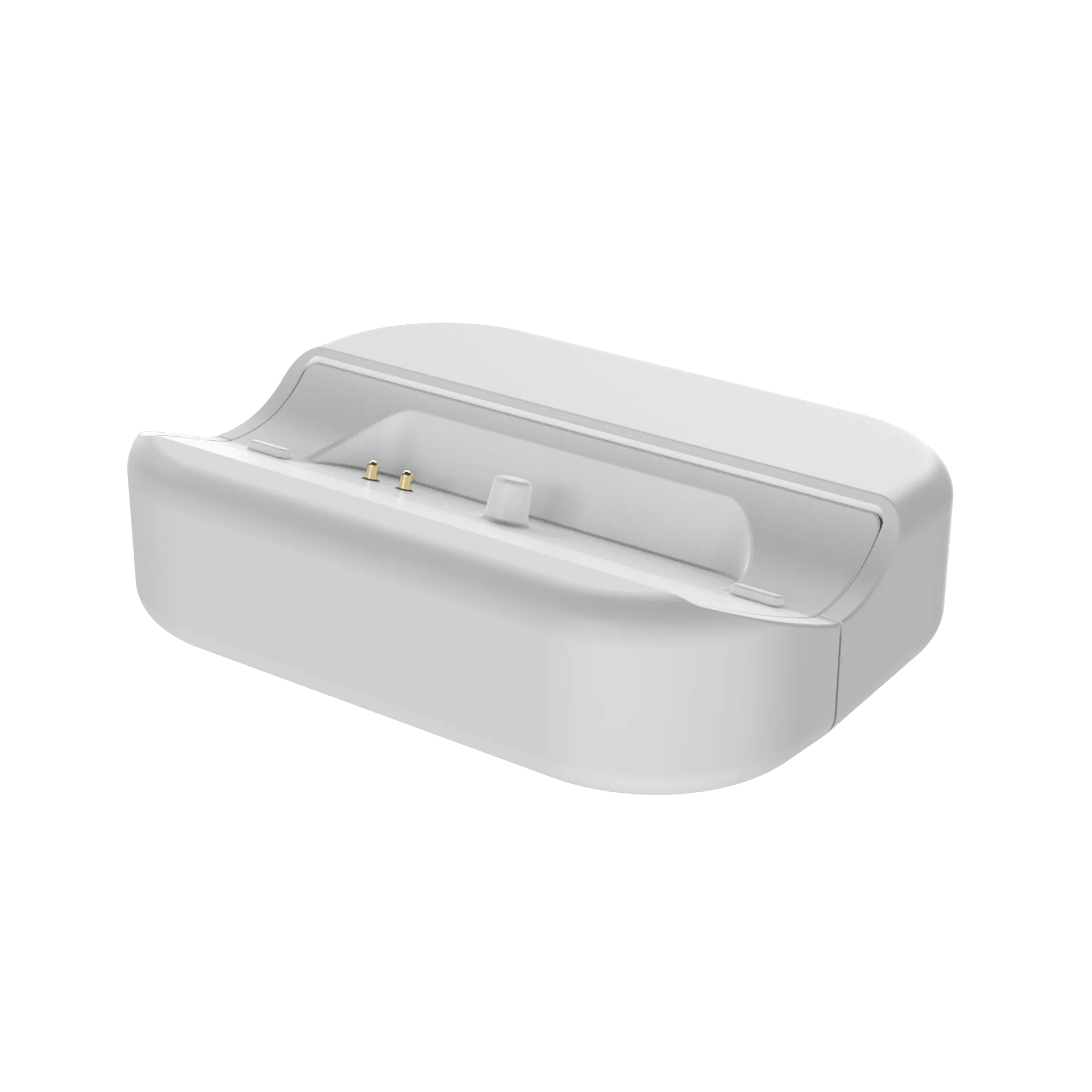
You need the ULT PRO Smoke Black Edition, a USB-C charging cable, and the device you plan to play on. The controller supports PC, Switch 2 and Switch 1, mobile, tablets, and smart TVs, so confirm which platform you will use first. If you play on Switch, you will use the Switch layout; for PC and most other devices, the PC layout is the better starting point. Keep the controller close to your device during pairing and avoid USB hubs or extension cables for the initial charge.
Step 1: Charge before pairing
Plug the ULT PRO into a powered USB port and let it charge until the indicator shows a full battery. Pairing a nearly empty controller can cause it to disconnect mid-setup, which makes you think the pairing failed when the battery was the real issue. A full charge also gives you a clean baseline for testing rumble and input response. If the controller does not seem to respond, charge it for another 30 minutes before troubleshooting anything else.
Step 2: Choose the right layout
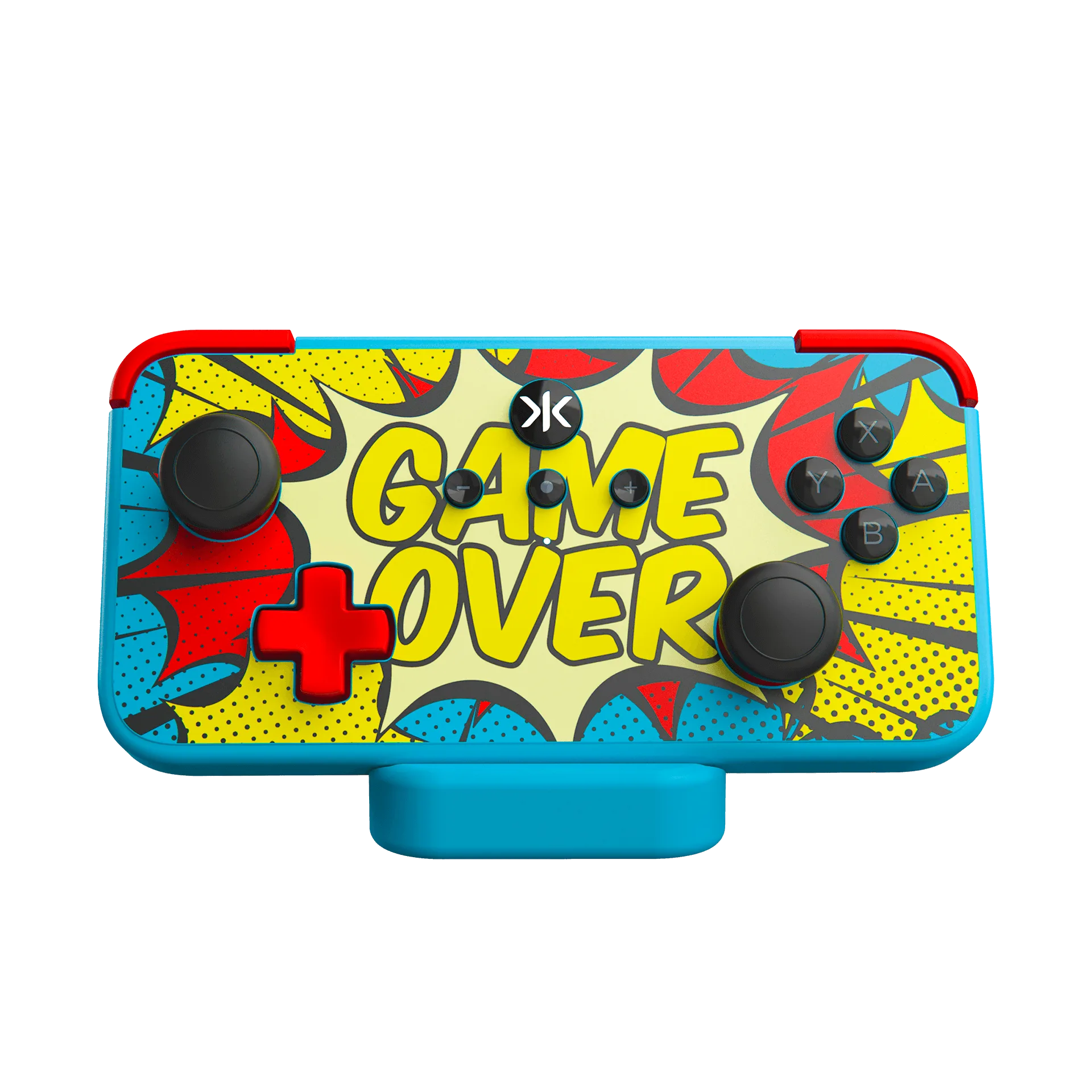
The ULT PRO is available in Switch and PC layouts, and the layout affects button labels and how the controller communicates with your device. Match the layout to your primary platform: Switch layout for Nintendo Switch 2 or Switch 1, PC layout for PC, mobile, tablets, and smart TVs. If you split time between platforms, decide which one you play most and set up for that first. Using the wrong layout is the most common reason a controller pairs but feels wrong in-game.
Step 3: Pair with your device
Put the controller into pairing mode, then open your device's Bluetooth settings and select the ULT PRO when it appears. On Switch, use the Change Grip/Order screen to pair. On PC, use Bluetooth settings or your preferred connection method. Stay within a few feet of the device during pairing and close other controller apps that might grab the signal. Once paired, test the sticks and face buttons in a menu before launching a game.
Step 4: Map buttons to your game
The ULT PRO supports button configuration, so map the inputs that matter for your main game before you play competitively. Start with the buttons you use most: jump, crouch, reload, or ability triggers. Change one or two inputs at a time and test in a practice range or tutorial. Avoid remapping everything at once, because you will not remember which change caused a problem. If a mapping feels wrong, revert it immediately rather than trying to retrain your hands.
Step 5: Test in a low-stakes session
Play a short practice or casual match to confirm every input registers the way you expect. Check the sticks for drift, the triggers for full travel, and the face buttons for consistent response. This is also the time to confirm rumble intensity and any layout-specific behavior. If something feels off, revisit the layout choice or your button mapping before you blame the controller. A 15-minute test session saves hours of frustration later.
Setup steps at a glance
- Charge fully before pairing: Plug the ULT PRO into a powered USB port and wait for a full charge before you attempt to pair. Checkpoint: if pairing fails, charge for 30 more minutes before troubleshooting.
- Match the layout to your platform: Use the Switch layout for Switch 2 or Switch 1, and the PC layout for PC, mobile, tablets, and smart TVs. Checkpoint: confirm the layout before you pair, not after.
- Pair within a few feet: Put the controller in pairing mode, then select it in your device's Bluetooth menu while staying close. Checkpoint: test sticks and face buttons in a menu before launching a game.
- Map buttons one change at a time: Remap the inputs you use most, then test each change in a practice range before adding another. Checkpoint: revert any mapping that feels wrong instead of retraining your hands.
- Run a short practice session: Play a casual match or tutorial to confirm every input registers correctly. Checkpoint: if something feels off, revisit layout and mapping before assuming a hardware fault.
Product facts
- ULT PRO Smoke Black Edition: The ULT PRO Smoke Black Edition is available in Switch and PC layouts and is compatible with PC, Switch 2 and Switch 1, mobile, tablets, and smart TVs. Choosing the correct layout for your main platform prevents pairing confusion and ensures the button labels match what you see on screen.
- ULT PRO Smoke Black Edition: The ULT PRO supports button configuration. You can remap inputs to fit your game instead of adapting your hands to a default layout, which is especially useful for competitive titles.