Quick answer
Mute every input, then raise the gain one channel at a time. If the noise appears only when a mic or cable is connected, the problem is in that cable or source. If it stays with nothing plugged in, it is the preamp or interface. Fix the earliest noisy stage before you touch anything downstream.
Match the symptom to the stage before you buy anything
Hum is a steady low tone, usually 50 or 60 Hz depending on your region, and it almost always points to a grounding or power issue. Hiss is broadband high-frequency noise that rises with gain, which points to a noisy preamp, a hot signal, or a cheap cable. Buzz is often a raspy harmonic of hum, frequently caused by a dimmer, a wall wart, or a laptop charger sharing the same circuit. Recording each symptom separately stops you from swapping parts at random.
- Hum at 50/60 Hz: grounding, power, or a ground loop audio fix situation.
- Hiss that scales with gain: preamp noise or a weak source needing more gain than the chain can cleanly provide.
- Buzz or crackle: interference from lighting, power supplies, or a failing cable shield.
- Intermittent dropouts: a physical connection problem, not a noise floor problem.
Run a five-minute isolation test
Disconnect everything from your interface and listen with headphones at normal monitoring level. If the noise is gone, plug in one cable at a time, then one device at a time, until the noise returns. That last item is your culprit. If the noise is present with nothing connected, the interface or its power supply is the source, and no cable swap will fix it.
- Test with the same headphones and the same monitoring level every time.
- Move the interface to a different outlet on a different circuit to check for a ground loop.
- Bypass any USB hub and connect directly to the computer.
- Note whether the noise changes when you touch the cable connector or move the cable.
Cable and connection checks that actually change the noise
A balanced audio cable carries the signal on two conductors plus a shield, and it rejects interference that an unbalanced cable picks up. If your run is longer than a couple of meters, or if it passes near power cables, balanced XLR is the practical choice. Check that the connector is fully seated, that the shield is not broken at either end, and that the cable is not coiled around a power supply. A cable that crackles when you wiggle the connector is a cable to replace, not to repair mid-session.
- Swap in one known-good XLR cable before assuming the mic is noisy.
- Keep audio cables separated from AC cables and power bricks.
- Avoid running a mic cable parallel to a USB or display cable.
- If the noise disappears when you unplug the laptop charger, you have found a ground loop path.
Gain staging: where microphone hiss usually comes from
Set the interface gain so your loudest take peaks around -12 to -6 dBFS, then raise the monitoring level, not the input gain, to hear it louder. If you need 50 dB of gain for a quiet source, a dynamic mic on a quiet voice will expose the preamp noise floor. In that case, move the mic closer, use a mic with higher output, or add a clean inline preamp rather than pushing the interface gain to its maximum.
- Set gain with the loudest part of the performance, not the quietest.
- Do not stack a mixer, an interface, and a preamp all adding gain.
- Use the pad only when the source is actually overloading the input.
- Record a ten-second room-tone pass so you can measure the noise floor later.
When to stop troubleshooting and change the plan
If the noise persists after a known-good cable, a different outlet, and a direct USB connection, stop swapping parts. At that point the practical options are to replace the noisy interface or preamp, or to change how you record: use a closer mic position, a different source, or accept a higher noise floor and clean it in post. Do not keep buying cables hoping one of them fixes a grounding problem.
- Stop when the same noise follows the same device across two different cables and two outlets.
- Stop when the noise is present with no input connected and the gain at minimum.
- Choose a replacement interface or preamp only after you have confirmed the noise source.
- Choose a different mic or position if the problem is simply too much gain needed.
Noise diagnosis checklist
- Symptom: steady low hum: Likely cause is a ground loop or shared power circuit. Corrective action: move the interface and the computer to the same outlet or use a ground-loop isolator on the audio path. If hum disappears when you unplug the laptop charger, treat it as a power problem, not a cable problem.
- Symptom: hiss that rises with gain: Likely cause is a noisy preamp or too much gain for a low-output mic. Corrective action: move the mic closer, use a higher-output mic, or add a clean inline preamp. If hiss is present with no input connected, the interface is the source.
- Symptom: buzz or crackle when moving a cable: Likely cause is a broken shield or a loose connector. Corrective action: replace the cable and keep audio runs away from AC and USB cables. If a known-good cable removes the buzz, stop there and replace the faulty one.
- Symptom: noise persists across cables, outlets, and direct USB: Likely cause is the interface or preamp itself. Corrective action: stop swapping parts and plan a replacement or a different recording approach. Do not buy more cables for a device-level noise floor.
Monitoring and control gear that helps you hear the problem
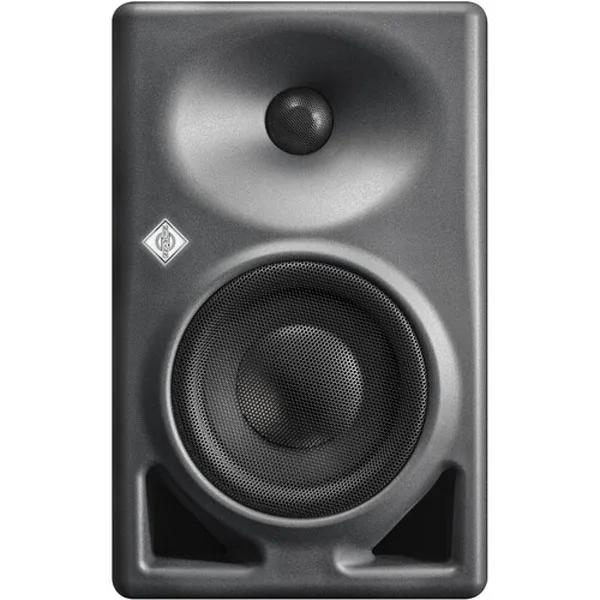
- Neumann KH 120 MKII (AES67, Noire) – Enceinte Active: The Neumann KH 120 MKII (AES67, Noire) is an active 2-way monitor with AES67 support and a black anthracite finish. A neutral monitor with digital audio-over-IP input lets you check the noise floor of your chain without adding an analog monitor path that could introduce its own hum.
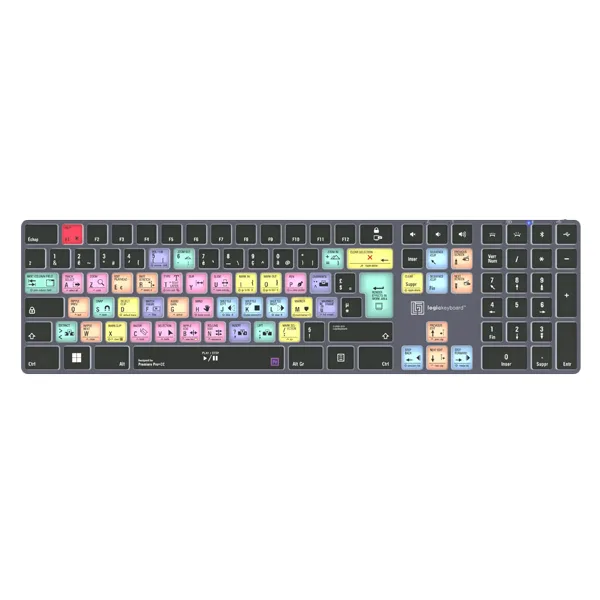
- LogicKeyboard Titan Adobe Premiere Pro CC FR (PC) – Clavier: The LogicKeyboard Titan Adobe Premiere Pro CC FR (PC) is a wireless, backlit keyboard with more than 60 printed shortcuts for Adobe Premiere Pro on Windows 10/11. Once the noise is gone, fast keyboard shortcuts keep you in the edit instead of reaching for the mouse during audio cleanup.