Quick Answer
Use a hardware colorimeter like the Datacolor SpyderX Pro to calibrate your monitor, ensuring your edits match what prints or displays on other screens.
Why Hardware Calibration Beats Eye-Balling
Adjusting brightness and contrast by eye is unreliable because your perception changes with ambient light and screen angle. A colorimeter measures your monitor's actual output and creates a precise color profile, so whites stay neutral and skin tones remain natural across devices.
Software-only calibration tools can help, but they rely on your eyes to judge color. For professional-grade accuracy, a dedicated device like the Datacolor SpyderX Pro eliminates guesswork and gives repeatable results every time.
Step-by-Step Monitor Calibration Guide
- Warm Up Your Monitor and Set the Environment: Turn on your monitor at least 30 minutes before calibrating so it reaches a stable operating temperature. Dim the room lights and close curtains to avoid reflections on the screen. Common mistake: calibrating a cold monitor leads to inaccurate profiles that shift as the display warms up.
- Install the Software and Connect the Colorimeter: Download and install the Datacolor SpyderX software from the manufacturer's website. Plug the SpyderX Pro into a USB port and launch the software. Select your monitor type (desktop or laptop) and follow the on-screen prompts. Checkpoint: ensure no other color management software is running, as it can interfere with the calibration.
- Position the Colorimeter on the Screen: Hang the SpyderX Pro over the center of your screen using the counterweight. The lens should sit flat against the display. For laptops, place the device on the screen as instructed. Common mistake: placing the sensor off-center or at an angle skews the readings for brightness and color uniformity.
- Run the Calibration Wizard: In the software, choose 'Full Calibration' for the most accurate profile. The wizard will guide you through setting target brightness (120 cd/m² is standard for photo editing), white point (D65), and gamma (2.2). The SpyderX Pro then measures and adjusts your monitor automatically. Checkpoint: after calibration, use the SpyderProof feature to view before/after comparisons and verify the improvement.
- Save the Profile and Set a Reminder: Name your profile and save it. The software will apply it at startup. Set a monthly calibration reminder—monitor performance drifts over time, and regular recalibration keeps colors consistent. Common mistake: forgetting to recalibrate leads to gradual color shifts that go unnoticed until prints look wrong.
What You'll Need
-
Datacolor SpyderX Pro: Lens Based Colour Engine Technology, Single Click Wizard Calibration, SpyderProof function for comparing monitor's performance The SpyderX Pro's lens-based sensor reads colors faster and more accurately than older designs, and the one-click wizard makes the process straightforward even for beginners.
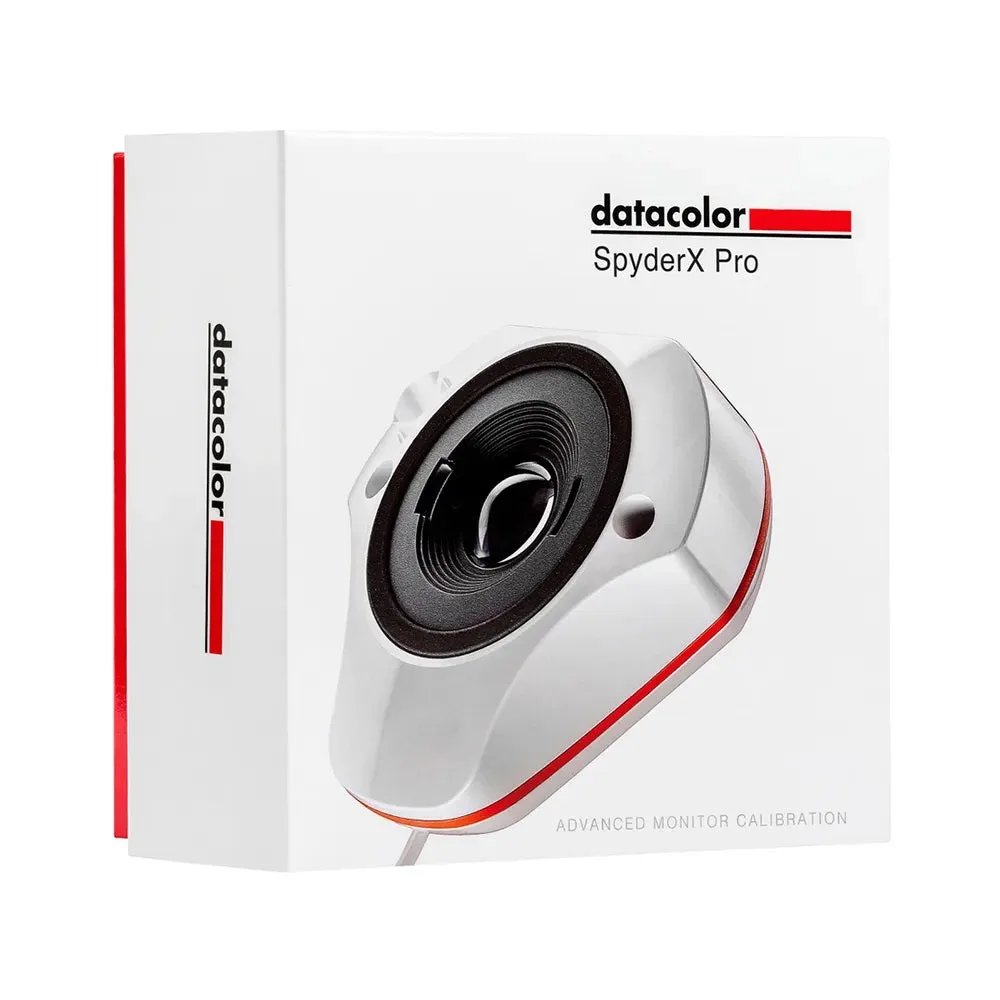
Datacolor SpyderX Pro