Quick answer
Start with a nozzle check to confirm which colors are missing or misaligned. Then run the printer's built-in cleaning cycle from the menu or software. Repeat up to three times, but stop if the pattern doesn't improve—excessive cleaning wastes ink and can flood the printhead. If streaks persist after three cycles, consider a deep clean or professional service.
Why streaks appear and what to check first
Streaky Canon printouts usually come from clogged nozzles, air bubbles in the ink line, or a misaligned printhead. Before cleaning, check your ink levels—low ink can mimic clogging. Also, ensure you're using the correct paper type and print quality setting; plain paper with high-speed draft mode can cause banding even with a perfect printhead.
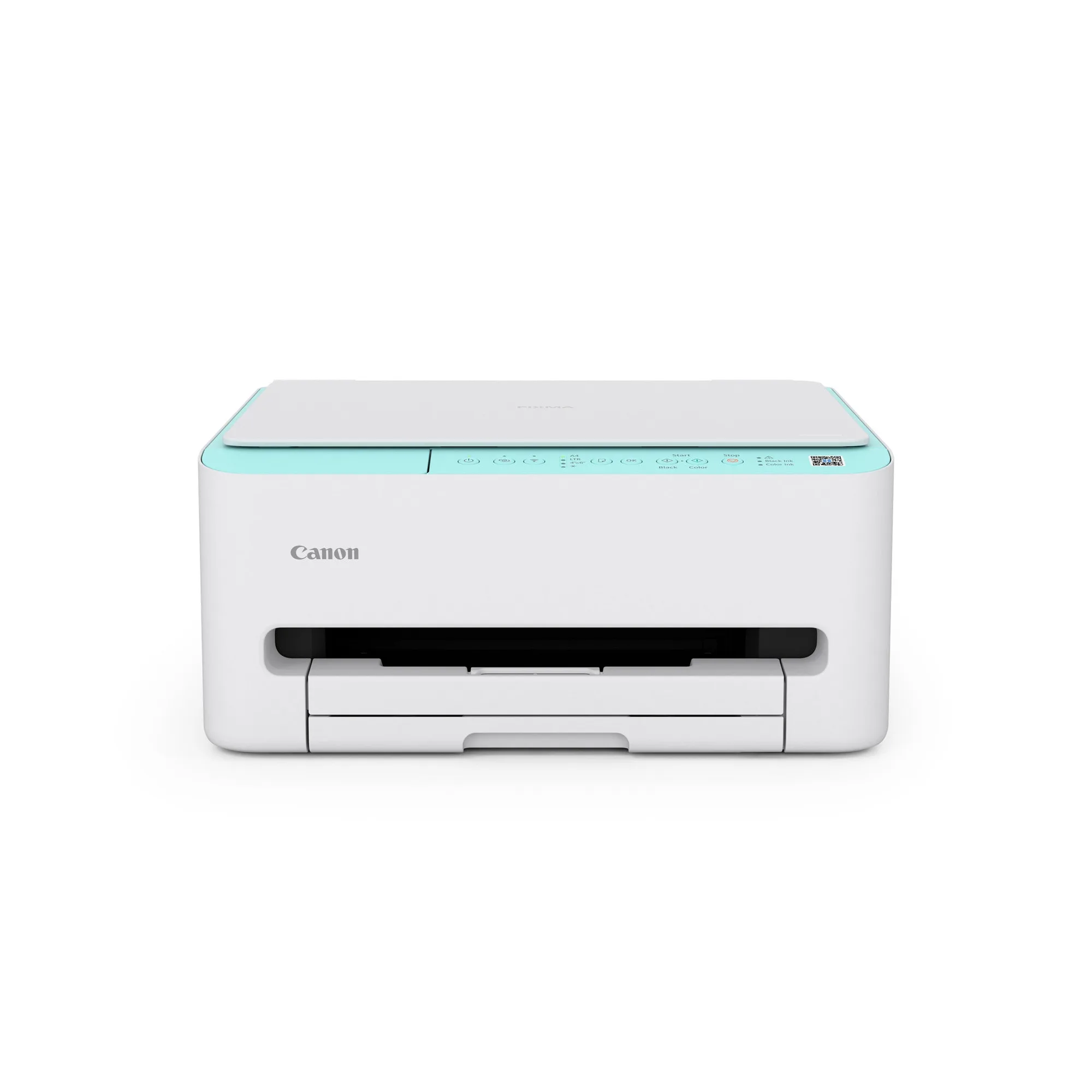
If you've recently replaced a cartridge, air may have entered the system. In that case, a simple cleaning cycle often resolves it. For printers like the PIXMA TS4070, the wireless all-in-one, you can run the nozzle check and cleaning from the Canon PRINT app or the printer's operation panel.
Run a nozzle check
The nozzle check prints a small pattern that reveals which nozzles are firing. On most Canon printers, go to Maintenance > Nozzle Check in the printer driver or on the device screen. Examine the pattern: missing lines or gaps indicate clogged nozzles. If the pattern is solid, your issue may be alignment or software-related.
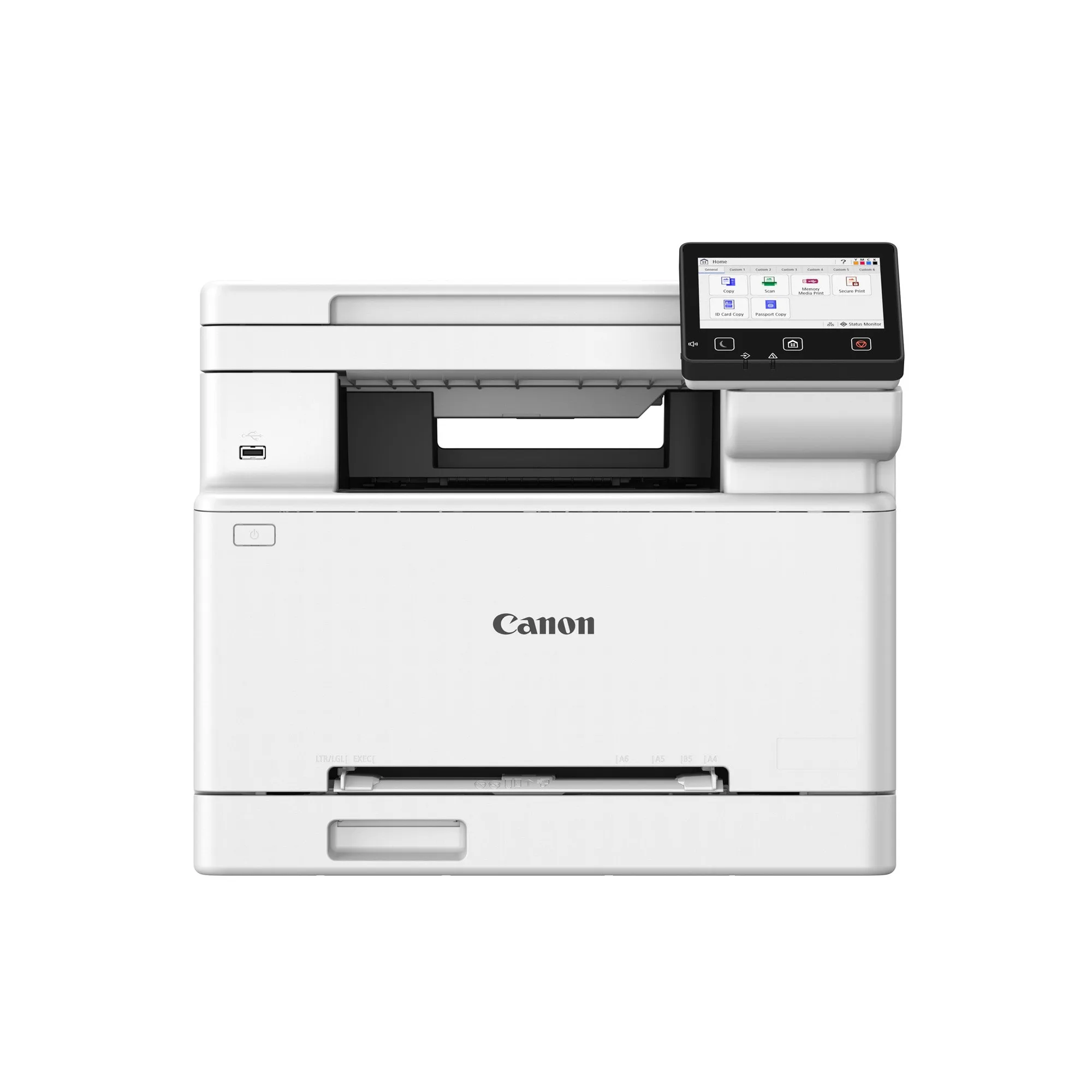
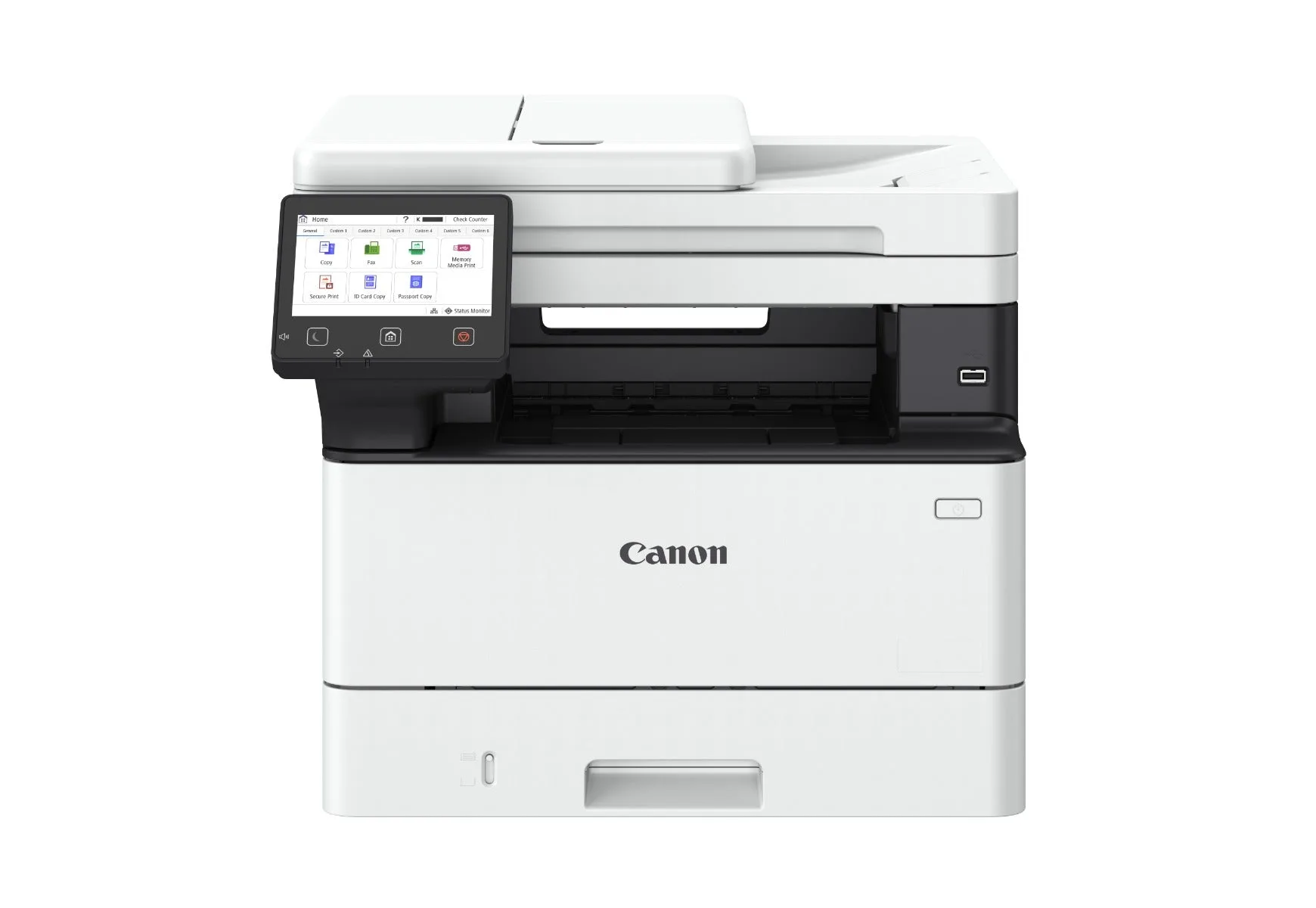
For imageCLASS models like the MF662Cdw or MF461dw II, the touchscreen makes this straightforward. The MF662Cdw's user-friendly touchscreen lets you navigate to Maintenance without a computer.
Use the built-in cleaning cycle
If the nozzle check shows gaps, run a cleaning cycle. This forces ink through the printhead to clear blockages. On the PIXMA TS4070, you can initiate cleaning from the Canon PRINT app or the printer's panel. For imageCLASS models, use the touchscreen or the Remote UI.
After one cleaning, print another nozzle check. If it improves but isn't perfect, run one more. Canon recommends not exceeding three consecutive cleanings, as this can over-saturate the printhead and waste ink. If three cycles don't fix it, wait a few hours and try again—sometimes dried ink needs time to soften.
Deep cleaning and manual methods
Some Canon printers offer a Deep Cleaning option, which uses more ink and is more thorough. Use it sparingly. If built-in cleaning fails, you can try removing the printhead (if your model allows) and gently cleaning the nozzle plate with a lint-free cloth and distilled water. However, this is risky—improper handling can damage the printhead. Check your printer's manual for specific instructions.
For the imageCLASS MF461dw II, a reliable 3-in-1 multifunction printer, the printhead is not user-removable. In such cases, repeated cleaning cycles or professional service are the only options.
When to stop and seek service
Stop if you've run three cleaning cycles and the nozzle check hasn't improved. Further cleaning wastes ink and may harm the printhead. If the printer sits unused for weeks, clogs can be stubborn—consider a professional cleaning or replace the printhead if it's user-replaceable. For business models like the imageCLASS MF662Cdw, on-site service may be covered under warranty.
If streaks appear only on certain colors, a single clogged nozzle may be the cause. If all colors are streaky, the issue could be the printhead itself or a deeper hardware fault.
Diagnosis: match your symptom to the fix
- Symptom: White streaks or gaps in the nozzle check pattern: Likely cause: Clogged nozzles. Run a cleaning cycle up to three times. If no improvement after three cycles, stop and consider deep cleaning or service.
- Symptom: Streaks only on one color: Likely cause: A single clogged nozzle or low ink in that cartridge. Check ink levels and run a cleaning cycle. If the nozzle check for that color remains patchy, the printhead may need replacement.
- Symptom: Banding across the page regardless of color: Likely cause: Misalignment or a hardware issue. Run a printhead alignment from the maintenance menu. If alignment doesn't help, the printhead may be failing—seek professional service.
Canon printers with easy maintenance features
- PIXMA TS4070: Compact Wireless All-In-One with auto 2-sided print, print speeds up to 14/9 ipm, and dual-band Wi-Fi. Its wireless connectivity and app support make running nozzle checks and cleaning cycles convenient from your smartphone.
- imageCLASS MF662Cdw: Colour multifunction with duplex printing, a user-friendly touchscreen, and secure operation. The touchscreen simplifies maintenance tasks, and secure operation is useful in shared offices.
- imageCLASS MF461dw II: 3-in-1 multifunction printer designed to streamline office workflow. A reliable choice for teams that need consistent print quality without frequent intervention.