Quick Answer
Start by charging your factory-renewed iPad fully, then turn it on and follow the on-screen prompts to choose your language, connect to Wi-Fi, and set up or sign into your Apple ID.
Why a Refurbished iPad Needs a Different First Setup
A factory-renewed iPad, like the 10th Generation model, may have been reset to its original state but could still retain previous settings or require a fresh activation. The process mirrors a new iPad, but you might need to check for any lingering configuration or verify the device isn't linked to another Apple ID. This guide helps you avoid activation lock errors and ensures a smooth start.
Step-by-Step Refurbished iPad Setup
- Charge the iPad Fully: Plug your iPad into a power source using the included USB-C cable and adapter. Let it charge for at least 30 minutes to ensure the battery has enough power for the setup process. A partially charged battery can cause the iPad to shut down during setup, forcing you to restart.
- Turn On and Choose Language: Press and hold the top button until the Apple logo appears. Swipe up from the bottom of the screen, then select your language and region. This sets the default keyboard and date format. Selecting the wrong region can affect App Store availability and keyboard layouts.
- Connect to Wi-Fi: Choose your Wi-Fi network and enter the password. A stable internet connection is required for activation and Apple ID verification. Skipping Wi-Fi setup may lock you out of essential features like iCloud and the App Store.
- Set Up or Sign In to Apple ID: Enter your existing Apple ID and password, or tap "Forgot password or don't have an Apple ID?" to create a new one. This links the iPad to your iCloud, purchases, and Find My iPad. Using a shared or borrowed Apple ID can cause privacy issues and activation lock problems later.
- Restore from Backup or Start Fresh: Choose to restore from an iCloud or iTunes backup (if you have one) or set up as a new iPad. Restoring brings back apps, settings, and data from your previous device. Restoring from a backup with incompatible settings can slow down the iPad or cause app crashes.
- Complete On-Screen Setup: Follow remaining prompts for Face ID (or Touch ID), Apple Pay, Siri, and Screen Time. Adjust these to your preference or skip them to configure later in Settings. Skipping Face ID now means you'll need to set it up manually in Settings > Face ID & Passcode.
Product Facts
-
Apple - 10.9-Inch iPad - Latest Model - (10th Generation) with Wi-Fi - 64GB (factory renewed): Colorfully reimagined and more versatile than ever. With an all-screen design,10.9-inch Liquid Retina display, and four gorgeous colors. The larger, vivid display makes setup easier to read, and the all-screen design means you have more room to follow on-screen prompts.
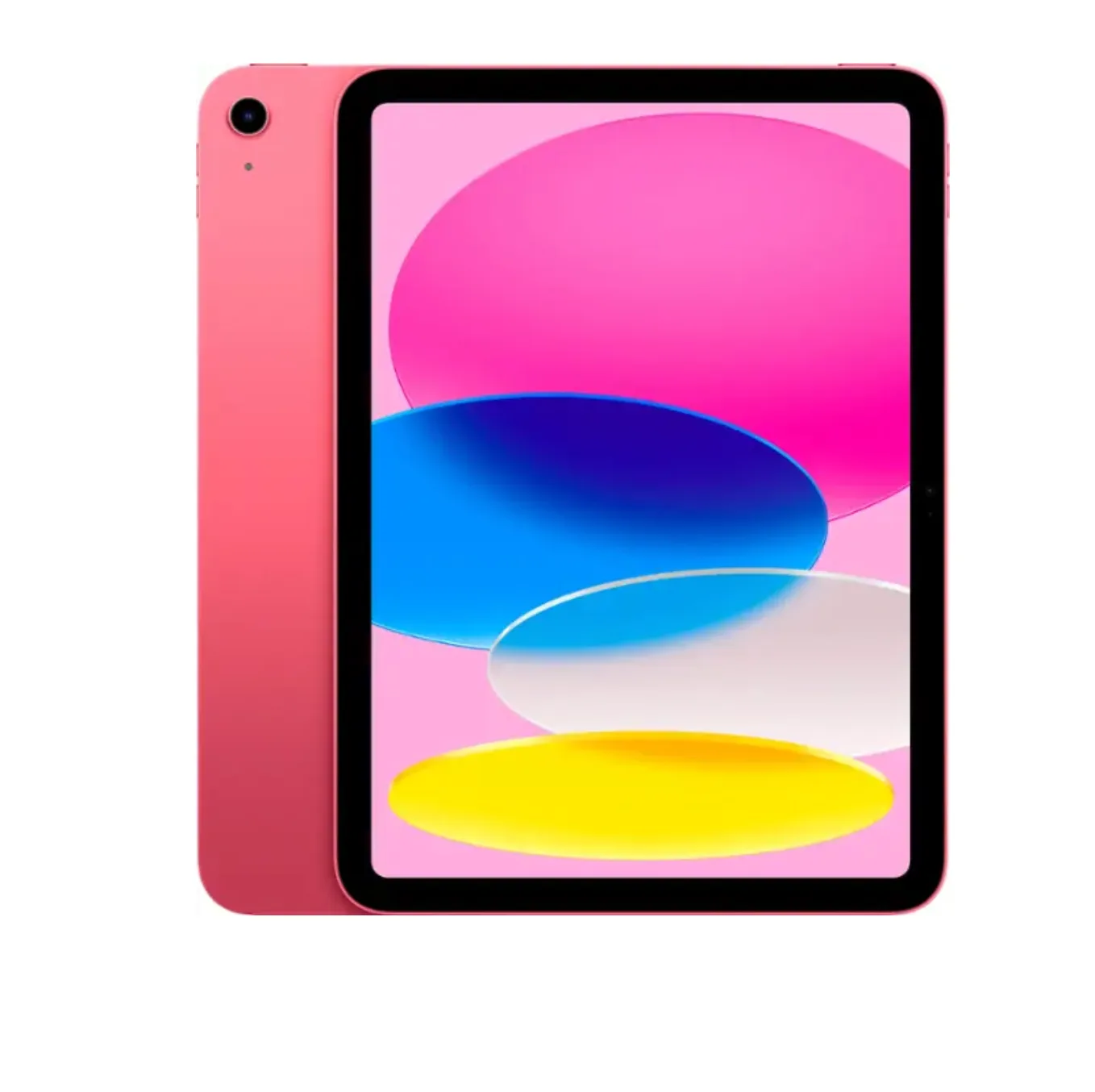
Apple - 10.9-Inch iPad - Latest Model - (10th Generation) with Wi-Fi - 64GB (factory renewed)