Quick answer
Set up your Stand & Hub for Mac Studio M5 by placing the Mac on the stand, connecting the USB-C cable, and installing an NVMe SSD into the enclosure for expanded storage.
Why use a stand hub with an NVMe enclosure?
A stand hub elevates your Mac Studio M5 for better airflow and cable management while adding essential ports. The built-in NVMe SSD enclosure lets you upgrade internal storage without opening the Mac, preserving warranty and avoiding complex hardware changes.
NVMe drives offer significantly faster read and write speeds compared to SATA SSDs, making them ideal for video editing, large file transfers, or running virtual machines directly from external storage.
Setup steps
- 1. Prepare your Mac Studio M5 and workspace: Power off your Mac Studio M5 and disconnect all cables. Clear a clean, flat area on your desk where the stand hub will sit. Make sure the surface is stable and the hub’s ventilation slots are unobstructed.
- 2. Install the NVMe SSD into the enclosure: Remove the bottom panel of the stand hub using the included screwdriver. Insert your NVMe SSD at a 30-degree angle, then press down gently and secure it with the screw. Replace the panel. Use an NVMe M.2 drive (not SATA) and avoid touching the gold connectors to prevent static damage.
- 3. Connect the stand hub to your Mac: Place your Mac Studio M5 on top of the stand hub, aligning the rubber pads. Connect the included USB-C cable from the hub to one of the Thunderbolt/USB-C ports on the back of your Mac. Use a Thunderbolt 4 or USB4 port for full bandwidth; USB 3.0 ports may limit the NVMe speed.
- 4. Power on and verify the connection: Reconnect your Mac’s power cable and turn it on. Wait for the desktop to load. Open Disk Utility (macOS) or your operating system’s disk manager to see if the NVMe drive appears. If the drive does not show up, check the SSD seating and try a different USB-C port. Some drives require formatting first.
- 5. Format the NVMe SSD (if needed): In Disk Utility, select the new external drive and choose Erase. Set format to APFS (for macOS) or exFAT (for cross-platform use). Give it a name and click Erase. The drive is now ready for storage. Back up any existing data before formatting, as this process erases all content on the drive.
Product facts
-
Stand & Hub For Mac Studio M5 With NVMe SSD Enclosure: Designed to complement Mac Studio (2023-2022), this hub adds a plethora of connections and an upgraded internal SSD enclosure that supports NVMe drives. You can add high-speed external storage and extra ports with a single cable, keeping your desk tidy and your workflow efficient.
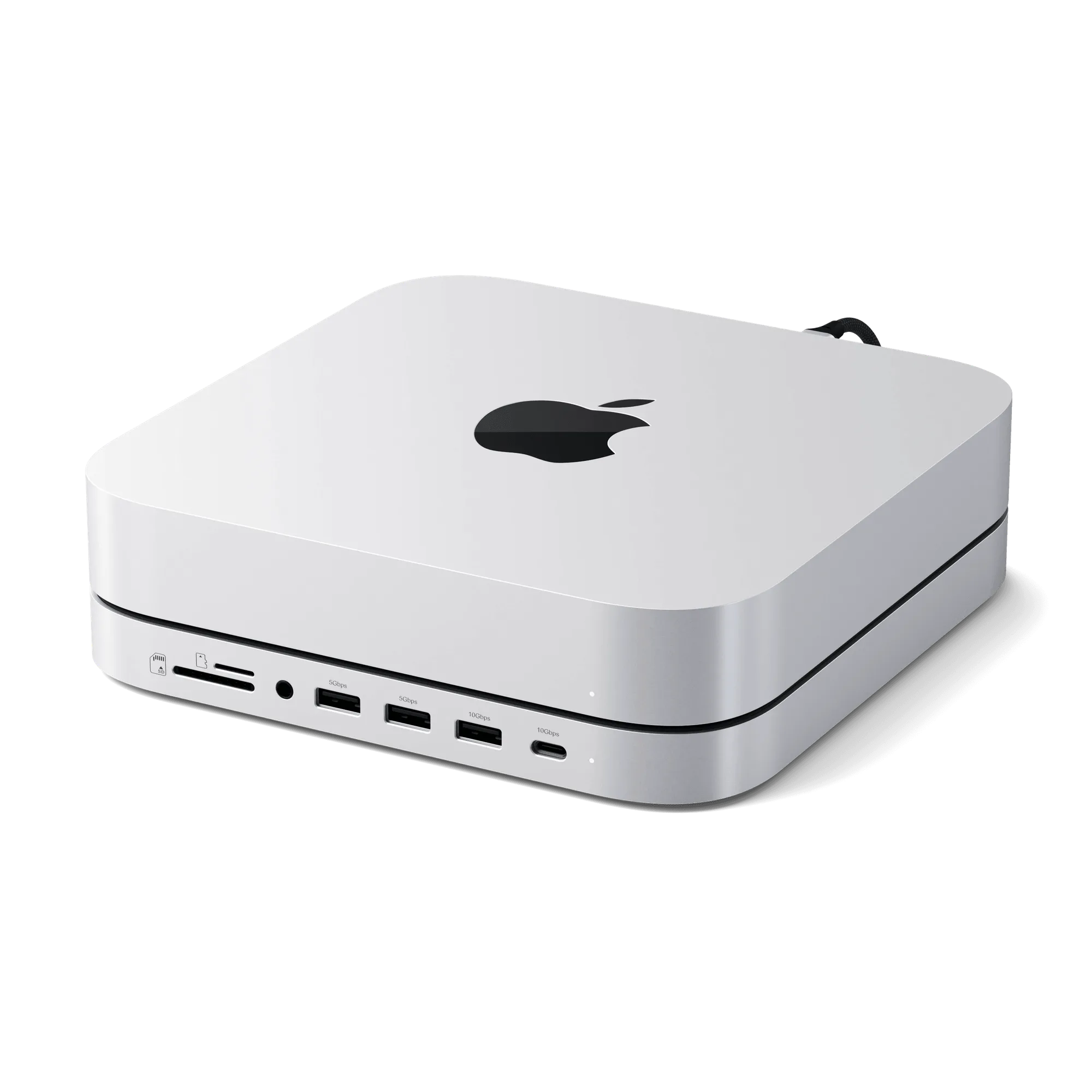
Stand & Hub For Mac Studio M5 With NVMe SSD Enclosure