Quick Answer
To speed up a slow renewed laptop, start by clearing startup programs, updating drivers, and freeing up storage. These steps fix most common slowdowns without new hardware.
Why renewed laptops slow down
A renewed laptop can slow down for the same reasons any laptop does: too many startup programs, outdated drivers, or a full hard drive. The good news is that most causes are easy to fix yourself.
Renewed laptops often come with a fresh Windows install, but that doesn't mean they're optimized. Background updates, leftover bloatware, or a nearly full SSD can all drag performance down.
7 Steps to Speed Up Your Renewed Laptop
- 1. Disable startup programs: Open Task Manager (Ctrl+Shift+Esc), go to the Startup tab, and disable any programs you don't need at login. This reduces boot time and frees up memory. Check this after installing new software; many apps add themselves to startup without asking.
- 2. Update Windows and drivers: Go to Settings > Windows Update and install all pending updates. Also check for driver updates via Device Manager, especially for the graphics and chipset. Outdated drivers can cause slowdowns and crashes; set updates to automatic to avoid this.
- 3. Free up storage space: Use Storage Sense (Settings > System > Storage) to delete temporary files and old downloads. Aim to keep at least 15% of your SSD free. If your drive is nearly full, consider moving large media files to an external HDD.
- 4. Run disk cleanup and defragmentation: Use the built-in Disk Cleanup tool to remove system files, then run Optimize Drives to defragment your HDD (or trim your SSD). Don't defragment an SSD; it can reduce its lifespan. Only use Optimize Drives for SSDs.
- 5. Check for malware: Run a full scan with Windows Security or a trusted antivirus. Malware can consume resources in the background without you noticing. If you use a third-party antivirus, make sure it's not running multiple background scans at once.
- 6. Adjust visual effects for performance: In System Properties > Advanced > Performance Settings, select 'Adjust for best performance' or customize to disable animations and shadows. This can make the interface feel snappier on lower-end hardware.
- 7. Consider a clean reinstall: If nothing else works, back up your data and use Windows' Reset PC feature to reinstall Windows. This removes bloatware and gives you a fresh start. After a clean install, only install the software you really need to keep it fast.
Products that help
-
Acer Aspire 3 Intel Core i5 11th Gen (12 GB/512GB SSD/Windows 11 Home/MS Office/1.7 Kg/Silver) A315-58 with 15.6-inch (39.6 cms) Full HD Display Laptop (factory renewed): The Acer Aspire 3 includes a 512GB SSD and is expandable to support up to a 2TB HDD, with 12GB of RAM. This means you can speed it up by moving large files to the HDD to keep the SSD from filling up, and the 12GB RAM is already enough for most everyday tasks.
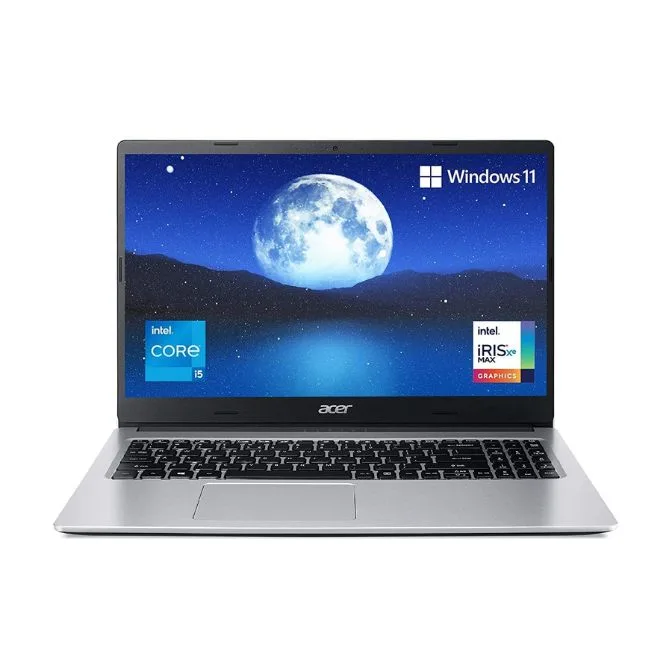
Acer Aspire 3 Intel Core i5 11th Gen (12 GB/512GB SSD/Windows 11 Home/MS Office/1.7 Kg/Silver) A315-58 with 15.6-inch (39.6 cms) Full HD Display Laptop (factory renewed)
-
Dell Latitude 5320 2-in-1 Laptop Touch | 13.3" 1920x1080 FHD | Core i7-1185G7-512GB SSD Hard Drive - 32GB RAM: The Dell Latitude 5320 2-in-1 comes with 32GB RAM and a 512GB SSD, plus Windows 11 Pro. With that much RAM, the Latitude can handle heavy multitasking; if it feels slow, the issue is more likely software clutter than hardware limits.
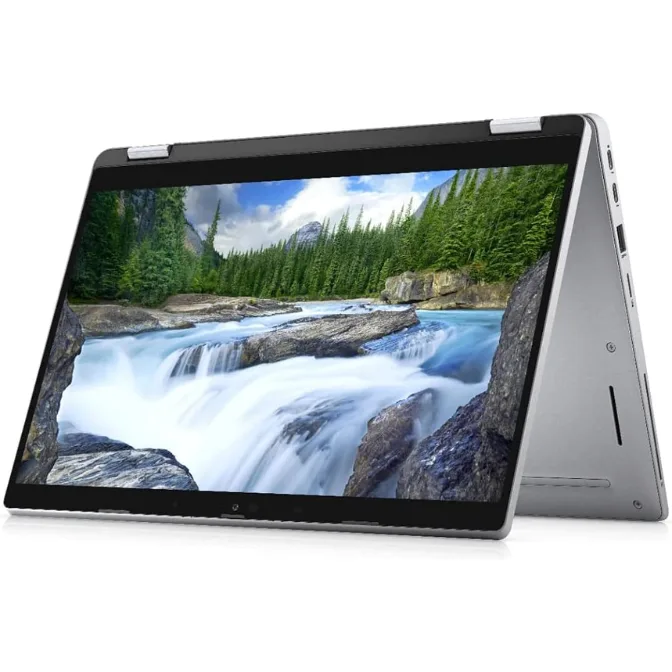
Dell Latitude 5320 2-in-1 Laptop Touch | 13.3" 1920x1080 FHD | Core i7-1185G7-512GB SSD Hard Drive - 32GB RAM