Quick answer
Plug the 4-in-1 aluminum alloy card reader into a USB-A or USB-C port, insert your microSD or full-size SD card, and drag files between your computer and your AISLPC retro handheld. No drivers or extra apps are needed.
Why use a dedicated card reader instead of a USB cable?
Many retro handhelds rely on a microSD card for storage, and transferring large ROM libraries over a direct USB connection can be slow or unreliable. A dedicated card reader gives you a direct, stable connection to your computer's USB port, making file transfers faster and more predictable. The 4-in-1 aluminum alloy reader is built specifically for AISLPC consoles, so it handles the card formats you actually use without guesswork.
What you need before you start
You will need your AISLPC retro handheld, the 4-in-1 card reader, a microSD or full-size SD card (already in the handheld), and a computer with a USB-A or USB-C port. The reader works with both port types, so you do not need an adapter. No software installation is required.
Step-by-step instructions
- 1. Insert the card into the reader: Turn off your retro handheld and remove the microSD card. Insert it into the appropriate slot on the 4-in-1 reader (microSD/TF slot for most AISLPC consoles). Ensure the card clicks into place and is not inserted upside down. Check that the card is fully seated before proceeding; a loose card may not be detected.
- 2. Connect the reader to your computer: Plug the reader into a USB-A or USB-C port on your computer. The reader's LED indicator (if present) will light up. On Windows, macOS, or Linux, the card should appear as a removable drive within a few seconds. If the card does not appear, try a different USB port or restart your computer. Avoid USB hubs that may not provide enough power.
- 3. Transfer your files: Open the removable drive on your computer. Drag and drop ROMs, firmware updates, or save files to the appropriate folders on the card. For ROMs, place them in the folder matching the console (e.g., NES, SNES, GBA). Eject the drive safely before removing the reader. Do not unplug the reader while files are copying; this can corrupt the card. Always use the 'Safely Remove' option.
- 4. Reinsert the card into your handheld: Remove the microSD card from the reader and insert it back into your AISLPC retro handheld. Power on the console. Your new games and files should appear in the menu. If not, check that the files are in the correct folder format. Some emulators require a refresh or restart to recognize new ROMs. If games do not show up, reboot the handheld.
Product details
-
4-in-1 Aluminum Alloy microSD TF Card Reader for AISLPC Retro Handheld Consoles: This 4-in-1 aluminum alloy card reader supports microSD/TF and full-size SD cards, and connects via USB-A or USB-C with no drivers needed. You can use the same reader for both your handheld's microSD card and a full-size SD card from a camera or laptop, reducing the number of accessories you carry.
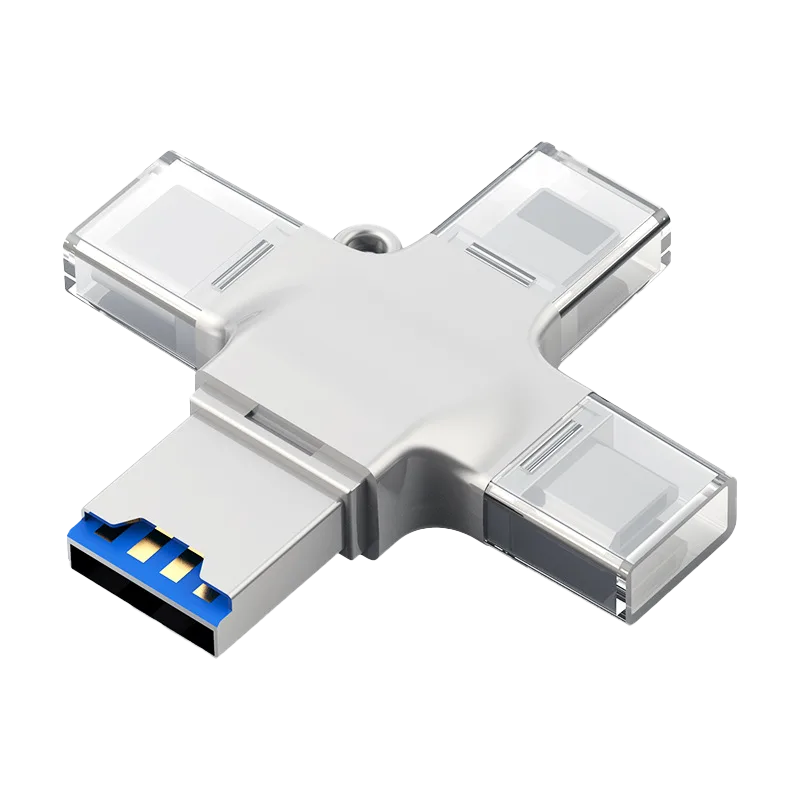
4-in-1 Aluminum Alloy microSD TF Card Reader for AISLPC Retro Handheld Consoles