Quick answer
Wire the mLink 20x4 Character LCD to your Arduino using only two data pins (SDA and SCL) via I2C. Then upload a simple sketch to display text on any of the 80 character positions.
Why the I2C interface matters
The mLink Character LCD uses a serial I2C interface, which means it communicates with your microcontroller using only two data pins (SDA and SCL). This frees up many digital I/O pins for other sensors or actuators, a key advantage over parallel character displays that require up to 6 or more pins. The trade-off is a slightly slower refresh rate, but for most text-based projects this is unnoticeable.
Common wiring pitfalls
A frequent mistake is connecting the I2C lines to the wrong pins on the Arduino. On an Arduino Uno, SDA is on pin A4 and SCL is on pin A5. On a Mega, SDA is pin 20 and SCL is pin 21. Double-check these assignments before powering the circuit. Also ensure the display's VCC is connected to 5V, not 3.3V, as the LCD requires 5V for proper contrast and backlight operation.
Step-by-step wiring and display setup
- Connect the hardware: Connect the mLink Character LCD's VCC to 5V, GND to GND, SDA to Arduino Uno's A4 (or Mega's pin 20), and SCL to Uno's A5 (or Mega's pin 21). Check that the I2C pins match your specific Arduino model to avoid no-display issues.
- Install the required library: Open the Arduino IDE, go to Sketch > Include Library > Manage Libraries. Search for "LiquidCrystal I2C" and install the one by Frank de Brabander. This library handles the I2C communication. Using the wrong library (e.g., the standard parallel LCD library) will not work; you must use an I2C-specific version.
- Find the I2C address: Upload an I2C scanner sketch (available in Arduino Examples > Wire) to detect the display's address. Note the address (commonly 0x27 or 0x3F) and use it in your code. If the scanner finds no device, recheck your wiring—especially the SDA and SCL connections.
- Write and upload your sketch: In your sketch, include the LiquidCrystal_I2C library, create an object with the address and dimensions (e.g., LiquidCrystal_I2C lcd(0x27, 20, 4);), then use lcd.begin() and lcd.print() to display text. Remember to call lcd.backlight() if the backlight does not turn on automatically; some displays need this command.
- Test and adjust contrast: If the text appears as blocks or is invisible, adjust the contrast potentiometer on the back of the LCD module using a small screwdriver until the characters are clear. Do not force the potentiometer; it rotates smoothly. Over-tightening can damage the trimmer.
Product facts
-
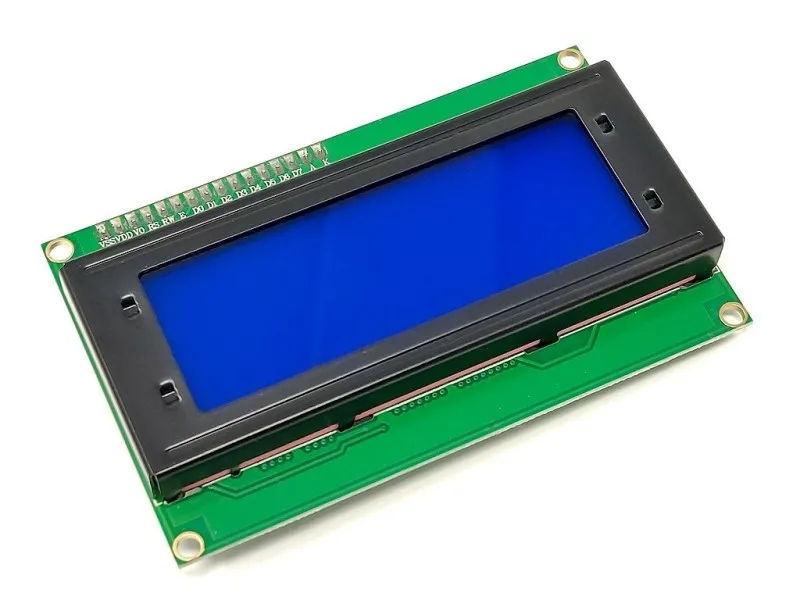
mLink Character LCD (20x4): The mLink Character LCD 20x4 uses a standard I2C interface, making it compatible with most microcontrollers including Arduino. You only need two data pins to control all 80 characters, leaving more pins free for other components.
mLink Character LCD (20x4)