Quick answer
Unbox the Nitro Deck 2 White Edition, slide in your Switch, connect via USB-C, and pair Bluetooth accessories. The whole setup takes about five minutes.
What makes the Nitro Deck 2 different
The Nitro Deck 2 is designed specifically for the Nintendo Switch 2, but it also works with original Switch and Switch OLED models. Its removable backplate lets you swap between console sizes without buying a second deck.
The White Edition keeps the same redesigned ergonomics and Bluetooth/USB connectivity as the standard version. The lighter color makes dust and smudges more visible, so keep a microfiber cloth handy.
Setup steps
- Unbox and inspect: Remove the Nitro Deck 2 White Edition from the box. Check that the USB-C connector and removable backplate are present and free of debris. Don't force the console in if the backplate isn't aligned — you could damage the USB-C port.
- Attach the correct backplate: If you're using a Switch 2, the default backplate fits. For original Switch or Switch OLED, swap to the included thinner backplate before inserting the console. Using the wrong backplate can cause the console to sit too loosely or too tightly.
- Insert your console: Slide your Switch into the deck from the top, aligning the USB-C connector at the bottom. Press gently until it clicks into place. Never force the console. If it doesn't slide in smoothly, double-check the backplate and the connector alignment.
- Power on and test controls: Press the power button on the deck (or your console) to turn it on. Test the shoulder buttons, D-pad, and analog sticks to confirm they respond correctly. If a button feels stiff, check that the console is seated evenly — uneven seating can misalign the button contacts.
- Pair Bluetooth accessories (optional): Put your Bluetooth headphones or controller into pairing mode, then press the pairing button on the bottom of the Nitro Deck 2. Wait for the LED to flash steadily. Keep Bluetooth devices within 10 feet during pairing. Interference from other wireless devices can cause connection drops.
- Connect to a TV or monitor (optional): Use the included USB-C cable to connect the deck to a compatible display or PC. The deck supports video output while charging. Not all USB-C cables support video. Use the one provided with the deck for reliable output.
Product facts
-
Nitro Deck 2 White Edition: Nitro Deck 2 is engineered for Nintendo Switch 2 and fully backwards compatible with Switch and Switch OLED. You can use the same deck if you upgrade your console later, or share it between different Switch models in your household.
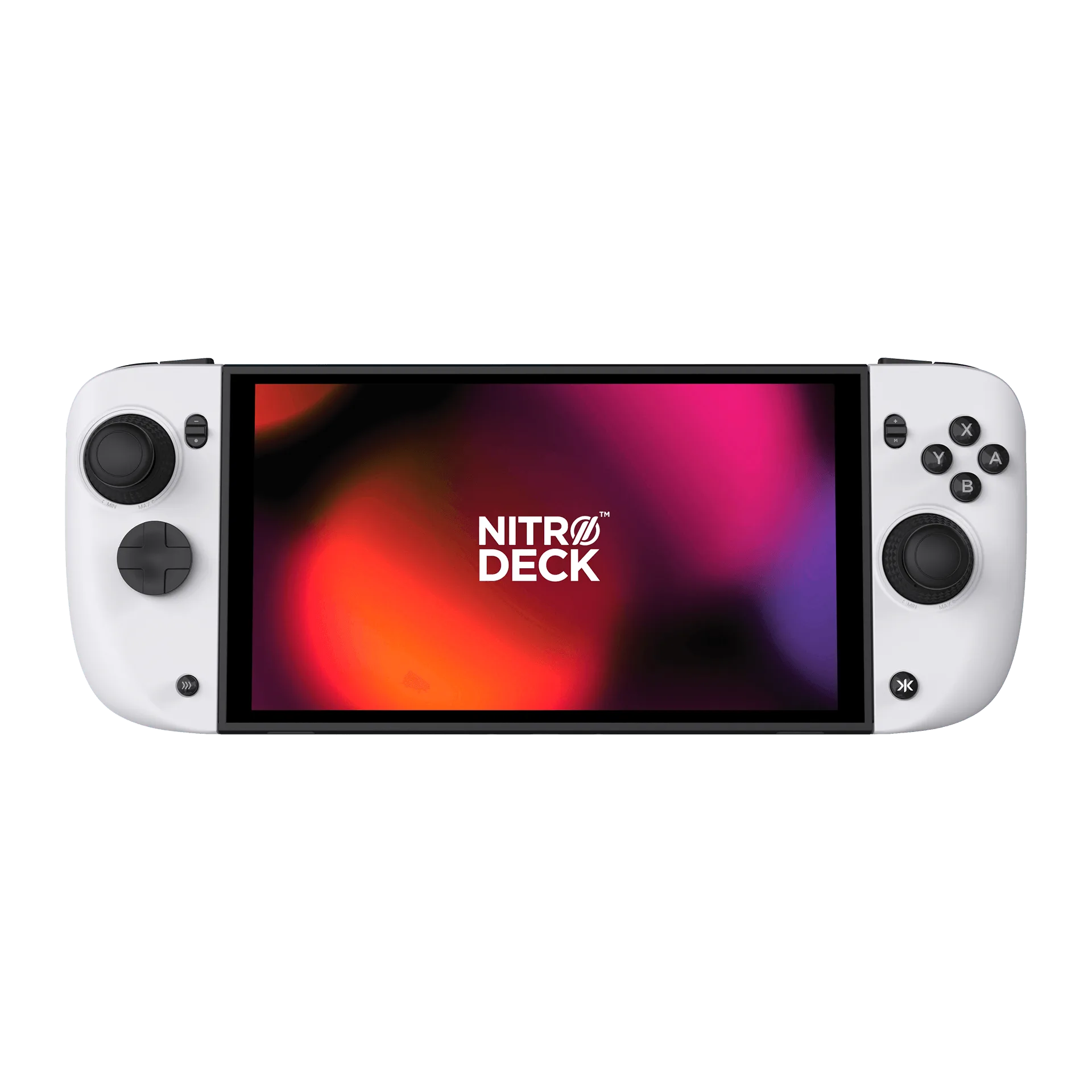
Nitro Deck 2 White Edition