Quick answer
Most TECKNET wireless headset mic failures come down to three things: the mic is muted, the wrong input device is selected, or the headset is connected through the wrong mode. Unmute first, then confirm your app is using the headset mic in Windows sound settings, and if you are on a desktop without Bluetooth, use the included USB-A dongle. If those steps fail, test the mic on a second device to isolate whether the problem is the headset or your computer.
Check the mute state before anything else
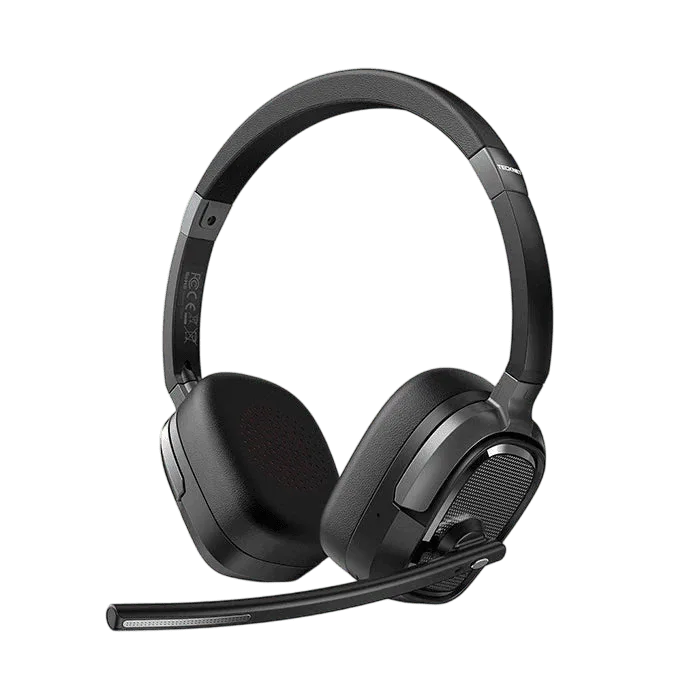
A stuck or accidentally pressed mute is the most common reason a headset mic goes silent. On the TECKNET TK-HS026, the mute control is part of the headset itself, not a software toggle, so a muted mic will still show as connected in Windows and still play audio. That is why the headset can seem fine while callers hear nothing.
Flip the mute control off, then watch for any LED or on-screen indicator that confirms the mic is live. If your headset has a boom mic, make sure it is rotated down into the speaking position. Some boom mics mute automatically when flipped up, so a mic parked in the up position will behave exactly like a broken one.
- Press or slide the mute control once, then test immediately in a voice recorder.
- Rotate the boom mic down until it sits near the corner of your mouth.
- If nothing changes, move on to input device selection rather than replacing the headset.
Confirm Windows is using the headset mic, not the laptop mic
Windows often keeps the built-in laptop microphone as the default input even after a Bluetooth headset connects. Your voice then goes through the laptop mic while the headset only handles playback, which looks like a headset mic failure. Open Settings > System > Sound > Input and select the TECKNET headset entry. In apps like Zoom, Teams, or Discord, check the audio settings inside the app as well, because each app can override the Windows default.
If the headset does not appear in the input list at all, the computer is not detecting the microphone input, which points to a connection or pairing problem rather than a mute problem. That distinction matters: a missing device is fixed by reconnecting, while a present-but-silent device is usually a mute or level issue.
- Set the TECKNET headset as the default input device in Windows Sound settings.
- Speak into the mic while watching the input level bar move.
- If the bar stays flat, raise the mic level or check for a mute in the app.
Bluetooth or USB dongle: pick the right mode for your computer
The TK-HS026 supports Bluetooth 6.0 and a USB-A dongle, and it connects to one device at a time. On a desktop without Bluetooth, the dongle is the correct path; plug it in and let Windows install it before testing the mic. On a laptop, Bluetooth is usually fine, but the dongle often gives a more stable connection if your Bluetooth adapter is busy with a mouse or keyboard.
If audio plays but the mic does not work over Bluetooth, the headset may have connected in a playback-only profile. Disconnect the headset, remove it from your Bluetooth device list, and pair again so Windows installs both the audio output and the microphone input. This is also the fix when the headset shows up twice in the device list with slightly different names.
- Use the USB-A dongle on desktops without Bluetooth.
- Re-pair over Bluetooth if the mic input never appears.
- Remember only one connection is active at a time, so disconnect the unused mode.
When to stop troubleshooting and test on another device
If the mic is unmuted, selected as the input, and still silent on two different apps, test the headset on a phone. A phone test takes a minute and separates a headset fault from a computer configuration fault. If the mic works on the phone, the headset is fine and the remaining problem is on the computer, usually a driver, privacy setting, or app permission.
On Windows, check Settings > Privacy & security > Microphone and confirm microphone access is on for both the system and the specific app. If the mic fails on the phone too, and the headset is fully charged and paired correctly, the microphone hardware is the likely cause. At that point, stop reinstalling drivers and contact support for a warranty or replacement decision.
- Works on phone, fails on PC: fix Windows privacy and app permissions.
- Fails on both: treat it as a hardware issue and contact support.
- Do not keep re-pairing once a second device confirms the failure.
Mic diagnosis: symptom, cause, action, stop point
- Headset connects and plays audio, but callers hear nothing: The mic is muted or the boom is flipped up. Slide the mute control off and rotate the boom mic down. If the input level bar moves in Windows, the problem is solved.
- Headset appears in playback but not as an input device: Windows paired the headset in a playback-only profile, or the wrong connection mode is active. Re-pair over Bluetooth or switch to the USB-A dongle. If the headset still does not appear as an input, test it on a phone before changing drivers.
- Mic works in one app but not another: The app has its own audio settings or lacks microphone permission. Set the TECKNET headset as the input inside that app and enable mic access in Windows privacy settings. Stop here if the mic now works in the target app.
- Mic is silent on both the computer and a phone: The headset microphone hardware is the likely fault. Confirm the headset is charged and paired correctly, then contact support. Do not keep reinstalling drivers once a second device confirms the failure.
Product facts that affect mic troubleshooting
- TECKNET Wireless Bluetooth Headset V6.0 with AI Noise-Cancelling Microphone,TK-HS026: Bluetooth 6.0 and USB-A dual connection, with one device connected at a time. Explains why the mic can disappear when the headset is connected through the wrong mode or when another device holds the connection.
- TECKNET Wireless Bluetooth Headset V6.0 with AI Noise-Cancelling Microphone,TK-HS026: AI noise-cancelling microphone designed for work calls. Noise cancellation reduces background sound but does not replace a mute check, so confirm the mic is live before judging call quality.
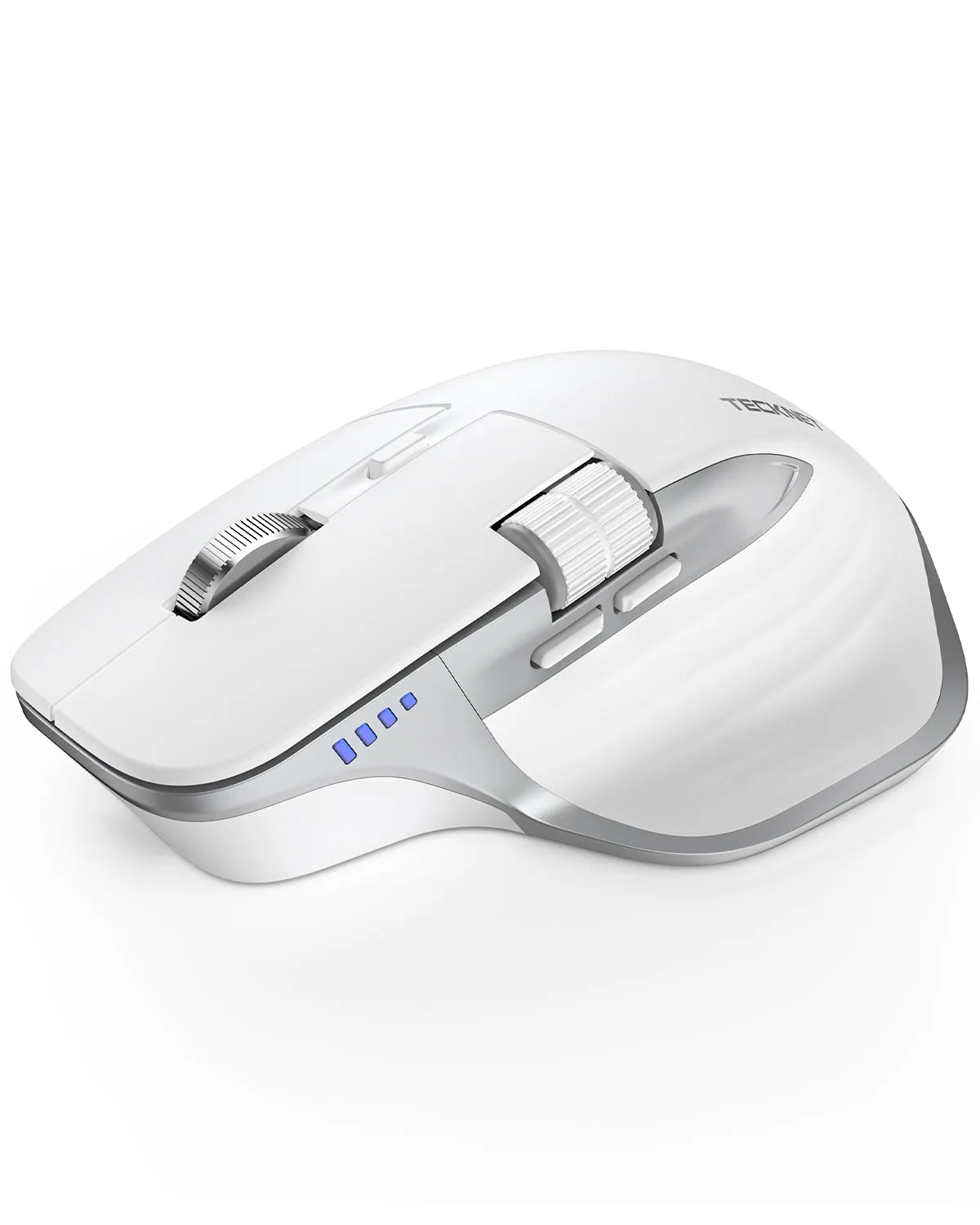
- Wireless Mouse, Bluetooth Mouse (BT5.3/5.0 & 2.4G) Rechargeable Ergonomic Optical Mouse with 6 Adjustable DPI, Side Scroll, Quiet Clicks, USB A Receiver, 7 Buttons, Wide Compatibility - White: Wireless mouse supports three-device switching over Bluetooth 5.3/5.0 and 2.4GHz USB-A. If your mouse and headset share one Bluetooth adapter, moving the mouse to its USB receiver can free bandwidth and stabilize headset audio.