Quick answer
Set up the https://ugreenetv.com/products/de-35261a-93d6c1bdfbad8ce1d2e9272e-1310660https://ugreenetv.com/products/nl-35261a-e56124114e92ea9dadcb6385-1311283https://ugreenetv.com/products/eu-35261a-457ac9d73f315e4817888cb2-1311296https://ugreenetv.com/products/uk-35602a-f458383c2b9544c58ba4d93e-1311299UGREEN NASync DX4800 Plus in this order: install drives, connect it to your router, initialize the system and build a storage pool, create your user accounts, then configure a backup job before you store anything important. The order matters because backup rules created before your data exists will protect everything that arrives afterward. Most beginners skip the backup step until a drive fails, which is exactly when it is too late.
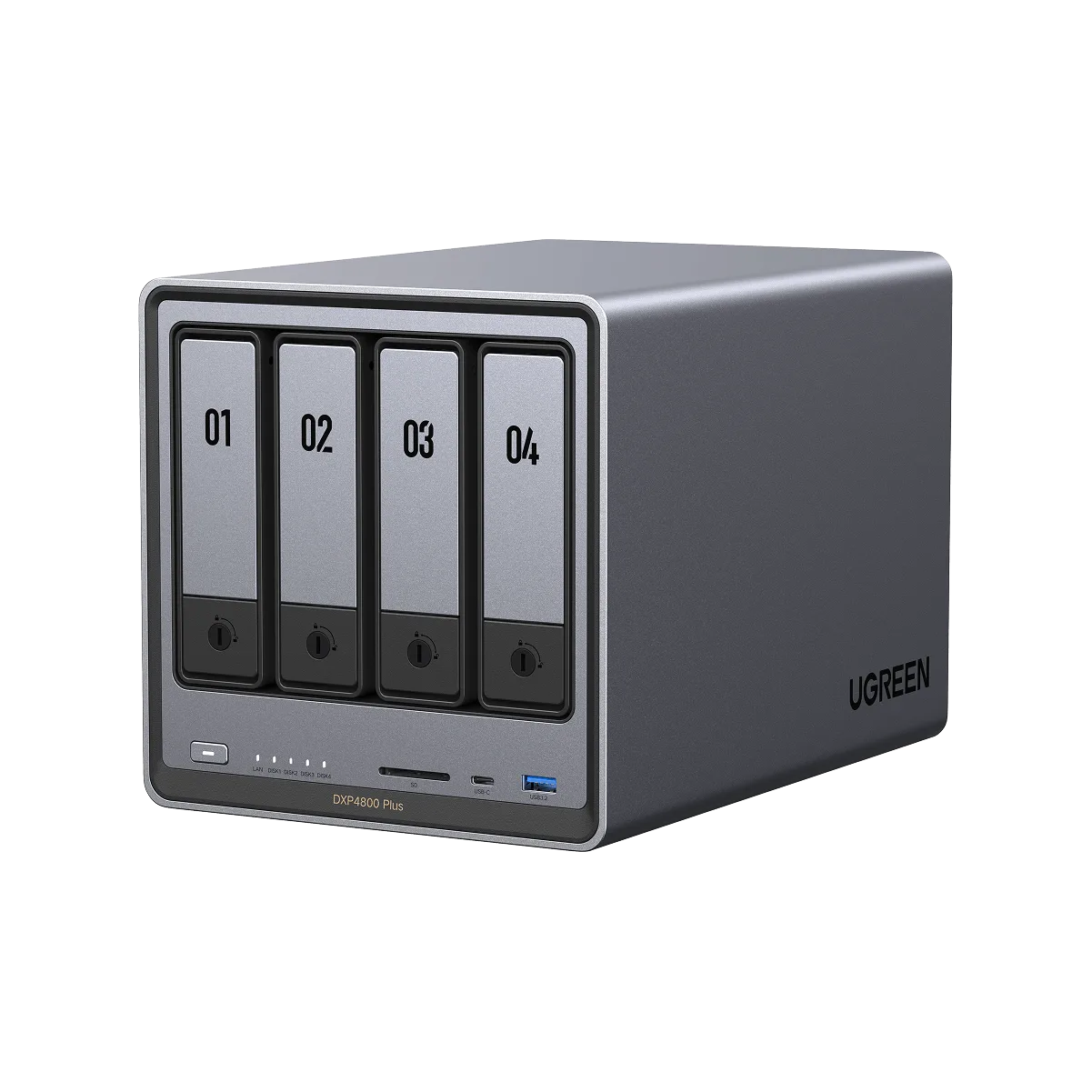
A home NAS for beginners usually fails at the same two points: the initial configuration is rushed, and backups are treated as a later project. Both are avoidable. The UGREEN NASync DX4800 Plus is a four-bay desktop unit, and its setup follows a predictable sequence that you can finish in one sitting.
This guide walks through that sequence as ordered steps. Each step includes the mistake that most often derails it, so you can check your work as you go instead of discovering a problem months later when a drive dies.
Before you start: what to have ready
You need the NAS unit, its power adapter, an Ethernet cable, and at least one compatible drive. A wired connection to your router is strongly preferred for the initial setup; Wi-Fi configuration comes later. Keep the NAS on a flat, ventilated surface rather than inside a closed cabinet, because heat is the long-term enemy of spinning drives.
Have your router's admin details nearby. You will likely need to check the device list or reserve an IP address so the NAS keeps the same address. If you plan to use the NAS for photo backup from phones, decide which household members get accounts before you start creating them.
- Use a surge protector or, better, a small UPS. An unclean shutdown during a write is a common cause of volume corruption.
- Label each drive with its bay number before inserting it. You will thank yourself when replacing one later.
Step 1: Install the drives correctly
Power the unit off, remove the drive trays, and mount each drive firmly with the screws provided. Push each tray in until it seats fully. Use drives of the same capacity if you plan to use a redundant RAID mode, because mismatched sizes waste the extra space on the larger drives.
The common mistake here is mixing used drives from old computers into a new array without wiping them. Residual partitions can confuse the initialization process. Wipe each drive first, and never hot-remove a tray while the system is writing.
- Check the compatibility list for your specific drive models before buying four of them.
- If you only have one drive today, start with a single-disk setup and add redundancy later when you buy more.
Step 2: Connect to the network and find the device
Connect the NAS to your router with the Ethernet cable, then power it on. Give it two to three minutes to boot. Find it using the vendor's desktop or mobile app, or by checking your router's client list for a new device. If nothing appears, reseat the cable at both ends and confirm the router port light is on.
The mistake to avoid is setting up over Wi-Fi or a flaky powerline adapter. Initialization writes a lot of data, and a dropped connection mid-process can leave you starting over. Once setup is complete, reserve the NAS's IP address in your router so it does not change after a reboot.
- Note the NAS's IP address and admin URL somewhere you will find them again.
- Update the NAS firmware before creating your storage pool if the setup wizard offers it.
Step 3: Initialize the system and build your storage pool
The setup wizard will ask you to create an administrator account and then choose a storage configuration. For a four-bay unit, the usual choices are a single-disk volume, a mirror-style redundant array, or a striped array for maximum capacity. Redundancy protects against one drive failing; it does not protect against accidental deletion, ransomware, or fire.
The mistake is choosing maximum capacity when you actually want safety. If your data matters, choose a redundant mode and accept the reduced usable space. Initialization can take hours on large drives, so start it when you do not need the NAS and let it finish undisturbed.
- Do not power off during initialization, even if the progress bar seems stuck.
- Write down which RAID mode you chose and how many drives it can lose before data is at risk.
Step 4: Create users, shared folders, and permissions
Create one account per person rather than sharing the administrator login. Then create shared folders by purpose, such as Documents, Photos, and Media, and assign permissions per account. This keeps one person's mistake from becoming everyone's problem and makes it obvious where files belong.
The common mistake is running everything as the admin account. If that account is compromised, an attacker has full control. Give each household member a standard account and keep the admin credentials for setup and maintenance only.
- Enable two-factor authentication on the admin account if the platform supports it.
- Set folder quotas if one user tends to fill the array with video files.
Step 5: Configure your backup job
This is the step beginners skip, and it is the one that matters most. A NAS is a storage device, not a backup by itself. Set up a scheduled job that copies your important folders to a second destination: an external USB drive, a second NAS, or a cloud target. Follow the 3-2-1 idea: three copies, on two different media, with one off-site.
The mistake is backing up only the folders you remember. Back up whole shared folders, not individual files, so new documents are included automatically. Then run the job once manually and confirm the files actually appear at the destination before trusting the schedule.
- Schedule backups for a time when the house is asleep and the network is quiet.
- Test a restore of a single file. A backup you have never restored is only a hope.
Step 6: Add remote access and phone backup carefully
Once local access works reliably, enable remote access if you need it. Use the vendor's built-in remote service rather than opening router ports manually, which exposes the NAS to automated scanning. For phone photo backup, install the mobile app, sign in with a standard user account, and choose which albums sync.
The mistake is enabling every remote feature at once and then losing track of what is exposed. Turn on one service, confirm it works, and check the NAS logs for unexpected login attempts. If you do not need remote access, leave it off.
- Keep the NAS firmware current; remote access features receive security fixes over time.
- Review connected devices and sessions monthly and remove anything you do not recognize.
Setup checklist: the order that prevents rework
- Mount and wipe drives: Install matched drives in the trays, screw them down, and wipe any used drives before inserting them. Checkpoint: every tray seats fully and no drive shows old partitions.
- Wired connection and IP reservation: Connect via Ethernet, locate the NAS in the app or router client list, then reserve its IP address. Checkpoint: the NAS answers at the same address after a reboot.
- Initialize and choose redundancy: Run the wizard, create the admin account, and pick a storage mode based on whether you value capacity or fault tolerance. Checkpoint: initialization completes without interruption and you record the RAID mode.
- Create users and shared folders: Add one standard account per person, build folders by purpose, and set permissions per account. Checkpoint: nobody but the admin logs in with admin rights.
- Build and test the backup job: Schedule a copy of whole shared folders to a second destination and run it once manually. Checkpoint: you restore one file successfully from the backup.
- Enable remote access last: Turn on remote services one at a time, use the vendor's built-in remote tool, and review login logs. Checkpoint: no unexpected sessions appear in the logs after a week.
Accessories worth pairing with your NAS
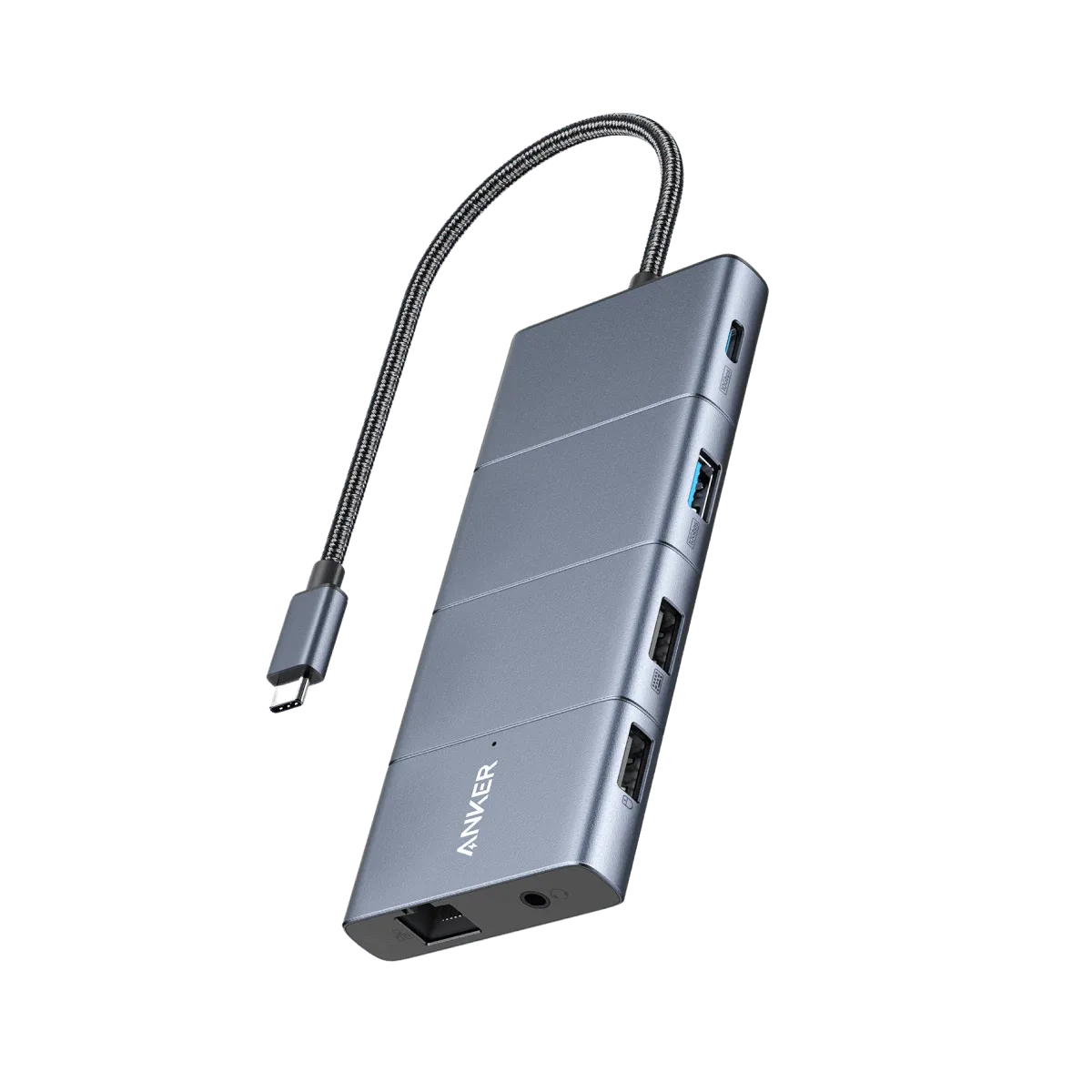
- UGREEN Revodok 1061 6 in 1 USB C Hub: 6 in 1 Connectivity with 4K HDMI, 5Gbps Data Transfer, and 1Gbps Ethernet. If your laptop lacks an Ethernet port, this hub gives you a wired connection for faster NAS transfers and a display output at the same time.
- UGREEN Zapix Powerbank 10000mAh 20W: 10000mAh capacity provides multiple charges for smartphones and other compatible devices, with 20W output for fast charging on supported devices. Useful during a long NAS migration or backup window when you are working from a phone or tablet and cannot stay near an outlet.
Work through these steps in order and the UGREEN NASync DX4800 Plus will go from a box of drives to a dependable home server in an afternoon. The backup job is not the optional last step; it is the reason the rest of the setup is worth doing. Finish it, test a restore, and then leave the system alone to do its job.