Quick answer
To set up the UGREEN Steam Deck Dock 9-in-1, connect the dock to your Steam Deck via USB-C, then plug in your external display, peripherals, and power. The dock instantly expands your Deck's ports for gaming or productivity.
Why use a dock with your Steam Deck
The Steam Deck is a powerful handheld, but its single USB-C port limits simultaneous connections. A dock like the UGREEN 9-in-1 unlocks 4K@60Hz HDMI output for a big screen, 10Gbps USB ports for fast storage or controllers, and extra connectivity without juggling cables.
Trade-offs to consider
While the dock adds versatility, it requires a stable surface and external power for full functionality. The adjustable stand fits the Steam Deck and OLED model, but the dock's footprint may not suit cramped desks. Also, the 4K@60Hz output works best with a compatible HDMI 2.0 cable and display.
Setup steps
- Unbox and inspect: Remove the dock and its accessories from the box. Check that the USB-C cable, HDMI port, USB-A ports, and power input are clean and undamaged. Common mistake: Skipping inspection may lead to later troubleshooting if a port is blocked or a cable is frayed.
- Connect the dock to power: Plug the included USB-C power cable into the dock's power input and the other end into a wall adapter. The dock needs external power to output 4K@60Hz and charge your Steam Deck. Without power, the dock may not drive an external display or charge the Deck.
- Attach your Steam Deck: Place the Steam Deck (or Steam Deck OLED) into the adjustable stand. Connect the dock's USB-C cable to the Deck's USB-C port. Ensure the connection is secure. Common mistake: Forcing the Deck into the stand if it's not aligned can damage the USB-C port. Adjust the stand angle first.
- Connect an external display: Use an HDMI 2.0 cable (not included) to connect the dock's HDMI port to your monitor or TV. The dock supports 4K@60Hz output. If the display shows no signal, verify the cable supports HDMI 2.0 and the display is set to the correct input.
- Connect peripherals and storage: Plug USB devices (controllers, mouse, keyboard, external drive) into the dock's USB-A ports. The 10Gbps speed works best with USB 3.2 Gen 2 devices. Common mistake: Using a USB 2.0 device in a 10Gbps port won't damage anything, but you won't get the faster speed.
- Configure Steam Deck display settings: Go to Settings > Display on your Steam Deck. Under External Display, choose the resolution and refresh rate (up to 4K@60Hz). Enable external display as primary if desired. If the external display doesn't show, try unplugging and reconnecting the HDMI cable or restarting the Deck.
Product details
-
UGREEN Steam Deck Dock 9-in-1 dockingstation 4K@60Hz HDMI 10Gbps USB-poorten Verstelbare standaard Compatibel met Steam Deck OLED: The UGREEN Steam Deck Dock is a 9-in-1 docking station that offers 4K@60Hz HDMI output and 10Gbps USB ports. This means you can enjoy smooth high-resolution gaming on a TV or monitor and transfer files or connect peripherals at high speed without lag.
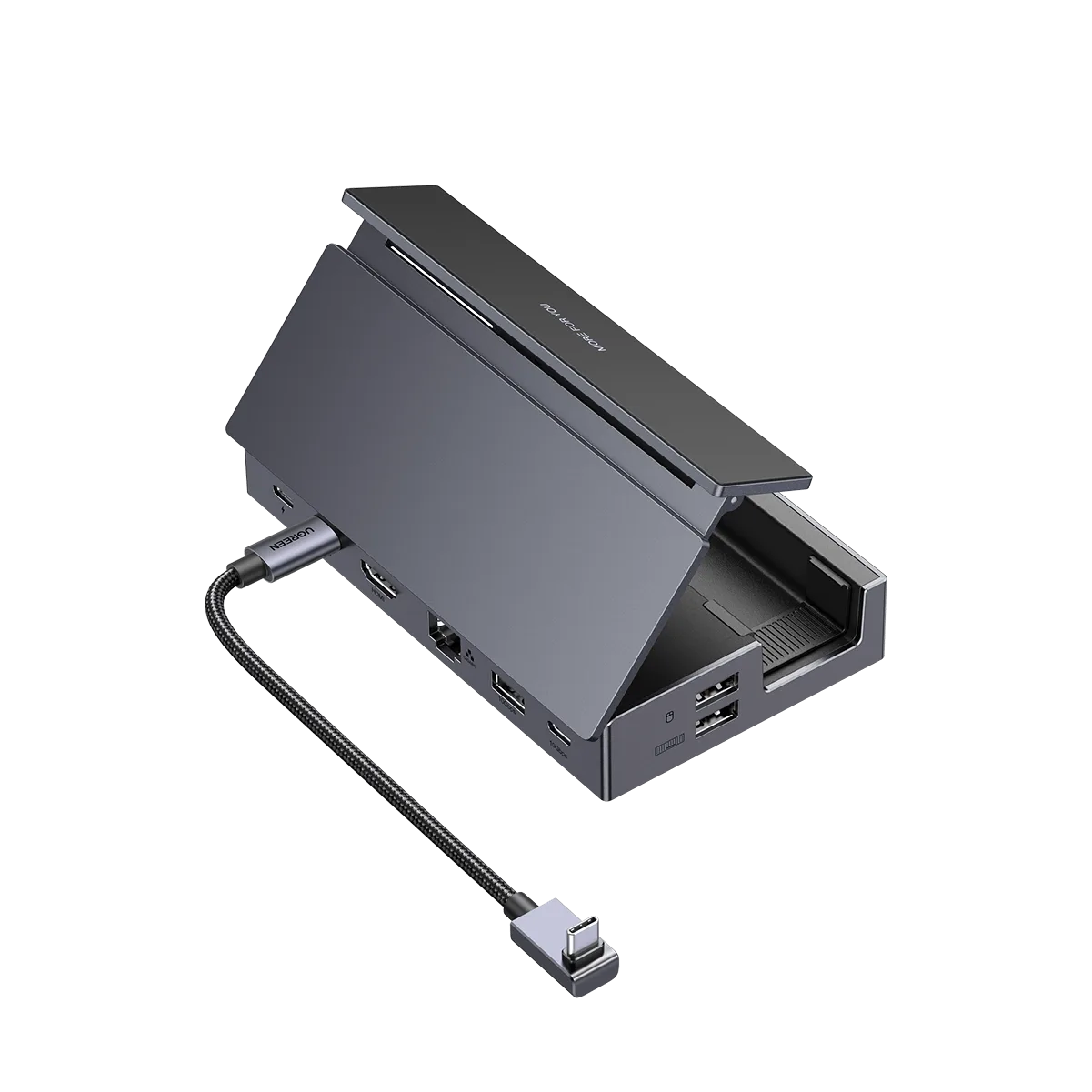
UGREEN Steam Deck Dock 9-in-1 dockingstation 4K@60Hz HDMI 10Gbps USB-poorten Verstelbare standaard Compatibel met Steam Deck OLED