Quick answer
Plug the mic into a USB port, set it as the input in your OS and app, then set gain so normal speech peaks around -12 to -6 dB. Move the mic closer instead of raising gain, and treat a USB mic not detected as a cable, port, or privacy-permission issue first.
Before you plug in: what to decide
Decide whether the mic will sit on a desk or on a boom arm, because that choice changes how much keyboard and desk noise reaches the capsule. A desk stand is fine for solo voice work if you keep the mic close; a boom arm helps in shared rooms or over a loud keyboard. Also confirm your recording app lets you pick a specific input device, since system-wide defaults can override your choice.
What to check when a USB mic is not detected
If the mic does not appear, swap the USB port before reinstalling anything. Connect directly to the computer rather than through an unpowered hub, try a different cable, and check the OS privacy settings that allow apps to use the microphone. On macOS, look in System Settings under Privacy & Security > Microphone; on Windows, check Settings > Privacy > Microphone and confirm app access is on. If the device shows in the OS but not in your streaming app, set the input inside that app's audio menu and restart the app.
Gain, distance, and background noise
Set gain low and speak at your normal level, then raise gain only until the meter peaks around -12 to -6 dB. If you hear hiss or room hum, move the mic closer and lower the gain rather than adding software noise suppression. For background noise reduction, fix the room first: close doors, move the mic away from a laptop fan or air vent, and place it on a soft surface or shock mount. Software noise gates help, but they cannot remove a noisy room without making your voice sound processed.
Step-by-step USB microphone setup
- 1. Connect the mic directly to the computer: Use a rear USB port on a desktop or a direct port on a laptop. Avoid unpowered hubs, which can cause dropouts or a mic that is not detected. Checkpoint: the mic appears in your OS sound settings before you open any recording app.
- 2. Set the mic as the input device in the OS: On Windows, go to Settings > System > Sound and choose the USB mic under Input. On macOS, open System Settings > Sound > Input. Then allow microphone access for your recording or streaming app in privacy settings. Checkpoint: the input level meter moves when you speak.
- 3. Select the same input inside your recording or streaming app: In OBS, Discord, Zoom, or your DAW, open the audio settings and pick the USB mic as the microphone source. Do not rely on the system default, which can switch when you plug in headphones. Checkpoint: the app's meter responds only to your voice, not to system sounds.
- 4. Set gain with normal speech, not a test shout: Speak at the volume you will actually use and adjust gain until peaks land around -12 to -6 dB. If the meter stays low, move the mic closer before adding gain. Checkpoint: no clipping on loud words, and no hiss when you pause.
- 5. Position the mic and control background noise: Place the mic 4 to 8 inches from your mouth, slightly off-axis to reduce plosives. Move it away from fans, vents, and the keyboard, and use a shock mount or boom arm if desk vibration is audible. Checkpoint: record 20 seconds of silence and listen for hum, fan noise, or keyboard thumps.
- 6. Enable low-latency monitoring only if you need it: If your mic has a headphone output, plug in headphones and set the monitor volume just loud enough to hear yourself. Keep it low to avoid distracting yourself or creating feedback. Checkpoint: no echo or delay in your headphones while you speak.
- 7. Record a test and fix the weakest link: Record a short sample, listen with headphones, and change one thing at a time: distance, gain, or room treatment. Re-check the input after any app or OS update. Checkpoint: your test recording sounds clear at normal listening volume without noise reduction.
Mic and gear notes
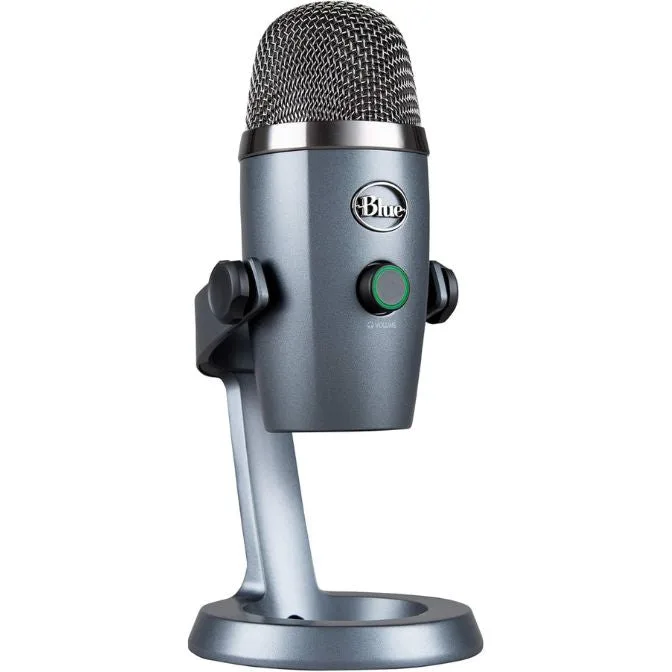
- Logitech for Creators Blue Yeti Nano USB Microphone for Gaming, Streaming, Podcasting,Twitch, YouTube, Discord, Recording for PC and Mac, Plug & Play - Shadow Grey: Blue Yeti Nano USB Microphone with no-latency headphone output, headphone volume, mic mute, and standard threading for a Radius III shock mount or Compass boom arm; plug-and-play for Mac and PC. The headphone jack lets you monitor your own voice without latency, and the standard threading means you can add a boom arm or shock mount later without adapters.
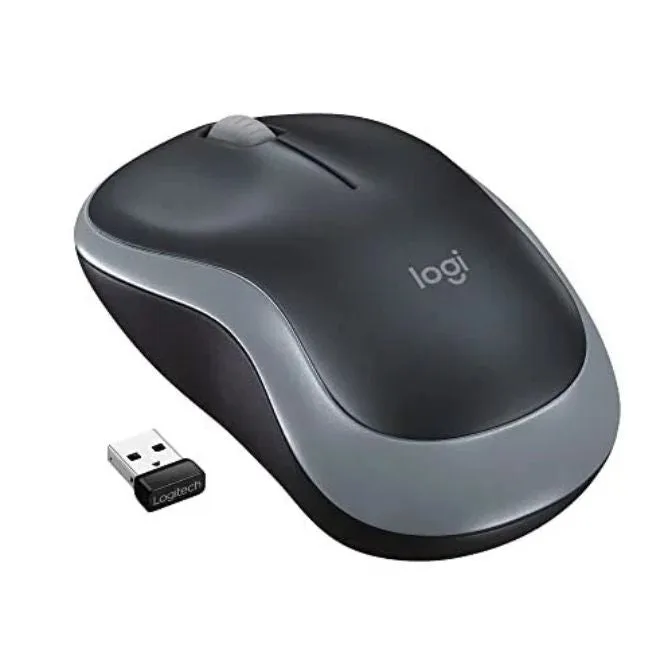
- Logitech M185 Wireless Mouse, 2.4GHz with USB Mini Receiver, 12-Month Battery Life, 1000 DPI Optical Tracking, Ambidextrous PC/Mac/Laptop - Swift Gray: Logitech M185 Wireless Mouse with a 2.4GHz USB nano receiver, 1-year battery life, and 1000 DPI optical tracking. A wireless mouse keeps one more cable off the desk, which reduces handling noise near the mic during long recording or streaming sessions.