Quick answer
Turn on the keypad, put it in pairing mode, then connect it from your Mac's Bluetooth settings. The whole process takes about 30 seconds.
Why a dedicated extended keypad makes sense
If you use a MacBook or a compact keyboard, you lose the number pad and navigational arrows that make data entry and spreadsheet work faster. A Bluetooth Extended Keypad restores that full desktop layout without adding cables or taking up a USB port. The trade-off is remembering to charge it every few weeks, but the convenience of a wireless number pad that you can place anywhere on your desk usually outweighs that small habit.
Bluetooth Extended Keypad setup steps for Mac
- 1. Turn on the keypad: Slide the power switch on the keypad to the On position. A small LED should blink, indicating it is ready to pair. If the LED does not blink, the battery may be low. Charge it with the included cable before continuing.
- 2. Enter pairing mode: Press and hold the Bluetooth pairing button (usually marked with a Bluetooth icon) until the LED starts flashing rapidly. This tells the keypad to broadcast its signal. The LED should flash quickly, not slowly. A slow blink often means the keypad is already paired to another device.
- 3. Open Bluetooth settings on your Mac: Click the Apple menu > System Settings > Bluetooth. Make sure Bluetooth is turned on. Your Mac will start scanning for nearby devices. If your Mac doesn't find the keypad, toggle Bluetooth off and on again, then repeat step 2.
- 4. Select the keypad from the list: Look for "Bluetooth Extended Keypad" in the list of nearby devices. Click "Connect" next to it. The LED on the keypad will stop flashing and stay solid once paired. If the name appears but the connection fails, move the keypad closer to your Mac and away from other wireless devices like USB 3 hubs or routers.
- 5. Test the keys and shortcuts: Open a spreadsheet or text field and type some numbers using the keypad. Then try the MacOS shortcut keys—for example, the brightness or Mission Control keys—to confirm they work. If a shortcut key does nothing, check that you are pressing it alone (not with Fn or Command). Some keys require the keypad to be in a specific mode; refer to the quick-start guide if needed.
Product fact
-
Bluetooth Extended Keypad: Featuring a full number pad, navigational arrows, and convenient MacOS shortcut keys. You get the same number-entry speed as a full-size keyboard plus one-touch access to MacOS functions like Mission Control and brightness controls.
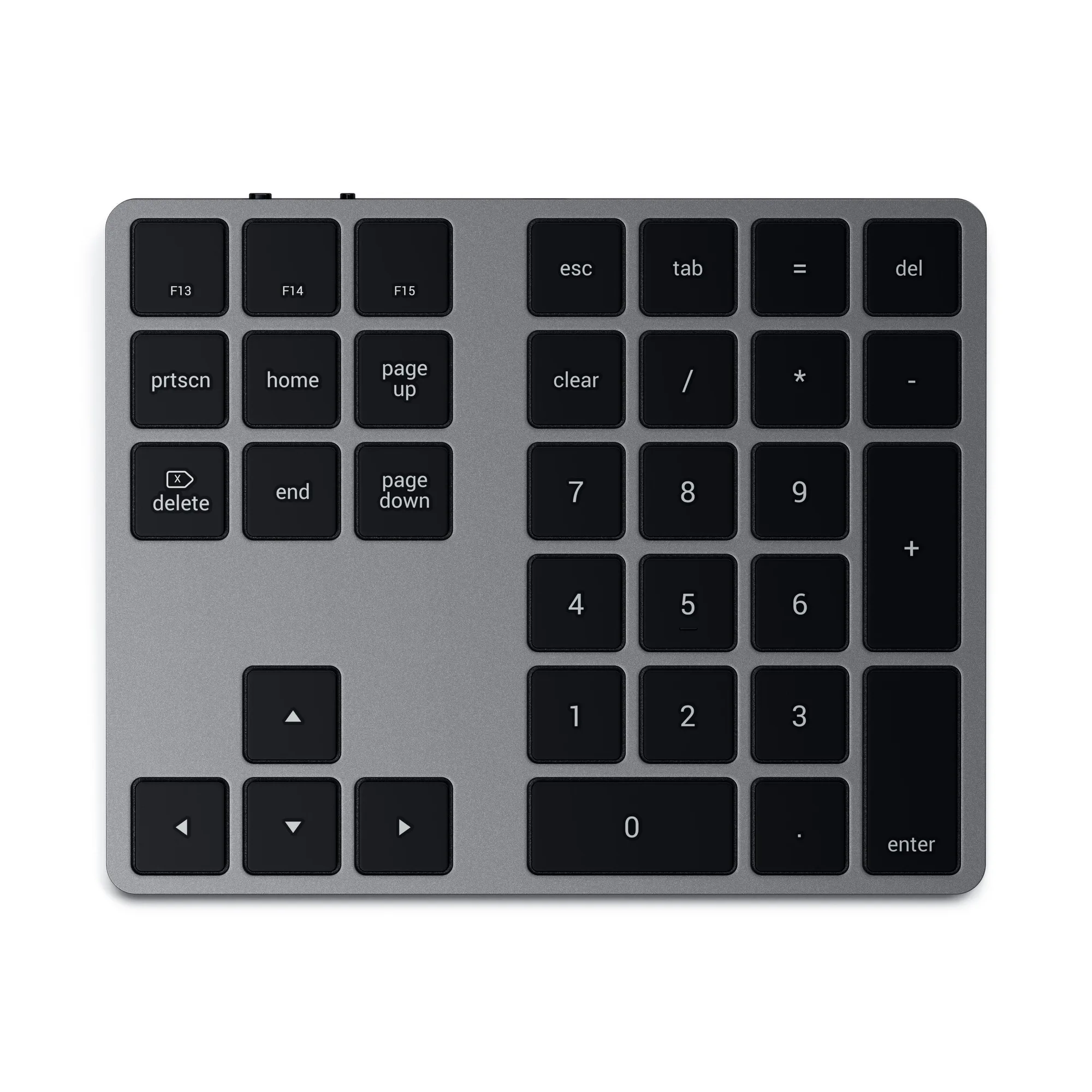
Bluetooth Extended Keypad