Quick Answer
To set up your Canon imageCLASS LBP122dw II for wireless printing, connect the printer to your Wi-Fi network using the control panel or WPS, then install the drivers on your computer or mobile device.
Why Wireless Setup Matters for Your LBP122dw II
The imageCLASS LBP122dw II is designed for home offices and small businesses, offering fast print speeds and duplex capability. Going wireless lets you place the printer anywhere in your workspace without being tethered to a computer, and it allows multiple devices to print without physically connecting each time.
Wireless setup is straightforward, but a few common pitfalls—like entering the wrong Wi-Fi password or placing the printer too far from the router—can cause frustration. This guide walks you through each step and highlights what to watch out for.
Wireless Setup Steps
- Prepare Your Network and Printer: Place the printer within range of your Wi-Fi router (ideally within 5 meters) and ensure your router is broadcasting on 2.4 GHz. Note your Wi-Fi network name (SSID) and password. Turn on the printer and load paper. Check that the printer is on and the Wi-Fi indicator is blinking before starting setup.
- Connect via WPS or Manual Setup: If your router supports WPS, press the WPS button on the router within 2 minutes of pressing the WPS button on the printer. Alternatively, use the printer's control panel to select your Wi-Fi network and enter the password manually. If the connection fails, move the printer closer to the router and try again.
- Install Drivers and Software: Download the latest driver and software from the Canon website or use the installation CD that came with the printer. Run the installer and choose 'Wireless LAN connection' when prompted. Follow the on-screen instructions to complete the installation. Ensure your computer is connected to the same Wi-Fi network as the printer to avoid detection issues.
- Add the Printer to Your Devices: On Windows, go to Settings > Devices > Printers & scanners and select 'Add a printer'. On macOS, go to System Preferences > Printers & Scanners and click '+'. Your LBP122dw II should appear in the list; select it and add it. If the printer isn't listed, check that it's powered on and connected to the same network.
- Test and Troubleshoot: Print a test page from your computer to confirm the setup. If printing fails, restart the printer and router, then re-run the driver installation. Check the printer's network status page to verify Wi-Fi connectivity. Keep the printer's firmware updated to avoid connectivity issues.
Printer Facts
-
imageCLASS LBP122dw II: The imageCLASS LBP122dw II offers print speeds up to 29 ppm and a first print out time of approx. 5.4 seconds. Once your wireless connection is stable, you'll get fast, efficient printing without waiting for cables or network delays.
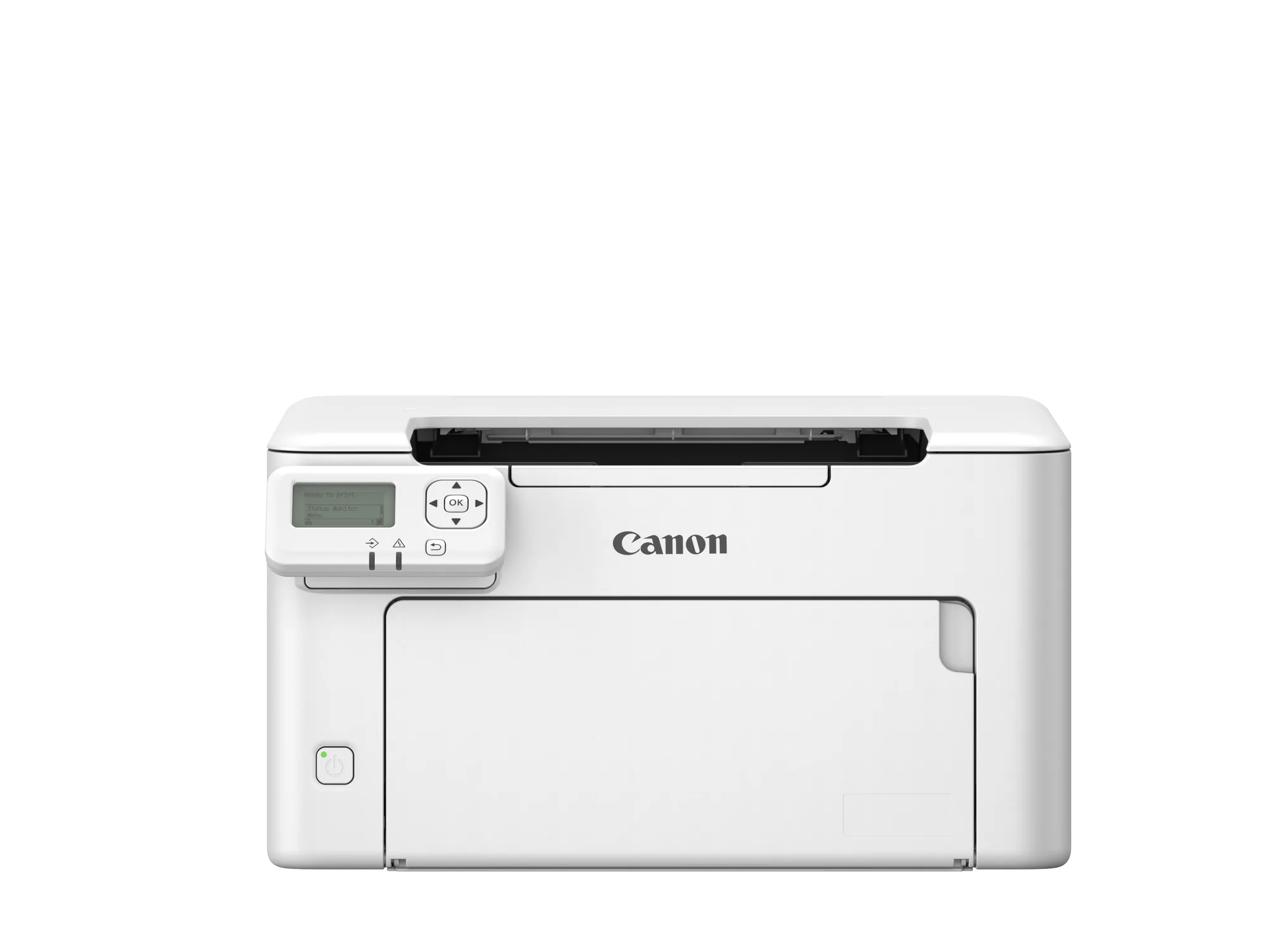
imageCLASS LBP122dw II