Quick Answer
Set up your GoPro HERO 13 Black in about 10 minutes: charge the battery, insert a microSD card, format it in the camera, mount the camera, and adjust key settings before your first recording.
Why Proper Setup Matters
Skipping initial steps like formatting the card or updating firmware can cause corrupted files, dropped frames, or unexpected shutdowns during your shoot. A few minutes upfront saves hours of frustration later.
When to Skip the Touch Screen
- If you're mounting the camera in a waterproof housing or an awkward angle, use the GoPro Quik app on your phone to change settings wirelessly. The touch screen is convenient but not always accessible.
Step-by-Step Setup for First-Time Users
- 1. Charge the Battery Fully: Insert the battery into the camera and connect the USB-C cable to a wall adapter (not a computer port). A full charge takes about 2 hours. Common mistake: Using a computer port gives a slow trickle charge and may not fully power the battery before you head out.
- 2. Insert and Format a microSD Card: Use a UHS-I U3 or V30 rated card. Power on the camera, go to Preferences > Format SD Card, and confirm. This ensures the file system is optimized for the camera. Checkpoint: If you reuse an old card, always format in the camera — not on your computer — to prevent write errors.
- 3. Update Firmware via the Quik App: Download the GoPro Quik app on your phone. Connect the camera via Bluetooth, then follow the on-screen prompts to install the latest firmware. This fixes bugs and adds features. Common mistake: Skipping updates may cause the camera to freeze or fail to recognize new accessories like the HERO 13's optional ND filters.
- 4. Choose a Mount and Secure the Camera: For helmet or chest mounts, use the included adhesive base and buckle. For handlebar or tripod use, attach the mount with the thumbscrew. Press the shutter button twice to confirm the camera is recording. Checkpoint: Always test the mount by shaking it gently before recording. A loose mount ruins the shot and can damage the camera.
- 5. Set Video Resolution and Frame Rate: For most users, start with 4K at 30 fps. Go to Mode > Video > Resolution and choose 4K / 30. This balances quality, stabilization, and file size. Switch to 5.3K at 24 fps for cinematic slow-motion. Common mistake: Selecting 5.3K at 60 fps on a V30 card may cause dropped frames. Use a V60 or V90 card for high-bitrate modes.
- 6. Record Your First Clip and Review: Press the shutter button to start, then press again to stop. Open the GoPro Quik app or connect the camera to your computer to review the footage. Check for exposure and stabilization. Checkpoint: If the video looks jittery, enable HyperSmooth 6.0 in the settings. If it's too dark, increase ISO max to 800 or add a light.
GoPro HERO 13 Black at a Glance
-
GoPro HERO 13 Black: Records up to 5.3K video and 24.7MP photos with HyperSmooth 6.0 stabilization. You can capture smooth, high-resolution footage straight out of the box without needing extra gear, but you must format your SD card first to avoid recording glitches.
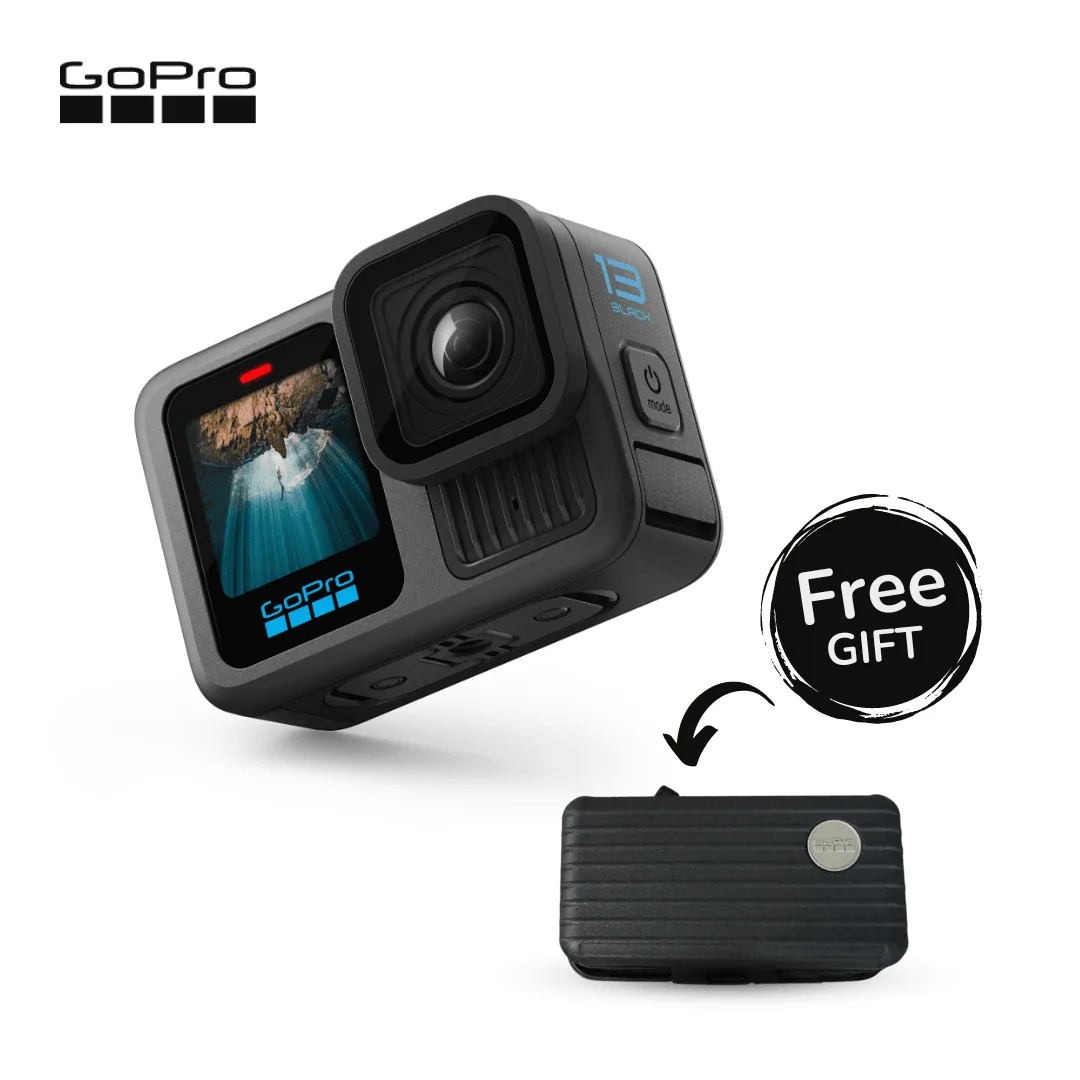
GoPro HERO 13 Black