Quick answer
Plug the NXBX-4500 headset directly into your Xbox Series X|S controller using the included 3.5mm cable. No Bluetooth pairing or software download is needed.
Why wired connection works best for Xbox
Xbox Series X|S controllers have a built-in 3.5mm audio jack that supports stereo sound and chat simultaneously. The NXBX-4500 headset uses this same wired connection, which avoids Bluetooth latency and battery concerns. This also means you can adjust volume and mute directly from the inline control on the headset cable.
What if the audio sounds low or muffled?
If your headset volume seems low after connecting, the issue is usually in the Xbox audio settings, not the headset itself. The console defaults to a lower chat volume mix. You can adjust this from the guide menu without unplugging anything.
How to pair the NXBX-4500 headset with Xbox Series X|S
- Connect the headset to your controller: Insert the 3.5mm audio plug on the NXBX-4500 cable into the 3.5mm jack at the bottom of your Xbox Series X|S controller. Push it in until you feel a click. A loose connection can cause intermittent audio. Make sure the plug is fully seated.
- Power on the headset (if applicable): Some NXBX-4500 units include an inline mute switch or volume wheel. Turn the volume wheel to a middle setting before testing. If your model has a power switch, set it to the 'on' position. Not all versions have a power switch. If you see no switch, the headset is always active when plugged in.
- Adjust Xbox audio settings: Press the Xbox button on your controller, go to the Audio & Music tab (speaker icon), and set Headset Volume to max. Then adjust Headset Chat Mixer to balance game and chat audio to your preference. If chat sounds too quiet, increase Chat Mixer toward the chat side. If game audio drowns out voices, move it toward the game side.
- Test microphone and audio: Speak a test phrase into the mic while in a party or using the 'Test mic' option in the Xbox settings. Ask a friend to confirm your voice is clear. If the mic is muted, flip the inline mute switch. The inline mute switch is easy to bump accidentally. Check it first if others cannot hear you.
- Troubleshoot common issues: If you hear no sound, unplug and reconnect the cable. If audio cuts out, check the cable for damage or try a different controller. For persistent low volume, verify that Headset Volume in Xbox settings is at 100%. A damaged cable is the most common cause of intermittent audio. Replace the cable if needed.
About the NXBX-4500 Headset
-
NXBX-4500 Headset for Xbox Series X|S™: The NXBX-4500 uses a lightweight, high-resiliency frame and delivers crisp stereo sound with clear, lag-free vocal transmission. It stays comfortable during long sessions and ensures you hear game audio and teammates without delay or distortion.
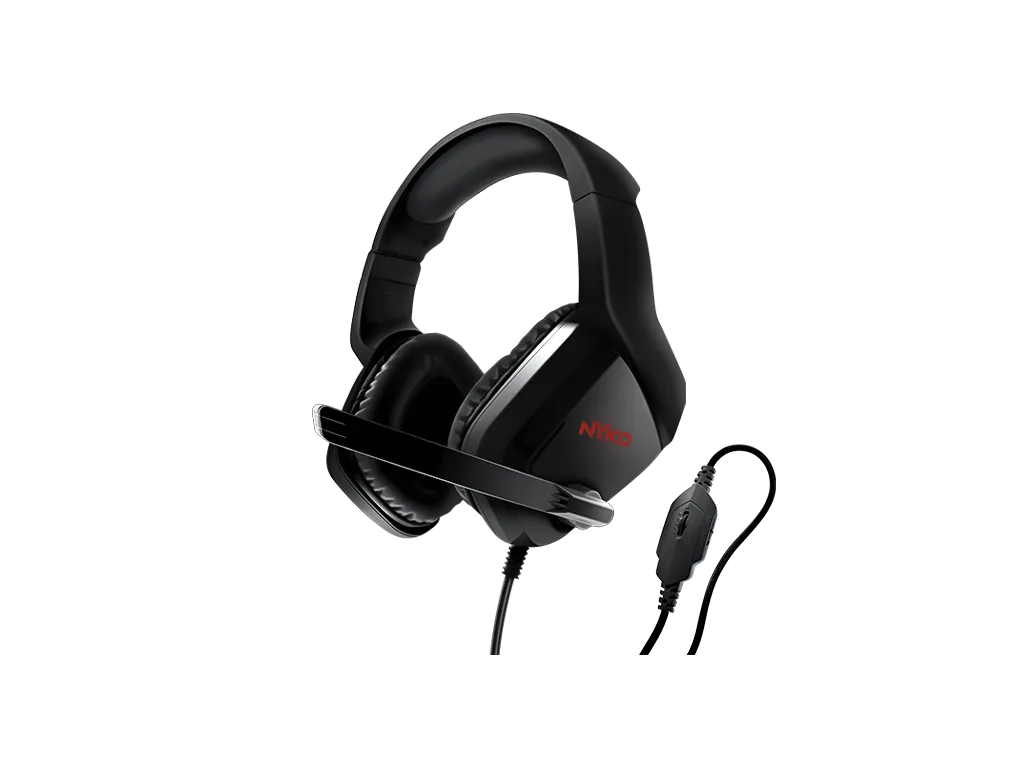
NXBX-4500 Headset for Xbox Series X|S™