Quick answer
To pair your TECKNET tri-mode mouse, turn it on, then press and hold the pairing button until the LED flashes. On your computer, open Bluetooth settings and select the mouse. For USB, plug the receiver into a USB-A port and switch the mouse to 2.4G mode. For multi-device switching, press the mode button to cycle between Bluetooth 1, Bluetooth 2, and 2.4G.
Setting up a TECKNET tri-mode mouse should take less than a minute, but small mistakes—like not holding the pairing button long enough or using a USB hub—can leave you stuck. This guide walks you through pairing on Windows, Mac, and Chromebook, plus how to switch between three devices and fix common connection or lag problems.
The steps below apply to the TECKNET Ergo Tri-Mode Silent Mouse, 4800 DPI MS029, which supports two Bluetooth connections and one 2.4GHz USB-A connection. If you have a different TECKNET wireless mouse, the same principles apply, but check your model's manual for specific button locations.
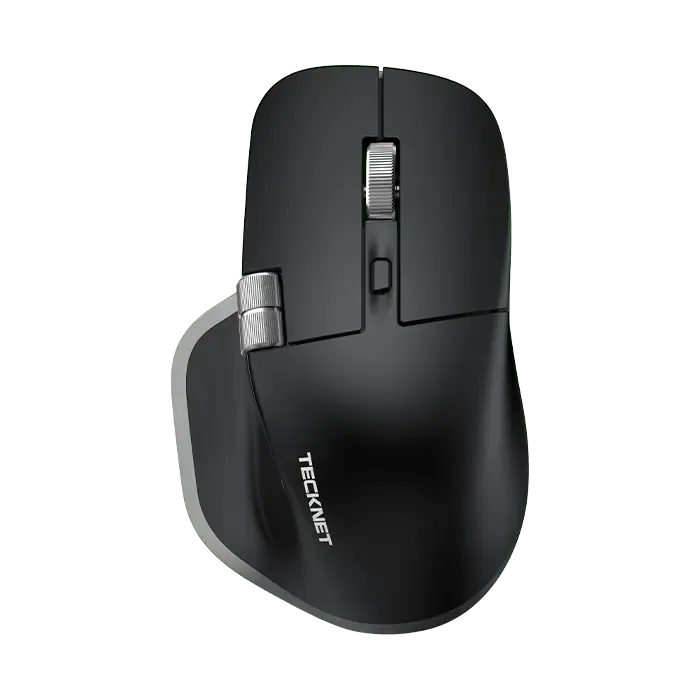
TECKNET Ergo Tri-Mode Silent Mouse, 4800 DPI MS029
Before you start: what you need
Make sure the mouse has fresh batteries. The Ergo Tri-Mode Silent Mouse uses 2 AA batteries (not included). If the LED doesn't light up when you turn it on, replace the batteries first. Also, confirm your computer supports Bluetooth 4.0 or later for Bluetooth pairing, or has a free USB-A port for the 2.4GHz receiver.
Clear any previous pairings from your computer's Bluetooth list if you've connected the mouse before. This prevents conflicts. Keep the mouse within 1–2 feet of the computer during pairing.
- Check batteries: weak batteries are the top cause of pairing failure.
- Avoid USB hubs for the receiver; plug directly into the computer.
Pair via Bluetooth on Windows 10 or 11
Turn on the mouse using the power switch on the bottom. Press and hold the pairing button (often the same as the mode button) until the LED starts blinking rapidly. On your PC, go to Settings > Bluetooth & devices > Add device > Bluetooth. Select 'TECKNET Mouse' from the list. If it doesn't appear, repeat the hold—some units need 5 seconds.
Once paired, the LED will stop blinking. Test the cursor. If it moves erratically, move the mouse closer and avoid metallic surfaces.
- Common mistake: releasing the pairing button too early. Hold until the LED blinks rapidly.
- Checkpoint: the mouse should appear as 'TECKNET Mouse' or similar in the Bluetooth list.
Pair via Bluetooth on Mac
On your Mac, open System Settings > Bluetooth. Turn on the mouse and hold the pairing button until the LED flashes. The mouse should appear in the 'Nearby Devices' list. Click 'Connect'. If prompted for a code, try '0000' or '1234'.
If the mouse doesn't show up, turn Bluetooth off and on again on your Mac, then retry. macOS sometimes caches old devices; removing previous TECKNET entries can help.
- Common mistake: having another Bluetooth device in pairing mode nearby—it can confuse the scan.
- Checkpoint: the mouse should show as 'Connected' in Bluetooth settings.
Pair via Bluetooth on Chromebook
Open Settings > Bluetooth on your Chromebook. Turn on the mouse and hold the pairing button until the LED blinks. The mouse should appear under 'Unpaired devices'. Select it to pair. Chromebooks usually pair quickly, but if it fails, try moving closer to the Chromebook.
If your Chromebook lacks Bluetooth, use the 2.4GHz USB receiver instead. The Ergo Tri-Mode Silent Mouse includes a USB-A receiver that works with Chromebooks that have USB-A ports.
- Common mistake: Chromebook in guest mode may block Bluetooth pairing—log in as the owner.
- Checkpoint: the mouse should appear in the 'Paired devices' list.
Connect via 2.4GHz USB receiver
Plug the included USB-A receiver into a free USB port on your computer. Turn on the mouse and switch it to 2.4G mode using the mode button. The LED will turn solid or blink slowly. The mouse should work immediately—no software needed.
If it doesn't respond, try a different USB port, preferably on the back of a desktop. Avoid USB hubs, which can cause intermittent connection. The receiver is pre-paired at the factory, so no additional steps are required.
- Common mistake: plugging the receiver into a USB 3.0 port next to a USB 3.0 hard drive—this can cause 2.4GHz interference.
- Checkpoint: the mouse cursor should move as soon as you switch to 2.4G mode.
Switch between three devices
The Ergo Tri-Mode Silent Mouse supports two Bluetooth connections and one 2.4GHz connection. To switch, press the mode button on the bottom. Each press cycles through Bluetooth 1, Bluetooth 2, and 2.4G. The LED blinks a different number of times or changes color to indicate the active mode (check your manual for specifics).
You can pair each Bluetooth channel to a different device—for example, Bluetooth 1 to your laptop, Bluetooth 2 to your tablet, and 2.4G to your desktop. Switching takes about a second. No need to re-pair each time.
- Common mistake: pressing the mode button while the mouse is off—turn it on first.
- Checkpoint: the LED should indicate the new mode, and the cursor should respond on the target device.
Fix common problems: not connecting, lag, or receiver issues
If the mouse won't connect, first check the battery level. Weak batteries cause both Bluetooth and 2.4GHz failures. For Bluetooth, remove the device from your computer's list and re-pair. For 2.4GHz, unplug the receiver, wait 10 seconds, and plug it back in. If lag occurs, move the receiver closer using a USB extension cable, and avoid surfaces like glass or glossy wood that can confuse the sensor.
Interference from Wi-Fi routers, USB 3.0 devices, or metal desks can cause lag. Try a different USB port or switch to Bluetooth. If the mouse still lags, adjust the DPI—higher DPI can feel jittery on some surfaces. The Ergo Tri-Mode Silent Mouse offers 6-level adjustable DPI up to 4800.
- For persistent lag, test the mouse on another computer to isolate the issue.
- If the receiver is lost, you can use Bluetooth instead—no replacement receiver needed.
Step-by-step: pair and switch your TECKNET tri-mode mouse
- Insert batteries and turn on the mouse: Slide the power switch to ON. The LED should light up. If not, replace the 2 AA batteries. Checkpoint: LED lights up.
- Choose your connection mode: Press the mode button to select Bluetooth 1, Bluetooth 2, or 2.4G. The LED will blink to indicate the mode. Checkpoint: LED blinks in the pattern for your chosen mode.
- Put the mouse in pairing mode (Bluetooth only): Hold the pairing button for 3–5 seconds until the LED flashes rapidly. If using 2.4G, skip this step. Checkpoint: rapid flashing LED.
- Pair on your computer: Open Bluetooth settings on Windows, Mac, or Chromebook. Select 'TECKNET Mouse' from the list. For 2.4G, plug in the receiver—no pairing needed. Checkpoint: mouse appears and connects.
- Test and switch devices: Move the cursor to confirm. To switch, press the mode button to cycle to another paired device. Checkpoint: cursor responds on the new device within a second.
- Troubleshoot if needed: If no connection, replace batteries, re-pair, or try a different USB port. For lag, move the receiver closer or switch to Bluetooth. Checkpoint: stable cursor movement without jumps.
TECKNET mouse features that affect setup
- TECKNET Ergo Tri-Mode Silent Mouse, 4800 DPI MS029: Supports two Bluetooth connections and 2.4GHz USB-A connectivity to connect up to 3 devices simultaneously with one-button switching. This tri-mode design lets you pair your laptop, tablet, and desktop without re-pairing each time—just press the mode button to switch.
- TECKNET Ergo Tri-Mode Silent Mouse, 4800 DPI MS029: Features a precision-crafted metal scroll wheel for a metallic visual appeal, smooth tactile sensation, and enhanced durability. The metal wheel is durable but not a setup factor; however, it indicates build quality that may reduce the need for replacements.
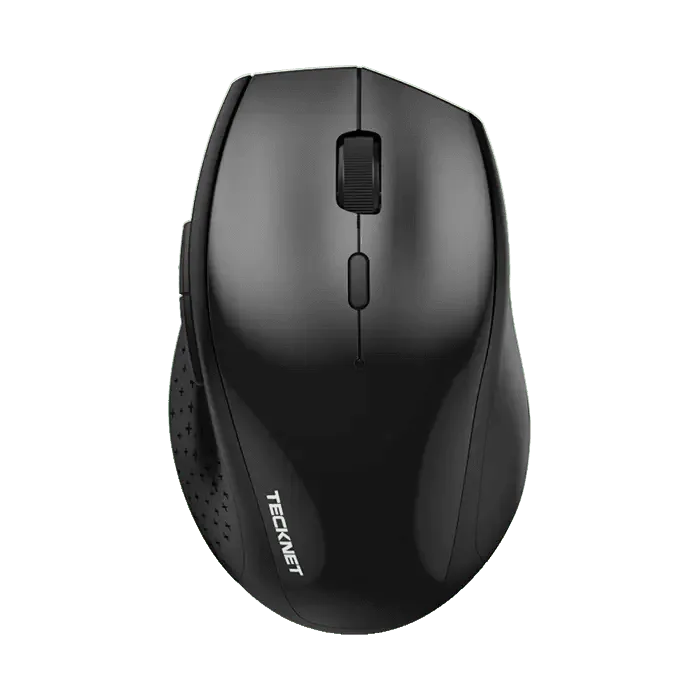
- TECKNET Classic 2.4G Wireless Silent Ergonomic Mouse EWM01002: 6 Levels Adjustable DPI & 6 Buttons: Features a 6-level adjustable DPI (up to 4800) for smooth, precise tracking on a wide range of surfaces. If you prefer a single 2.4GHz connection, this model offers similar DPI flexibility but no Bluetooth—so pairing is plug-and-play with the receiver.
Pairing a TECKNET tri-mode mouse is straightforward once you know the button holds and mode indicators. If you run into trouble, start with fresh batteries and a direct USB port—most issues trace back to those two things. With two Bluetooth channels and a 2.4GHz option, you can keep your mouse connected to three devices and switch with a single press.