Quick answer
Setting up a refurbished Amazon Fire HD 10 is straightforward: charge it, power on, connect to Wi-Fi, sign in to your Amazon account, and follow the on-screen prompts to customize settings and install apps.
Why setup differs for a refurbished model
A factory-renewed Fire HD 10 may arrive with a generic or no protective film, and the battery might be partially drained. Unlike a brand-new unit, you should check for cosmetic wear and verify that all accessories (charger, cable) are included. The setup process itself is identical to a new tablet, but taking a few extra minutes to inspect the device can save trouble later.
What you need before starting
Have your Amazon account credentials ready. You'll also need a Wi-Fi network and password. If you plan to set up parental controls or restrict content, know your Amazon Household settings in advance.
Step-by-step setup process
- Charge the tablet fully: Plug in the included charger and cable. Let it charge for at least 2–3 hours or until the battery icon shows a full charge. A partially charged battery can cause unexpected shutdowns during setup. Don't skip this step — a low battery mid-setup can interrupt the process and require a restart.
- Power on and select language: Press and hold the power button on the top edge until the Amazon logo appears. Swipe to begin, then choose your language and region. If the screen is unresponsive, try a forced restart by holding the power button for 20 seconds. If the tablet doesn't power on, it may need a longer charge or a reset — hold the power button for 20 seconds.
- Connect to Wi-Fi: Select your Wi-Fi network from the list and enter the password. A stable connection is required for the next steps. If you skip this, you won't be able to sign in to your Amazon account or download apps. Double-check the password — a wrong entry means you'll have to go back and re-enter it.
- Sign in to your Amazon account: Enter your Amazon email and password. This links the tablet to your digital content, including apps, books, and Alexa settings. If you don't have an account, you can create one on the same screen. Use the same account you use for other Amazon devices to keep your content synced.
- Configure parental controls (if needed): From the Settings menu, go to 'Parental Controls' and set a PIN. You can restrict access to content by age rating, block web browsing, and limit app purchases. This is especially useful if the tablet will be used by children. Write down the PIN somewhere safe — you'll need it to change restrictions later.
- Install essential apps and set up Alexa: Open the Amazon Appstore to download popular apps like Netflix, Facebook, or TikTok. To set up Alexa, go to Settings > Alexa and follow the voice-training prompts. You can also enable hands-free mode for voice commands. Some apps may not be available in the Amazon Appstore — check compatibility before relying on a specific app.
- Insert a microSD card for extra storage: If you bought a microSD card, insert it into the slot on the side of the tablet (use a SIM ejector tool or paperclip). The tablet will prompt you to format it as internal or portable storage. For most users, portable storage is simpler. Formatting as internal storage encrypts the card to that tablet — you won't be able to read it on another device.
Product facts
-
Amazon Fire HD 10 tablet, 10.1", 1080p Full HD, 32 GB, (2021 release), Black (factory renewed): The Fire HD 10 (2021 release) features a 10.1" Full HD display that's 20% brighter than the Samsung Galaxy Tab A8, with up to 12 hours of battery life and 32 GB internal storage expandable up to 1 TB. The bright screen is great for reading or watching video, and the expandable storage means you can add a microSD card later without buying a higher-capacity model upfront.
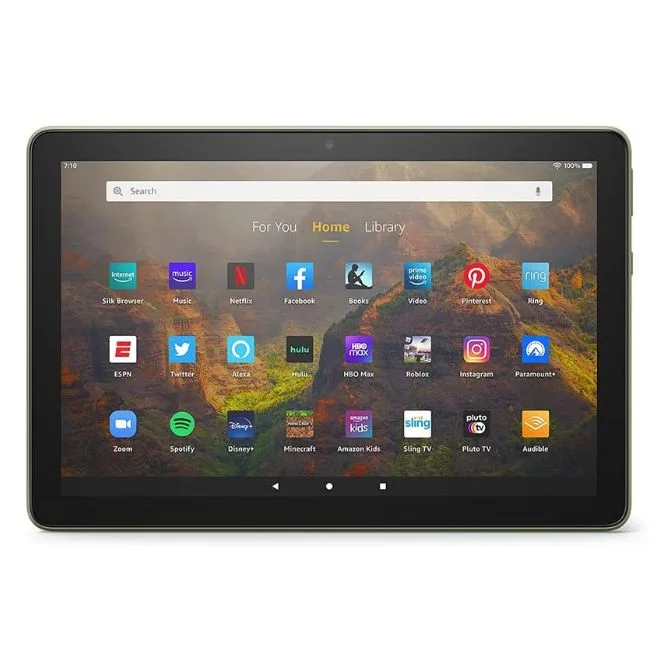
Amazon Fire HD 10 tablet, 10.1", 1080p Full HD, 32 GB, (2021 release), Black (factory renewed)