Quick answer
To set up your new 27-inch QD-OLED monitor, unbox carefully, connect the correct cable for your refresh rate, adjust OSD settings, and run a calibration tool for accurate colors.
Why QD-OLED setup differs from standard monitors
QD-OLED panels combine quantum dots with OLED technology for deep blacks, wide color gamut, and fast response times. However, they require specific handling: avoid touching the screen surface, use the correct cable to hit peak refresh rates, and adjust brightness to prevent burn-in over time. The MSI MAG 271QP, for example, reaches 280 Hz only via DisplayPort 1.4a, not HDMI 2.1.
Step-by-step setup guide
- Unbox and inspect: Lay the monitor box flat, cut tape, and lift the box off the foam. Remove the stand and attach it to the monitor using the included screws. Place the monitor on a clean, soft surface (like a microfiber cloth) to avoid scratching the screen. Never lift the monitor by the screen or remove the protective film before the stand is attached.
- Connect the correct cable: Use the included DisplayPort 1.4a cable for the highest refresh rate (280 Hz on the MSI MAG 271QP). If you must use HDMI, you are limited to 144 Hz at 1440p. Plug the cable firmly into both the monitor and your GPU. Check your GPU's ports: older cards may not support DisplayPort 1.4a; if so, you'll need an adapter or a new GPU.
- Power on and set OSD language: Connect the power adapter, press the joystick button on the back, and navigate to the OSD menu. Set your language and choose 'Gaming' or 'User' mode for the lowest input lag. Skipping this step leaves the monitor in 'Standard' mode, which adds latency for video processing.
- Enable the correct refresh rate in your OS: In Windows, go to Settings > Display > Advanced Display Settings and confirm the refresh rate is set to 280 Hz (or your monitor's maximum). On macOS, open System Preferences > Displays and hold Option while clicking the 'Refresh Rate' dropdown. If the option shows only 60 Hz, your cable or GPU port does not support the higher bandwidth. Try a different DisplayPort cable or port.
- Calibrate brightness and contrast: Set SDR brightness to around 120 nits for a balanced image (use a phone app as a rough meter). Set contrast to 50–60% to avoid clipping shadows. For HDR content, enable HDR in Windows and adjust the monitor's HDR brightness to '100' in the OSD. Running QD-OLED at full brightness all the time accelerates burn-in. Lower brightness when not gaming.
- Adjust color settings: Set the color temperature to 'Warm' (6500K) for the most accurate sRGB/DCI-P3 colors. If you prefer a cooler look, use 'Normal'. Avoid 'Cool' as it shifts colors blue. For the MSI MAG 271QP, set 'Color Gamut' to 'DCI-P3' for vivid gaming or 'sRGB' for web work. Leave 'Gamma' at 2.2 unless you calibrate with a hardware sensor; 2.2 matches most content.
- Run a pixel refresh cycle: After the first 4 hours of use, the MSI MAG 271QP will prompt a pixel refresh. Allow it to run (takes about 10 minutes) to realign the organic pixels. Do this monthly or after every 100 hours of use to prevent image retention. Skipping pixel refreshes can cause permanent burn-in. The monitor will remind you; do not ignore the prompt.
Monitor facts
-
27" MSI MAG 271QP QD-OLED X28 Monitor: The MSI MAG 271QP QD-OLED X28 has a 280 Hz refresh rate, 0.03 ms response time, and 99% DCI-P3 color gamut. This combination makes it ideal for competitive gaming with smooth motion and vibrant colors, but you need a DisplayPort 1.4a cable to unlock the full 280 Hz.
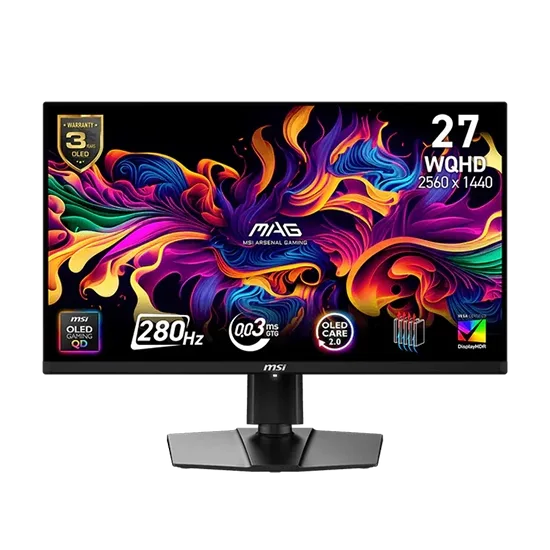
27" MSI MAG 271QP QD-OLED X28 Monitor