Quick Answer
To transfer ROMs and save files to your AISLPC retro handheld, power off the console, remove the microSD card, and connect it to your computer with an adapter. Copy your ROM files into the appropriate system folders (like 'roms/nes' or 'roms/snes') and save files into the designated save directory. Reinsert the card and power on to see your games.
Getting your favorite classic games onto your AISLPC retro handheld is easier than you might think. Most of these consoles run on Linux-based systems like EmuELEC or RetroMax OS, and they store games and saves on a microSD card. With a few simple steps, you can expand your library and keep your progress safe.
Whether you're upgrading from the included card or adding more storage, understanding how to manage files on your handheld will save you time and frustration. This guide walks through the entire process, from choosing the right microSD card to organizing your ROMs and backing up save files.
Understanding Your Console's File Structure
When you insert a microSD card into your AISLPC retro handheld, it creates a specific folder structure. Typically, you'll see folders like 'roms', 'bios', 'saves', and 'system'. Each system you emulate (NES, SNES, PS1, etc.) has its own subfolder under 'roms', such as 'roms/nes' or 'roms/psx'. Knowing this layout is crucial for placing files correctly.
Save files are usually stored in a separate 'saves' folder, often organized by system as well. Some systems also use save states, which are snapshots of your game at a specific moment. These are usually in a 'saves' or 'states' folder. If you're unsure, check your console's manual or the included README file on the card.
- Always power off the console before removing the microSD card to avoid data corruption.
- Use a card reader that supports the microSD capacity you have (128GB or more) to ensure proper reading.
Choosing the Right microSD Card
Your AISLPC handheld likely comes with a microSD card, but you may want more space for a larger game library. When choosing a card, look for one with high read/write speeds to ensure smooth gameplay and fast loading. A card with a speed class of U1 or higher is recommended.
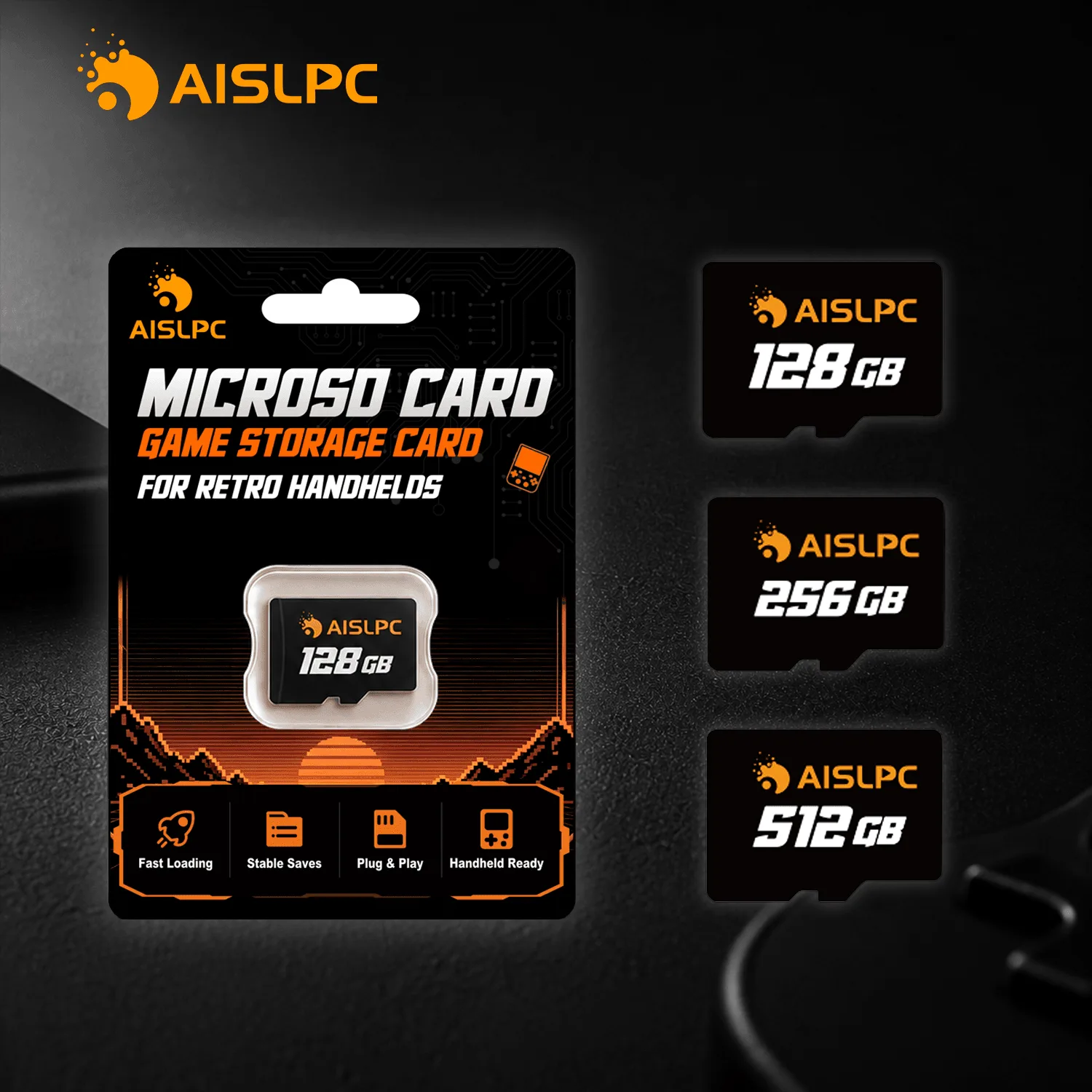
The AISLPC microSD TF Memory Card with Storage Case is designed specifically for retro handhelds and comes in capacities up to 512GB. It provides reliable performance and smooth data access, making it a solid choice for expanding your storage. The included storage case helps protect your card when not in use.
- Check your console's maximum supported capacity before buying a large card.
Backing Up Your Existing Data
Before you start moving files around, it's wise to back up the contents of your current microSD card. This ensures you don't lose any preloaded games or system files if something goes wrong. Simply copy the entire contents of the card to a folder on your computer.
If you're upgrading to a larger card, you can clone the old card to the new one using disk imaging software, or you can manually copy the files. Manual copying works well if you're just adding more ROMs, but cloning preserves the exact partition structure, which can be important for some systems.
- Keep a backup of your original card in a safe place in case you need to restore it later.
Step-by-Step: Transferring ROMs and Saves
- Power Off and Remove the Card: Turn off your AISLPC console completely, not just sleep mode. Locate the microSD card slot (usually on the side or bottom) and gently push the card in to eject it. Remove the card and place it on a safe surface. Checkpoint: Always power off to prevent data corruption. Never remove the card while the console is on.
- Connect the Card to Your Computer: Insert the microSD card into a card reader that connects to your computer via USB. If your computer has a built-in slot, use that. Wait for the card to appear as a removable drive in your file explorer. Checkpoint: If the card doesn't appear, try a different reader or check the card for damage.
- Locate the ROM Folders: Open the card's root directory and find the 'roms' folder. Inside, you'll see subfolders for each system (e.g., 'nes', 'snes', 'psx'). If a folder for your desired system doesn't exist, you can create one with the correct name (usually lowercase). Checkpoint: Ensure you use the correct folder names; otherwise, the console may not recognize the ROMs.
- Copy ROM Files: Copy your ROM files (usually .nes, .sfc, .iso, etc.) into the corresponding system folder. You can drag and drop or use copy-paste. Make sure to copy, not move, if you want to keep a backup on your computer. Checkpoint: After copying, safely eject the card from your computer before removing it.
- Handle Save Files: If you have existing save files from another device or emulator, place them in the appropriate 'saves' folder on the card. The file names usually match the ROM names, with extensions like .srm or .sav. If you're unsure, check the console's documentation. Checkpoint: Ensure save file names exactly match the ROM file names to avoid the console not recognizing them.
- Reinsert and Test: Insert the microSD card back into your AISLPC console, power it on, and navigate to the game library. Your new ROMs should appear in the list. Launch a game to confirm it loads correctly, and test loading a save if you transferred any. Final Check: If games don't appear, double-check folder names and file formats. If saves don't load, verify file compatibility and naming.
Product Facts
- AISLPC microSD TF Memory Card with Storage Case for Retro Handheld Consoles 128GB 256GB 512GB: This high-speed storage card provides reliable performance, smooth data access, and extra space for your games, system files, applications, and personal media. A reliable microSD card ensures your ROMs load quickly and your save files are written without errors, reducing the risk of corruption during gameplay.
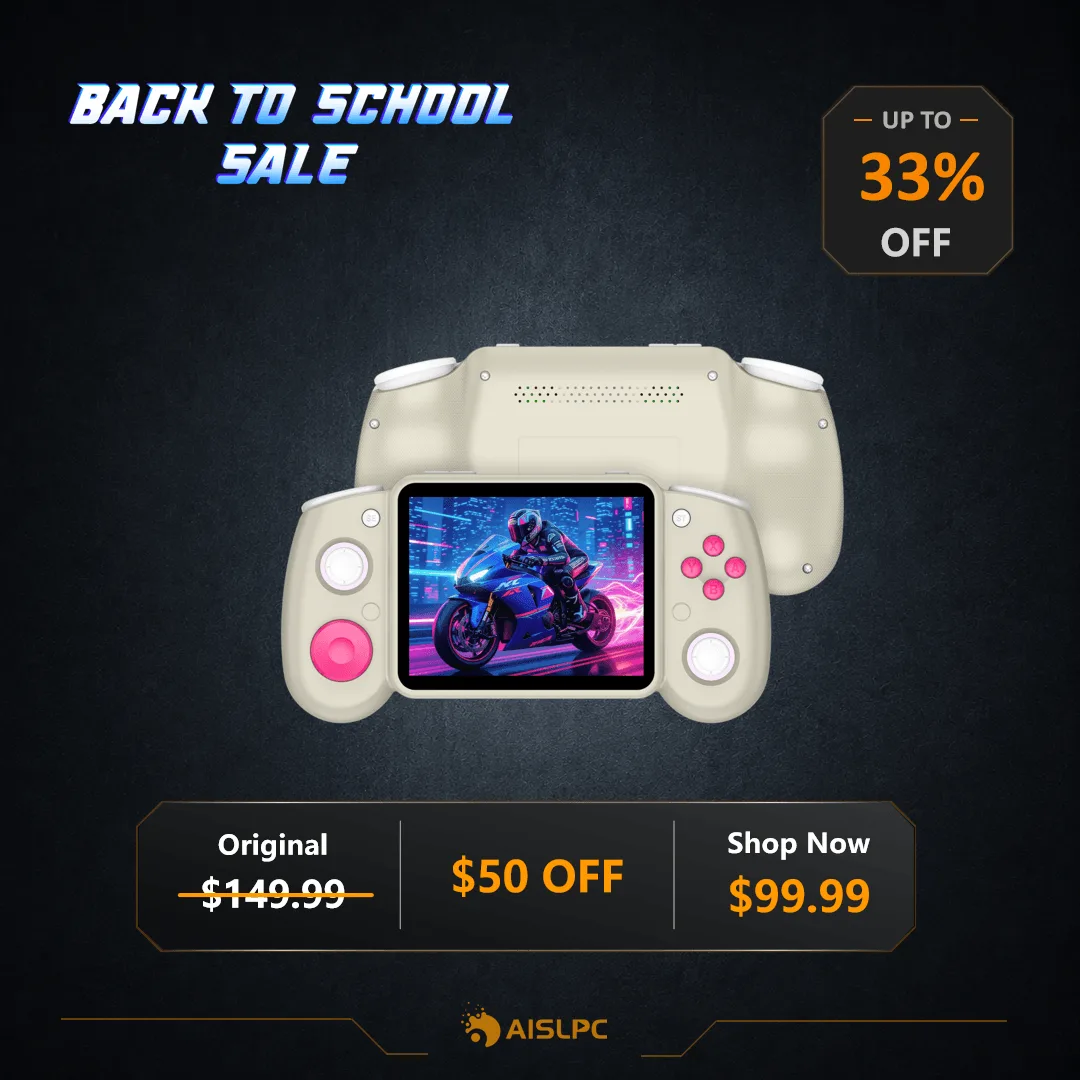
- AISLPC® - RG43H PRO Retro Handheld Game Console: Powered by a Rockchip RK3562 quad-core (2.0GHz) processor for smooth and stable gameplay. Features a 4.3-inch IPS display (1024×768) with clear visuals and vibrant colors. A powerful processor and crisp display make it easier to navigate your game library and enjoy the transferred ROMs without lag or visual issues.
Transferring ROMs and save files to your AISLPC retro handheld is a straightforward process once you understand the folder structure. By using a reliable microSD card and following these steps, you can expand your game library and keep your progress safe. Always remember to power off before removing the card and keep backups of your data.