Quick Answer
To calibrate a flight stick for Microsoft Flight Simulator, first run Windows' built-in game controller calibration to set center and axes, then fine-tune sensitivity and dead zones inside MSFS for each control binding.
Why Calibration Matters
Even premium flight sticks like the Thrustmaster HOTAS Warthog or MOZA MTP Throttle Panel can drift or have uneven axis response out of the box. The Warthog uses Hall Effect sensors that don't wear out, but Windows may still map its full range incorrectly. The MOZA MTP Throttle, with its 15-bit magnetic encoder, offers high precision, but without proper calibration you won't feel the difference. Calibration ensures your physical inputs match what MSFS expects, giving you smooth, predictable control during critical maneuvers.
Step-by-Step Calibration Process
- 1. Open Windows Game Controller Settings: Press Windows + R, type 'joy.cpl', and press Enter. Select your flight stick from the list and click 'Properties'. Go to the 'Settings' tab and click 'Calibrate' to launch the Windows calibration wizard. If your stick doesn't appear, check the USB connection or try a different port.
- 2. Run the Windows Calibration Wizard: Follow the on-screen prompts: move each axis (X, Y, Z rotation, throttle) through its full range of motion. The wizard sets the center point and end stops. For throttles like the MOZA MTP, make sure to move the lever from idle to full repeatedly. Do not skip the Z-axis (rudder) calibration if your stick has twist – a common cause of unwanted yaw.
- 3. Launch MSFS and Open Controls Settings: Start Microsoft Flight Simulator, go to Options > Controls. Select your flight stick from the device list. Click on any axis binding (e.g., 'Aileron Axis') and press 'Edit'. MSFS may auto-detect your stick, but always verify the device name matches your hardware.
- 4. Adjust Sensitivity and Dead Zones: In the axis edit window, set 'Sensitivity' to a lower value (e.g., -50%) for smoother response, and increase 'Dead Zone' (e.g., 5-10%) to eliminate any center jitter. For the MOZA MTP Throttle, you may want a larger dead zone at idle to prevent accidental thrust changes. Too much dead zone reduces fine control; too little causes twitchy inputs. Test with a short flight.
- 5. Test and Iterate: Return to the cockpit and watch the control indicator (or use the 'Controls' screen's live axis display). Move the stick slowly – the indicator should follow smoothly without jumps. If you see erratic movement, increase dead zone or check for interference from other USB devices. If the indicator shows full deflection when you're only halfway, re-run Windows calibration to correct the axis range.
Hardware Spotlight
-
Thrustmaster HOTAS Warthog™ Flight Stick (PC): H.E.A.R.T Hall Effect AccuRate Technology with 3D magnetic sensors (Hall Effect) provides surgical precision that won’t decrease over time; 16-bit resolution. This means the stick's accuracy remains consistent, but calibration still fine-tunes the center point and end stops so MSFS reads every subtle input correctly.
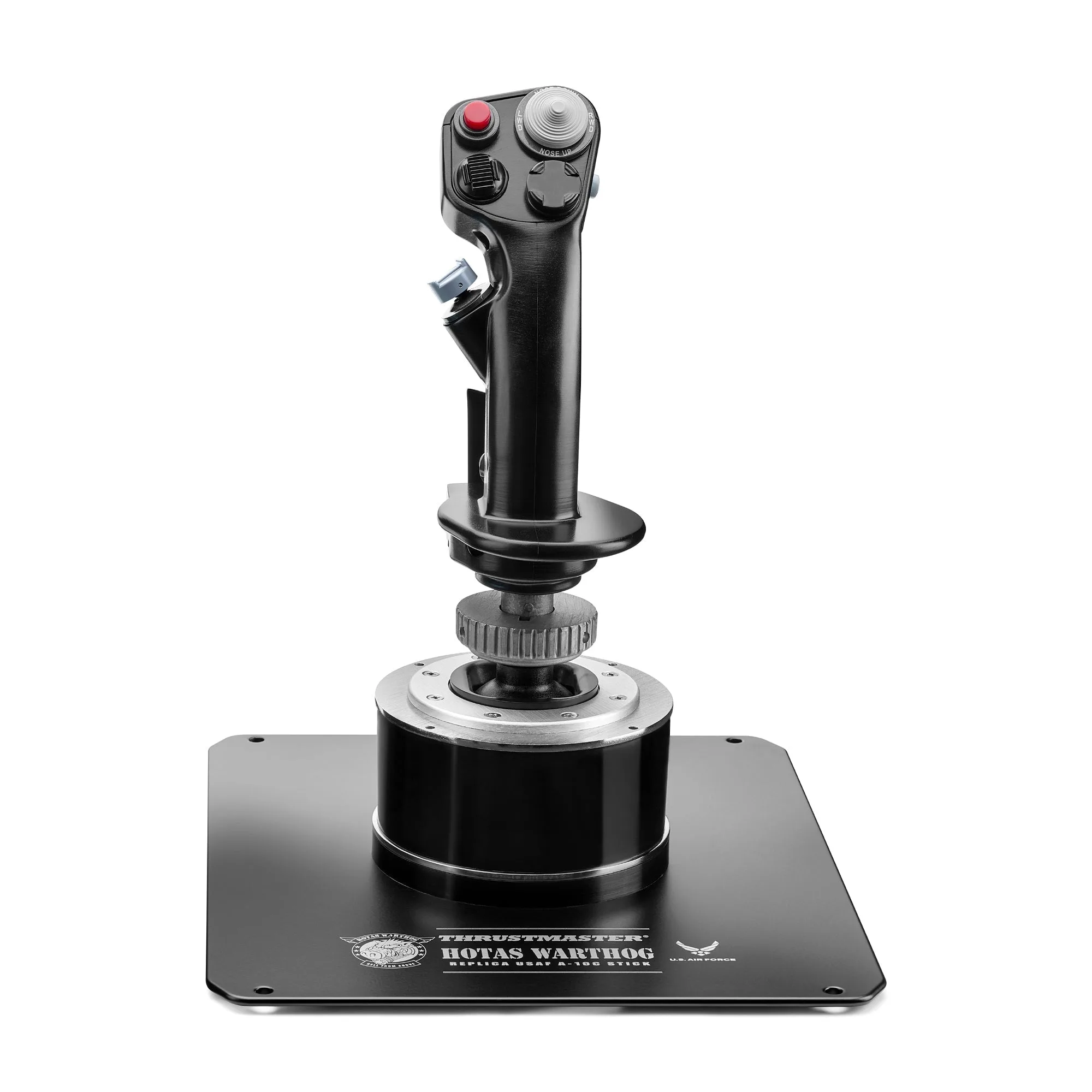
Thrustmaster HOTAS Warthog™ Flight Stick (PC)
-
MOZA MTP Throttle Panel: Built-in vibration feedback enhances immersion by simulating real-world flight effects, while the 15-bit magnetic encoder and Hall-effect sensors ensure accurate throttle positioning. The high-resolution encoder gives you smooth throttle control, but calibration ensures the detent positions and full travel range are recognized by MSFS without jitter.
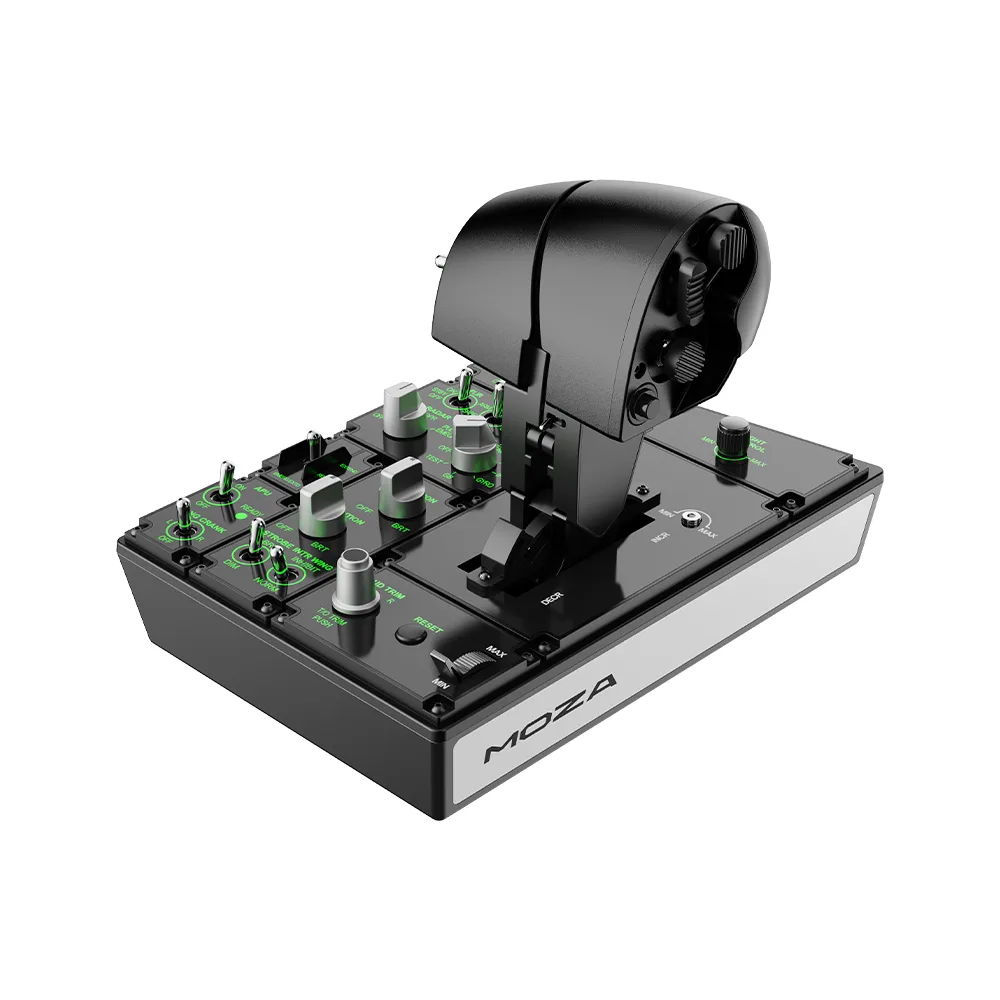
MOZA MTP Throttle Panel