Quick Answer
Connect the EPOMAKER EK21 via USB or Bluetooth, then use VIA software to remap keys into macros for shortcuts, media, or app launchers.
Why Use the EK21 as a Macro Pad?
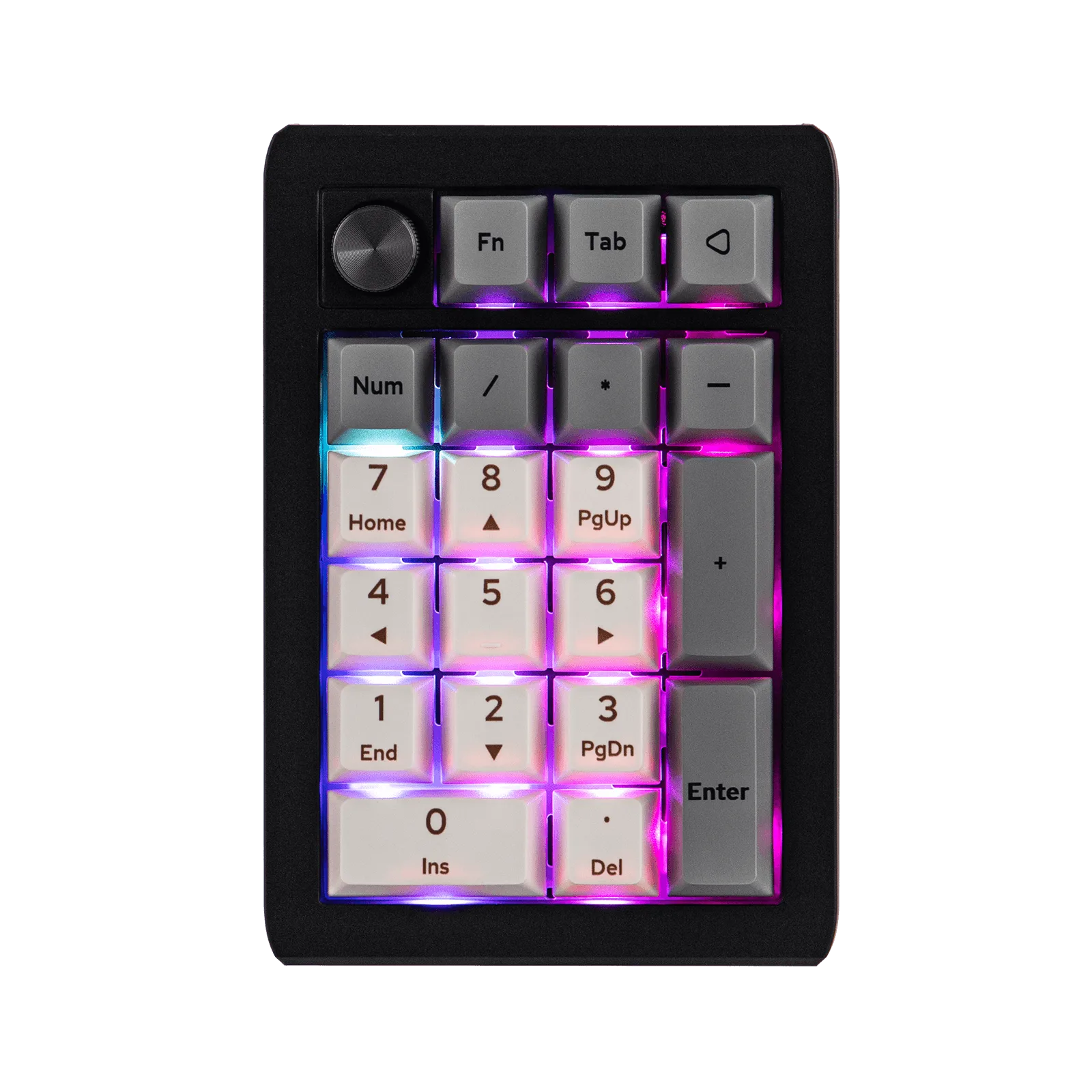
A dedicated macro pad keeps your main keyboard free for typing while giving you instant access to repetitive commands. The EK21’s 20 keys and aluminum knob can handle shortcuts for video editing, gaming, or office tasks without cluttering your desk.
Because the EK21 supports VIA remapping, you can assign any key or combination to a single press. This flexibility makes it useful for both beginners and advanced users who want custom workflows.
Wired vs. Wireless: Which Mode to Choose?
For the lowest latency and most reliable connection during macro use, wired USB is recommended. The EK21 connects via USB-C and is recognized immediately by VIA. Wireless Bluetooth is convenient for reducing cable clutter, but may introduce slight delay and requires battery management. If you plan to move the pad between desks or use it with a tablet, Bluetooth works well; for competitive gaming or fast data entry, stick with wired.
Step-by-Step: Connect and Configure the EK21 as a Macro Pad
- 1. Power On and Choose Connection Mode: Slide the power switch on the side of the EK21 to ON. For wired mode, plug the USB-C cable into your computer. For Bluetooth, press and hold the Bluetooth button until the indicator blinks, then pair it in your system settings. Make sure the battery is charged if using Bluetooth; a low battery can cause disconnections during macro playback.
- 2. Download and Open VIA Software: Go to usevia.app and download the VIA app for your OS. Open it and wait for it to detect your EK21. If the pad isn’t recognized, try a different USB port or restart the app. If VIA doesn’t detect the EK21, check that the pad is in wired mode and that you’re using a data-capable USB cable (not a charge-only cable).
- 3. Remap Keys to Macros: In VIA, click the key you want to change, then select a macro from the right panel. You can record key sequences (e.g., Ctrl+C, then Ctrl+V) or assign media controls, app shortcuts, or text snippets. Repeat for each key. Don’t forget to assign the knob to volume or zoom. A common mistake is assigning too many macros at once. Start with 3–5 essential shortcuts to test stability before building a full layout.
- 4. Save and Test Your Layout: After remapping, press the keys to verify each macro works. Use the “Save” button in VIA to store the layout to the EK21’s onboard memory. This ensures your macros persist even after unplugging or switching devices. If a macro doesn’t trigger, double-check that the key isn’t still set to its default function. Use VIA’s “Key Tester” tab to confirm keypresses are registered.
Product Highlight
-
EPOMAKER EK21: The EK21 features a VIA-compatible gasket-mounted design with 20 keys and an aluminum alloy knob. VIA support means you can remap every key and the knob to any macro or shortcut without flashing firmware, making setup fast and flexible.
EPOMAKER EK21